Enabling the Add Note Button
How to turn on Add Note for a custom type or workflow, and set who is notified when a note is added.
Contents
- 1. Introduction & Context
- 2. Key Features & Functions
- 3. Requirements
- 4. Step-by-Step Guide
- 5. Common Issues & Troubleshooting
- 6. Related Articles
1. Introduction & Context
The Add Note button lets users record comments or updates directly on a record, so teams can document discussions or progress without editing the record's fields. It can be enabled for a custom type, or for a specific workflow status, by a System Administrator.
Who is it for? System Administrators enabling the feature. Once on, the Add Note button is available to users with update access to the record.
What does it impact? Notes are a record of comments, not an edit to the record's fields. Notes added through a workflow transition are also added to the record's activity stream, and you can set who is emailed when a note is added.
2. Key Features & Functions
- Notes without editing fields: record comments or updates on a record, separate from its data.
- Two ways to enable: turn Add Note on for a whole custom type, or capture notes at a specific workflow transition.
- Activity stream: a note captured at a workflow transition is added to the record's activity stream.
- Email notifications: choose which roles and users are notified when a note is added.
3. Requirements
- You must be a System Administrator to enable the feature.
- Users need update access to the record to see the Add Note button.
- The custom-type button works when there is no active workflow on that custom type. If there is one, enable notes on the workflow transition instead.
4. Step-by-Step Guide
Enable Add Note on a custom type
- Go to Admin > Custom Type.
- Select the relevant type, for example Action.
- In the Settings section under Properties, make sure Enable Add Note Button is toggled on.

Toggle on Enable Add Note Button in the custom type's Properties.
When enabled, the Add Note button is available to all users with update access, provided there is no active workflow on that custom type.
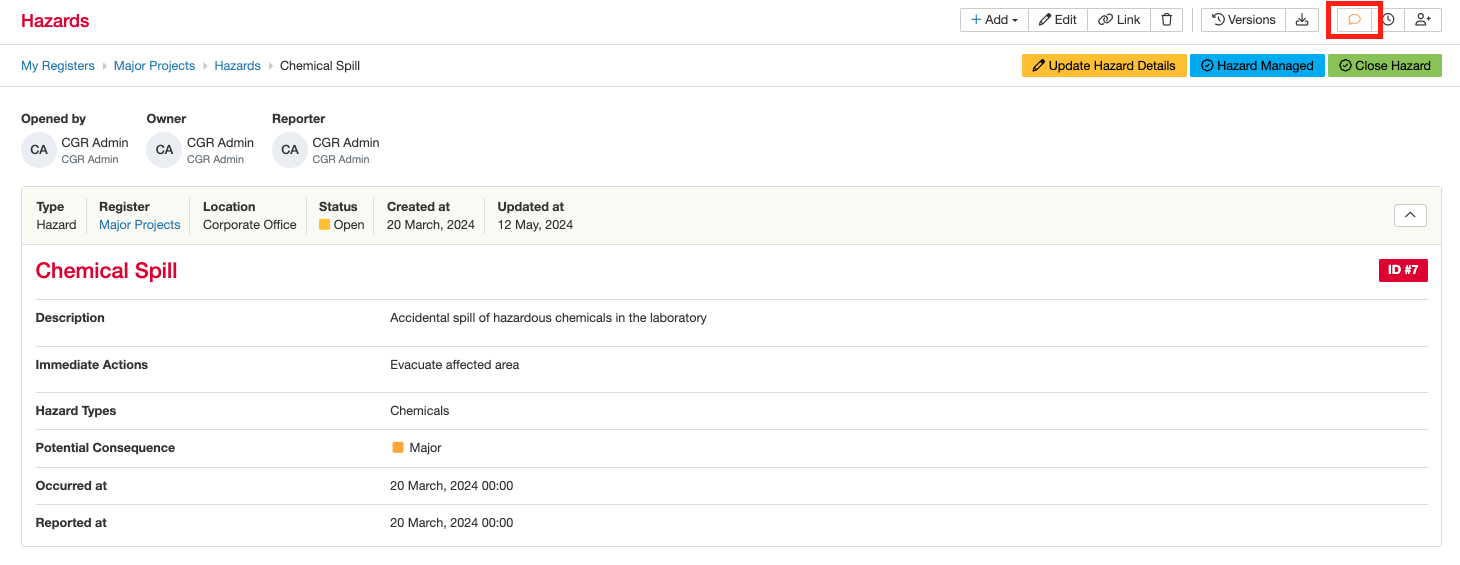
The Add Note button on a record.
Enable Add Note on a workflow transition
- Go to Admin > Workflow.
- Open the relevant workflow type, for example Hazard, and select the transition where you want to capture notes.
- Scroll down to the confirmation section and set Confirm Transition to Yes. You can then choose whether the Notes field shows on the transition, marked as Required, Optional, or Disabled.
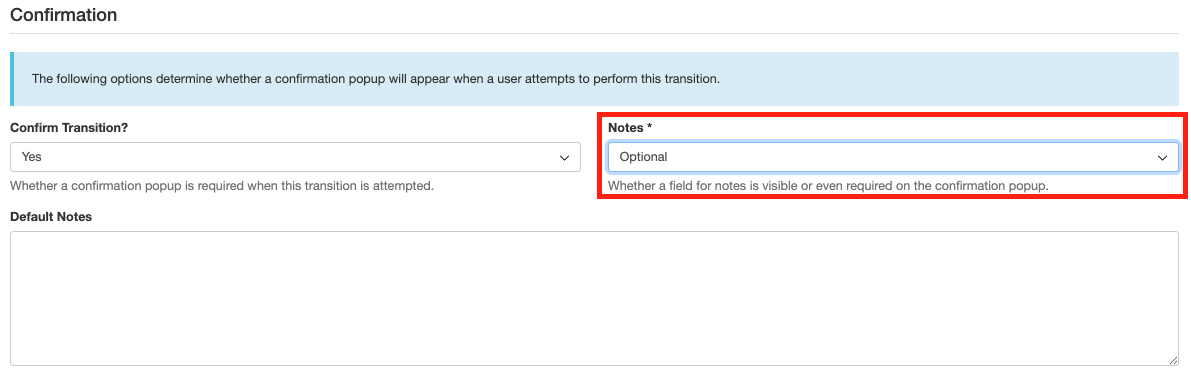
Set Confirm Transition to Yes, then choose how the Notes field appears.
When enabled, the Notes field captures notes or comments from the workflow transition and adds them to the activity stream.
Choose who is notified
You can configure who receives an email when a note is added, using these settings:
| Setting | What it does |
| Show Extra Email Recipients (Roles) | Lets people choose additional roles to notify. |
| Show Extra Email Recipients (Users) | Lets people choose additional users to notify. |
| Recipients (Roles) | Automatically notifies all users in the listed roles when a note is added to an item they can view. |
| Recipients (Users) | Automatically notifies the listed users when a note is added to an item they can view. |
Set the recipients in one of two places, matching how you enabled the feature.
Through the custom type:
- Go to Admin > Custom Types and select the relevant type.
- Scroll to the Add Note section, select the recipients, and click Save.
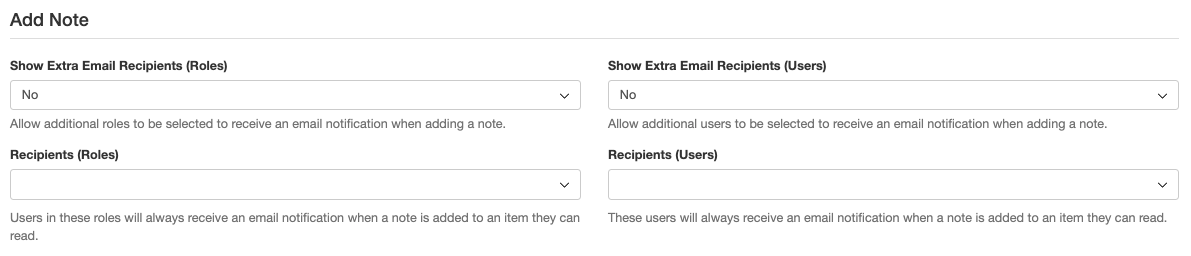
The Add Note recipients section on a custom type.
Through the workflow:
- Go to Admin > Workflows and select the relevant workflow.
- Click the hyperlinked status title to set up recipients for that workflow status.
- Select the recipients and click Save.
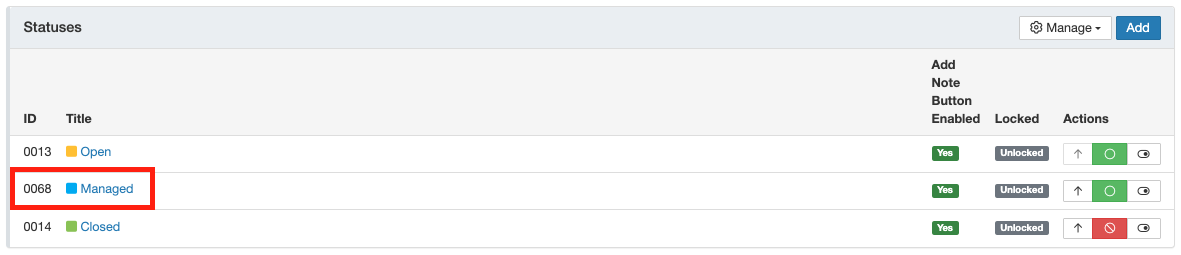
Click the status title to set recipients for that status.
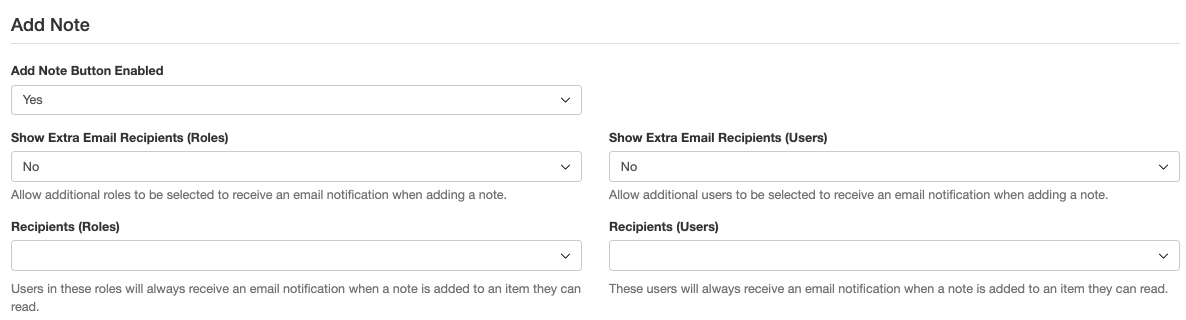
Select the recipients for the status, then save.
5. Common Issues & Troubleshooting
| Symptom | Cause and what to do |
| The Add Note button does not appear on a record. | The toggle may be off, the user may lack update access, or the custom type has an active workflow. With an active workflow, enable notes on the workflow transition instead. |
| The Notes field does not show on a workflow transition. | Confirm Transition is not set to Yes, or the Notes field is set to Disabled. Set Confirm Transition to Yes and the Notes field to Required or Optional. |
| No one is emailed when a note is added. | Recipients have not been set. Add roles or users in the Add Note recipients, on the custom type or the workflow status. |
▾Activity Stream Open full article »
Related article
How to customise the activity stream, where notes captured at a workflow transition appear.
▾Custom Type Open full article »
Related article
How a custom type is configured, including the Properties and Add Note settings used here.
Was this article helpful?
That’s Great!
Thank you for your feedback
Sorry! We couldn't be helpful
Thank you for your feedback
Feedback sent
We appreciate your effort and will try to fix the article