TABLE OF CONTENTS
Context
CGR has different options to send email notifications. These apply only to notifications scheduled through the Email Notifications, not triggered notifications.
CGR provides three delivery options:
- Receive Immediately: Sent at the scheduled date and time.
- Digest: Delivered as a combined summary with other notifications.
- Do Not Receive: Notifications are disabled for the selected item.
Important Note
- To change notification settings for a scheduled email notification, you must be a System Administrator.
- Users can adjust their own notification preferences to override the default setting for notifications they are already receiving.
How to change the notification settings as a system admin?
- Navigate to the admin area > Email Notifications.
- Select the relevant notification by clicking on the hyperlinked title or pencil icon.
- Scroll down to the section ‘Recipients’ and make your selections.

Field Impact Allow users to receive this notification in a digest Set to 'Yes' only if the notification is suitable for grouping in a digest. Default Preference Controls how the notification is received by default before any user changes their own settings.
Allow users to opt out of this notification When enabled, users can stop receiving this notification by updating their personal notification settings.
Note: When sending notifications as a digest, you must have digest notifications settings defined in the system settings. If you are unsure, ask another System Administrator or contact CGR Support.
You can also read the article on digest notifications to learn more about configuration and digest times.
How can users manage their own notification preferences?
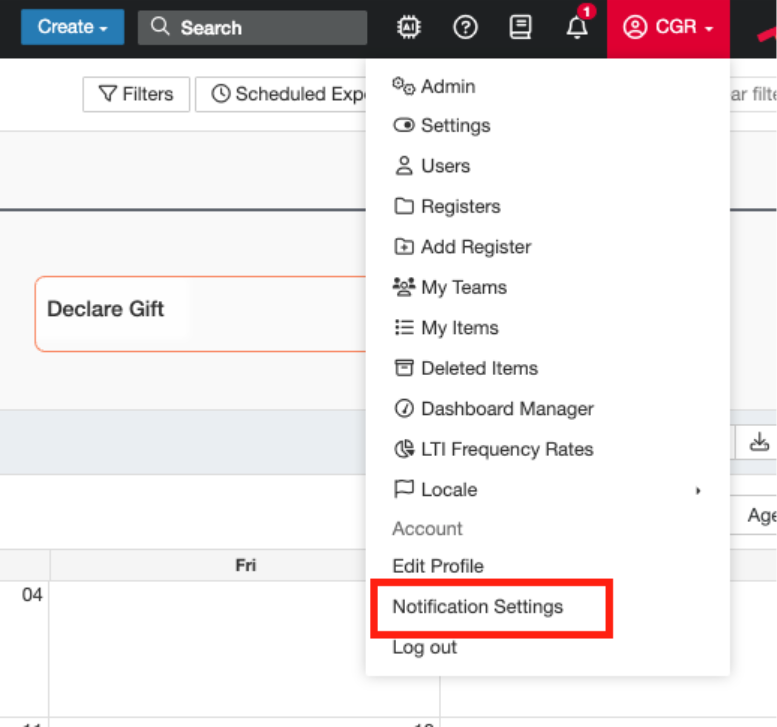
- Navigate to your name dropdown > Notification Settings.
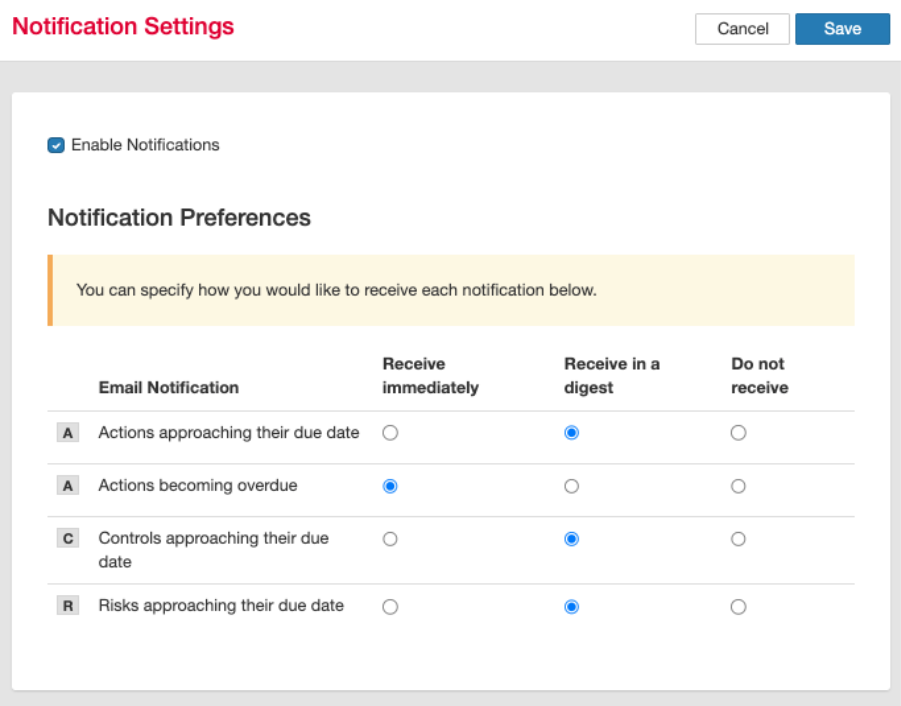
- Select the notification setting per notification through selecting the applicable radio button and save.
Was this article helpful?
That’s Great!
Thank you for your feedback
Sorry! We couldn't be helpful
Thank you for your feedback
Feedback sent
We appreciate your effort and will try to fix the article