How do I customise the Create menu (Quick Create)?
How a system administrator adds a one-click Create menu link
Contents
- 1. Introduction & Context
- 2. Key Features & Functions
- 3. Requirements
- 4. Step-by-Step Guide
- 5. Common Issues & Troubleshooting
- 6. Related Articles
1. Introduction & Context
The Quick Create feature lets you create records with a single click, without having to navigate to the respective list views. You configure which links appear in the Create menu under Admin, Links.
Who is it for? System administrators who set up the Create menu for their users.
2. Key Features & Functions
- One-click record creation: a Create menu link takes users straight to a form, without opening the list view first.
- Configured through Links: Create menu links are set up under Admin, Links, with the Link Type set to Create Menu.
- Customisable appearance and scope: you can set the title, icon, colour, position, whether it opens in a new tab, and which teams can see it.
3. Requirements
- System Administrator access is required to configure the Create menu.
- The URL of the form you want the link to open.
4. Step-by-Step Guide
Adding a Create menu link
- Navigate to Admin > Links.
- Click the Add button and fill in the form fields (see below).
| Field | Description |
| Title | Enter a title for the link. This is what the user sees in the Create menu button. |
| Link URL | Copy and paste the URL. |
| Link Type | Select Create Menu from the dropdown. |
| Position | Set the position in which this link should appear. |
| Project Scope | Scopes the page to the project with the /projects/:id in the URL. If Project Scope is enabled, the link keeps the project id in the URL and does not remove it when the user clicks the link. |
| Open in New Tab | Select Yes to open the form in a new tab. |
| Icon | Select an icon for the link. |
| Color | Choose the icon colour. |
| Teams | Only the selected teams can see the link in the Create menu. Leave blank to show it to all users. |
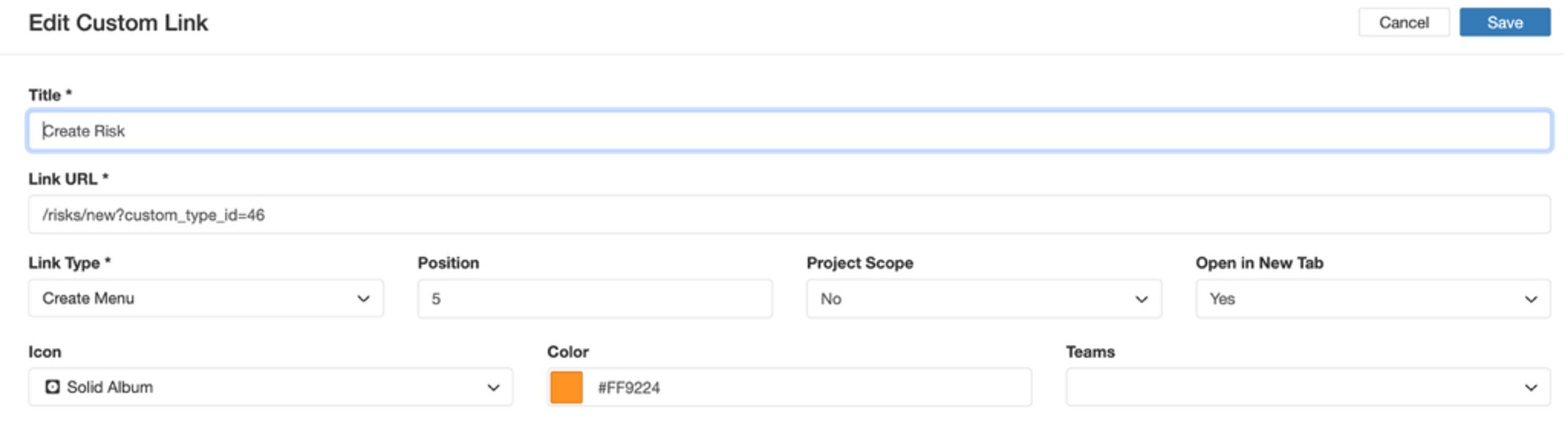
The Add link form, with the Create menu fields.
- Click Save.
5. Common Issues & Troubleshooting
| Issue | Likely Cause | Solution |
| The link does not appear in the Create menu | The Link Type is not set to Create Menu. | Edit the link and set Link Type to Create Menu, then save. |
| Some users cannot see the link | The link is restricted to specific teams. | Add those users' teams in the Teams field, or leave Teams blank to show it to everyone. |
| The link loses the project context | Project Scope is not enabled. | Enable Project Scope to keep the project id in the URL when the link is clicked. |
Click a title to preview it here. Use the Open full article button to read the full version in a new tab.
▾Links Open full article »
Related article
How links work in Clew, including the different link types.
Was this article helpful?
That’s Great!
Thank you for your feedback
Sorry! We couldn't be helpful
Thank you for your feedback
Feedback sent
We appreciate your effort and will try to fix the article