Understanding Risk Workshops
What a risk workshop is, how it works, and how to run one in the Clew Platform
Contents
- 1. Introduction & Context
- 2. Key Features & Functions
- 3. Requirements
- 4. Step-by-Step Guide
- 5. Common Issues & Troubleshooting
- 6. Related Articles
1. Introduction & Context
A risk workshop is a live review session, run inside the Clew Platform, where a facilitator and the relevant stakeholders work through a set of risks together and record the outcome of that discussion directly against each risk. Instead of taking notes in a separate document and updating the register afterwards, the discussion is captured as it happens, against the risks it relates to.
Who is it for? Risk owners, risk champions, and anyone who facilitates or attends periodic risk review sessions, such as a monthly operational risk review or an annual strategic risk workshop.
What does it impact? A workshop does not change a risk's ratings or controls by itself. It adds a Workshop Review note to each risk discussed, and updates that risk's workshop status so you can see which risks in the workshop have been reviewed and which are still pending.
For example, a Health and Safety Manager facilitating a quarterly risk review creates a workshop, links the risks due for review, runs the session with her team, and works through each risk in the Datagrid, adding a review note as the group discusses it. At the end, every risk in that workshop carries a timestamped record of what was discussed and by whom.
2. Key Features & Functions
- Workshop record: a record in its own right, with a Register, Location, Facilitator, and Owner, so it is clear who ran the session and which part of the business it covers.
- Linked risks: a workshop can contain risks created directly within it or existing risks linked in from the register, so you can bring together everything due for review in one place.
- Running and stopping: starting a workshop puts it into a live "running" state, shown by a persistent amber bar across the platform naming the workshop and its facilitator. This is what unlocks the review actions on its risks.
- Two ways to review risks: work through risks one at a time on the risk record, or use the workshop's Datagrid view to review several risks in a single list without opening each one.
- Workshop review notes: each risk you review gets a Workshop Review note capturing what was discussed, kept against that risk permanently.
- Review tracking: a Review Items banner on the workshop flags when risks are still pending review, and each risk's workshop status shows whether it has been covered yet, so nothing gets missed before the session ends.
3. Requirements
- Permission to create and access records in the Risk Workshops module.
- Permission to link risks to a workshop, and to update the risks you intend to review.
- A register for the workshop to sit under, and at least one risk to review, either created in the workshop or linked from an existing register.
4. Step-by-Step Guide
Creating a Workshop
- Go to the Risk Workshops module for the register the workshop belongs to.
- Click Add to create a new workshop record.
- Give the workshop a title, and set its Register, Location, Facilitator, and Owner.
- Save the workshop. It is created in a not-yet-running state, ready for risks to be added.
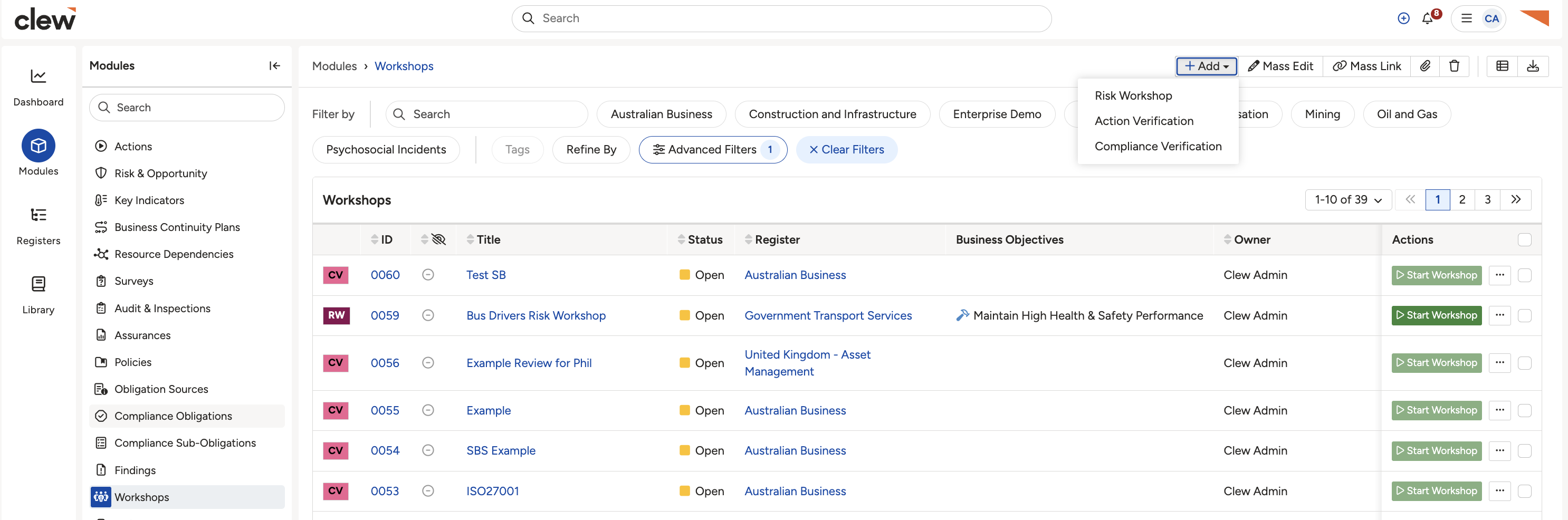
A new workshop record, created and ready for risks to be added.
Linking Risks to a Workshop
- On the workshop record, click Link to bring in one or more existing risks from a register.
- Alternatively, click Add from within the workshop to create a new risk directly inside it.
- Repeat until every risk you plan to review in the session is either linked or created in the workshop.
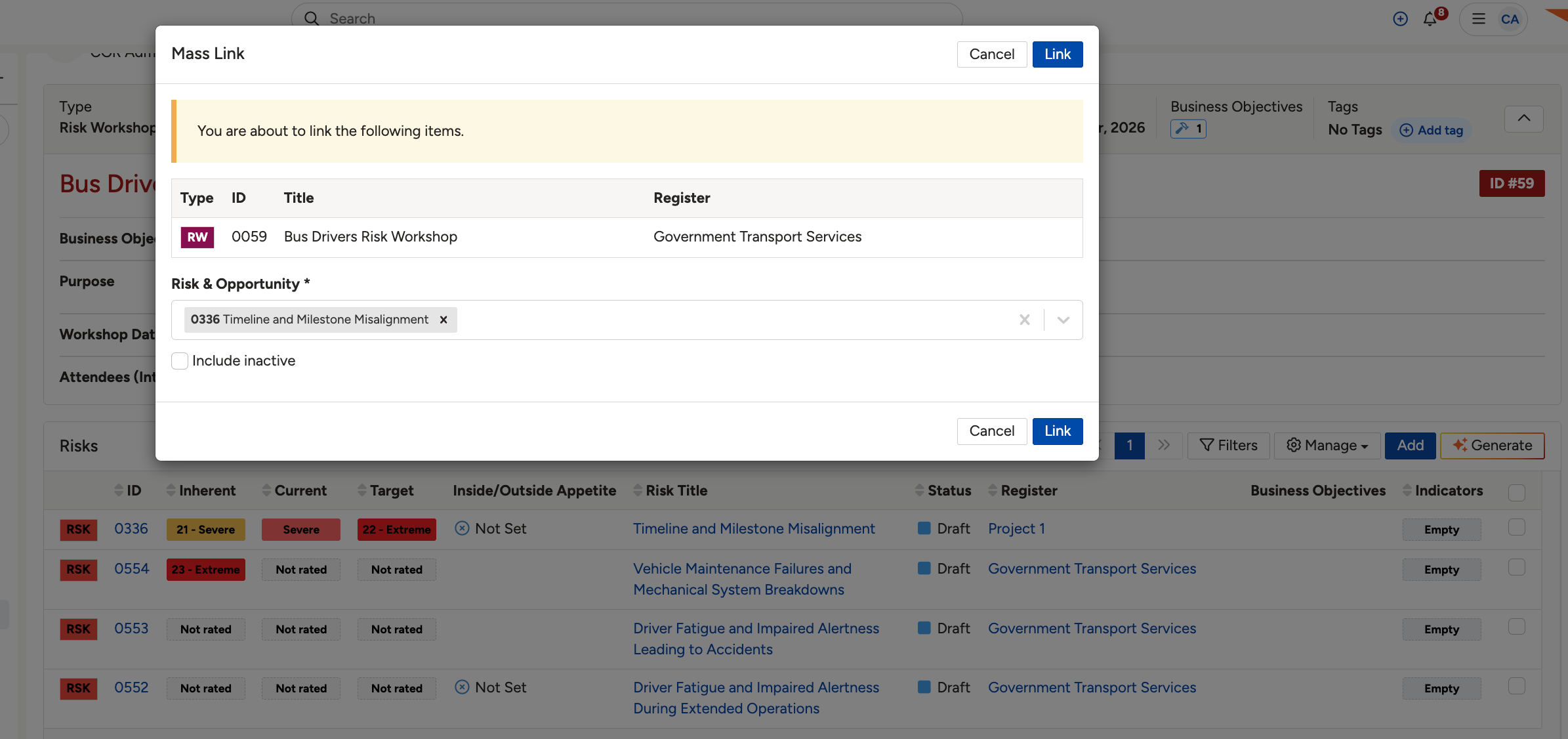
Linking an existing risk to a workshop from the register.
Running the Workshop
- Open the workshop record and click the green start button in the top right corner to begin the session.
- Once started, an amber bar appears below the main navigation bar on every page, naming the workshop and its facilitator, with a Stop Workshop button on the right. This confirms the workshop is live and stays visible while you move around the platform.
- Click Back to Workshop on the amber bar at any time to jump straight back to the workshop record.
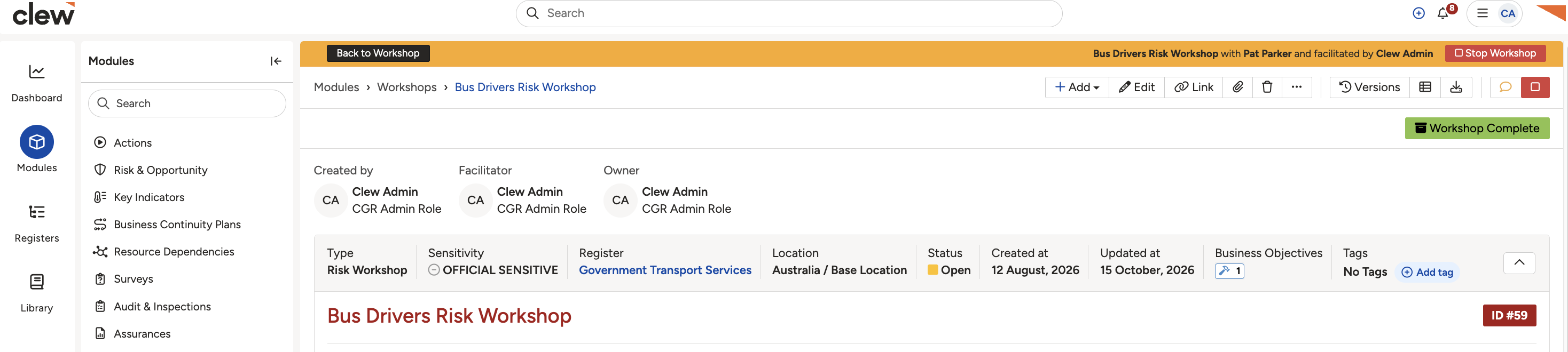
The amber bar shown across the platform while a workshop is running, with Back to Workshop and Stop Workshop buttons.
Reviewing Risks During the Workshop
With the workshop running, you can review its risks in either of two ways:
- Datagrid: click the Datagrid button in the workshop's toolbar to see all its risks in one list. Expand a risk with the chevron on the left of its row to reveal its Workshop Review field, and record your note there without leaving the list.
- Risk record: click a risk's title from the workshop to open it directly, then click the amber Workshop Review button in its top right toolbar and add your note in the pop-up box.
The Datagrid is quicker for working through several risks in sequence, while the risk record is useful when you want the full context of a single risk in front of you while discussing it. See How do I add a workshop review? in Related Articles for a detailed walkthrough of both.
Completing and Stopping the Workshop
- Check the Review Items banner on the workshop record. It flags any risks that are still pending review.
- Once every risk has been reviewed, click Workshop Complete to mark the session as finished.
- Click Stop Workshop on the amber bar to end the live session. The amber bar disappears from the platform once the workshop is stopped.
5. Common Issues & Troubleshooting
| Issue | Likely Cause | Solution |
| Cannot see the Workshop Review option on a risk | The workshop has not been started, or has already been stopped. | Check for the amber running bar. If it is not showing, open the workshop and click the green start button. |
| A risk is missing from the workshop's Datagrid | The risk has not been linked to, or created in, this workshop. | Open the workshop and use Link to add the existing risk, or Add to create it there. |
| Cannot mark the workshop complete | One or more risks are still flagged as pending review. | Check the Review Items banner for outstanding risks and add a Workshop Review note to each before completing. |
| The amber running bar is not showing for a workshop you expect to be live | Someone has already stopped the workshop, or it was never started. | Check the workshop record's status with the facilitator, and restart it if the session is still going ahead. |
Best practices:
- Link or create all the risks you plan to discuss before starting the workshop, so nothing is missed once the session is underway.
- Use the Datagrid when you have several risks to work through quickly, and the individual risk record when a discussion needs more detail or context.
- Check the Review Items banner before ending the session, so every risk carries a review note by the time the workshop is stopped.
- Nominate a single facilitator to run the workshop, so it is clear who owns starting, reviewing, and stopping the session.
Click a title to preview it here. Use the Open full article button to read the full version in a new tab.
▾How do I add a workshop review? Open full article »
Related article
A detailed walkthrough of adding a Workshop Review note from the Datagrid or the risk record.
▾What are the different types of workshops? Open full article »
Related article
The different types of workshops available.
Was this article helpful?
That’s Great!
Thank you for your feedback
Sorry! We couldn't be helpful
Thank you for your feedback
Feedback sent
We appreciate your effort and will try to fix the article