What Determines the Outcome of a Survey?
How a survey response gets its outcome, from the default pass and fail through to custom and rule-based outcomes.
Contents
- 1. Introduction & Context
- 2. Key Features & Functions
- 3. Requirements
- 4. Step-by-Step Guide
- 5. Common Issues & Troubleshooting
- 6. Related Articles
1. Introduction & Context
When a survey is scored, every response is given an outcome: the result recorded against that response once it is submitted. By default the outcome is Pass, Fail, or No Outcome, but you can replace those with your own custom outcomes and decide how each response earns one.
Every survey that has scoring enabled produces a response with one of three default outcomes:
- Pass – the response met the passing criteria.
- Fail – the response did not meet the passing criteria.
- No Outcome – no pass or fail criteria have been set, or the criteria could not be evaluated.
Who is it for? Anyone reviewing survey responses who needs to understand how the result was reached, and the system administrators who set up outcomes on a survey.
What does it impact? The outcome is recorded against the response and shown on it. Where a survey is linked to another record, the same outcome appears in that record's survey results.
2. Key Features & Functions
- Default outcomes: Pass shows as a green label, Fail as a red label, and No Outcome as a grey label.
- Custom outcomes: instead of just Pass and Fail, administrators can create their own outcome records with a custom title, colour and icon, for example "Needs Improvement", "Acceptable" and "Excellent". Custom outcomes show with their own colour and icon in place of the default labels.
- Rule-based outcomes: a specific condition, such as a user selecting a particular option, triggers a specific outcome.
- Shown on the response: the outcome appears with its colour and icon in the top right of the survey response view.
3. Requirements
- Scoring must be enabled on the survey. A survey with no scoring has no pass or fail criteria to evaluate, so its responses show No Outcome.
- Administrator access to create custom outcomes, which are set up in Admin.
- Scores set on the answer choices of your multiple choice questions, since outcomes are worked out from those scores.
4. Step-by-Step Guide
Define custom outcomes
Create your custom outcomes first. Once they exist, they are available to select wherever an outcome is configured on a survey.
- Go to Admin > Lookups and open the Survey Outcomes tab.
- Add an outcome, giving it a title, a colour and an icon.
- Save. Any outcome added here appears automatically in the Outcome dropdowns in Survey Builds, in place of the standard pass and fail options, wherever an outcome meets the rules defined for that survey.
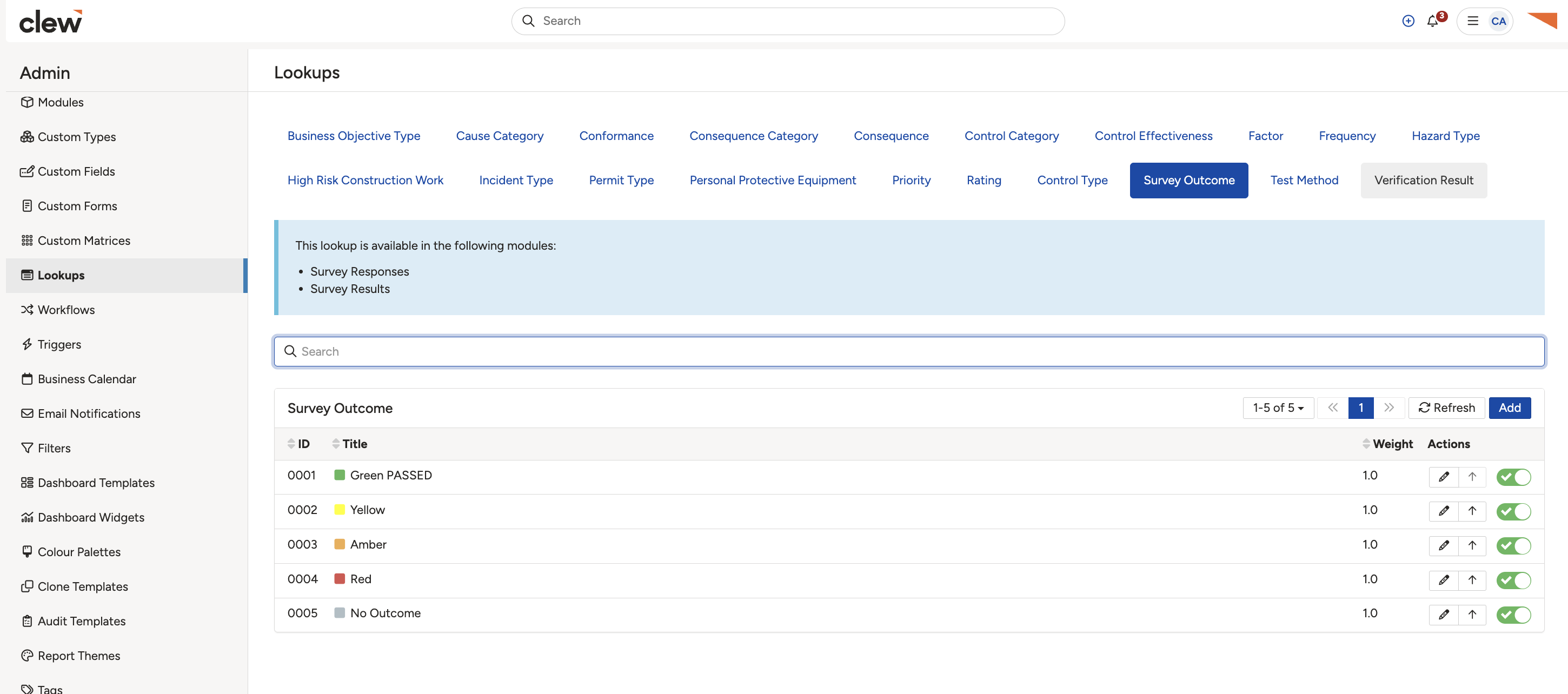
The Survey Outcomes tab under Admin > Lookups, where custom outcomes are created.
Configure rule-based outcomes
A rule-based outcome links a user's selection or a condition, such as choosing a certain option, to a custom outcome, so the system shows that outcome instead of the default pass or fail. Create your custom outcomes first, then:
- Open the relevant Survey Build, scroll to the bottom, and expand the Rules section.
- Select Add Rule, give the rule a name, and define the conditions that should trigger an outcome.
- Expand the Results section, choose Add Result, and select the outcome that corresponds to the rule's conditions.
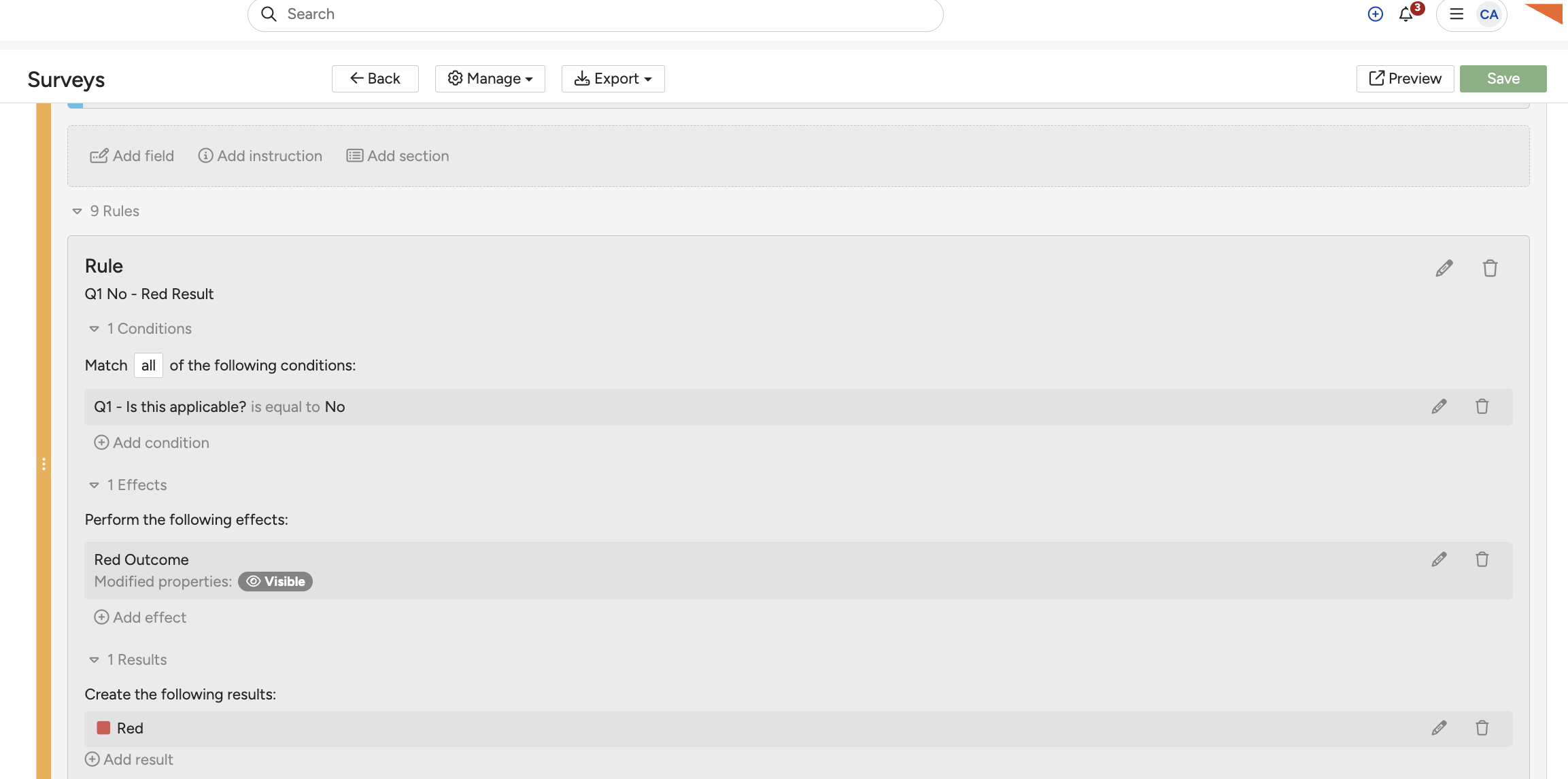
The Rules and Results sections of a Survey Build, where a condition is linked to an outcome.
5. Common Issues & Troubleshooting
| Issue | Likely Cause | Solution |
| No outcome appears even though the rules are satisfied. | More than one rule produced a result with a different outcome, so there is no single outcome for the response. | This is expected. Each rule result keeps its own outcome so criteria can be tracked independently. For one survey outcome, set the rules so only one applies to a given response. |
| The response shows No Outcome. | No pass or fail criteria have been set, or the criteria could not be evaluated. | Confirm scoring is enabled and that the survey has a pass mark or rules defined. |
| Custom outcomes are not in the Outcome dropdown. | They have not been created in Admin > Lookups > Survey Outcomes. | Create the outcomes there first. They then appear automatically for selection in Survey Builds. |
| Two responses with the same score show different colours. | The colour comes from the outcome, not the score. A response with no pass or fail criteria to evaluate shows grey (No Outcome), while one that met the criteria shows green, even at the same score. Custom outcomes use their own colours. | This is expected. Read the colour from the response's outcome rather than its score. |
Best practices:
- Create your custom outcomes in Admin before building the survey, so they are ready to select.
- If you want a single clear outcome on each response, design your rules so only one applies at a time.
- Submit a test response before going live, to confirm the outcome you expect is the one recorded.
Awaiting live article URLs. Intended entries: Surveys (building and scoring a survey), and Responding to a Survey.
Was this article helpful?
That’s Great!
Thank you for your feedback
Sorry! We couldn't be helpful
Thank you for your feedback
Feedback sent
We appreciate your effort and will try to fix the article