Indicator Thresholds
How to set lower and upper threshold ranges and assign outcomes to an indicator
Contents
- 1. Introduction & Context
- 2. Key Features & Functions
- 3. Requirements
- 4. Step-by-Step Guide
- 5. Common Issues & Troubleshooting
- 6. Related Articles
1. Introduction & Context
Indicator thresholds let you turn a numeric response to an indicator into a plain-language outcome, such as OK, Attention or Issue, so your team can see at a glance whether a result needs attention.
Who is it for? Indicator owners and system administrators who create and configure indicators, and anyone who reviews indicator results and needs to understand why a response was assigned a particular outcome.
What does it impact? Thresholds control which outcome is displayed against every response submitted for an indicator. They do not change the numeric value a user enters, only how that value is interpreted and displayed.
2. Key Features & Functions
- Threshold ranges: define a lower and upper limit for each outcome band on an indicator.
- Inclusive and exclusive boundaries: the lower value of a band is inclusive and the upper value is exclusive, so bands sit next to each other without overlapping.
- Unbounded ranges: leave the lower value blank on the first band, or the upper value blank on the last band, so every possible response has a matching outcome.
- Linked outcomes: each band is assigned an outcome managed centrally in Admin > Outcomes, so the same set of outcomes (title, colour and icon) can be reused across multiple indicators.
- Automatic outcome assignment: when a user submits a response, Clew checks it against the threshold bands and displays the matching outcome automatically.
3. Requirements
- Create permission on indicators, to add a new indicator.
- Update permission on indicators, to add or edit thresholds.
- System administrator access, to create or edit outcome values in Admin > Outcomes.
- At least one outcome must already exist in Admin > Outcomes before it can be assigned to a threshold.
- Access to a staging environment is recommended, so new thresholds can be tested before they are relied on in production.
4. Step-by-Step Guide
Setting Up Outcomes (Admin)
Outcomes are the values a threshold can display, such as OK, Attention or Issue. They are managed centrally, separately from any single indicator.
- Go to Admin > Outcomes. This requires system administrator access.
- Review the existing outcomes. These are the values you can assign to a threshold band.
- To add a new outcome, click Add, then give it a title, choose a colour and choose an icon.
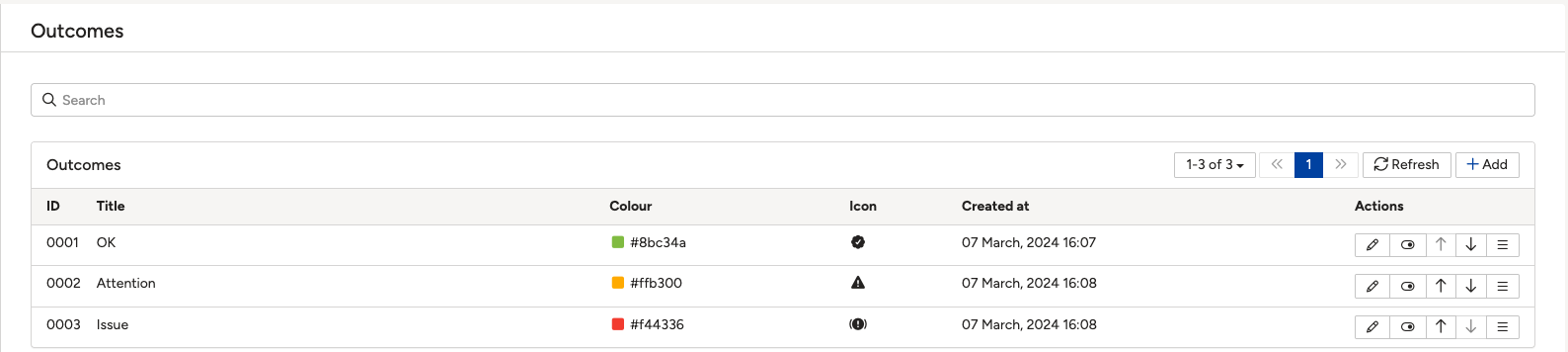
The Outcomes section in Admin, showing the list of available outcome values with their colours and icons.
Adding Thresholds to an Indicator
- Go to the Indicators module.
- Add a new indicator, or open an existing indicator you want to configure.
- On the indicator form, find the Thresholds panel.
- Click Add Thresholds to create the first available line.
- Set the Lower value for the band. Lower thresholds are inclusive, so a response equal to this value falls into this band. Leave this field blank on the first band to make it unbounded, so it captures every value below the next band's upper limit.
- Set the Upper value for the band. Upper thresholds are exclusive, so a response equal to this value falls into the next band instead.
- Assign an Outcome to the band from the values set up in Admin > Outcomes.
- Click Add again to create further bands, repeating the previous three steps for each one. Leave the Upper value blank on the final band to make it unbounded, so it captures every value from its lower limit upward.
- Click Save once all bands are configured.
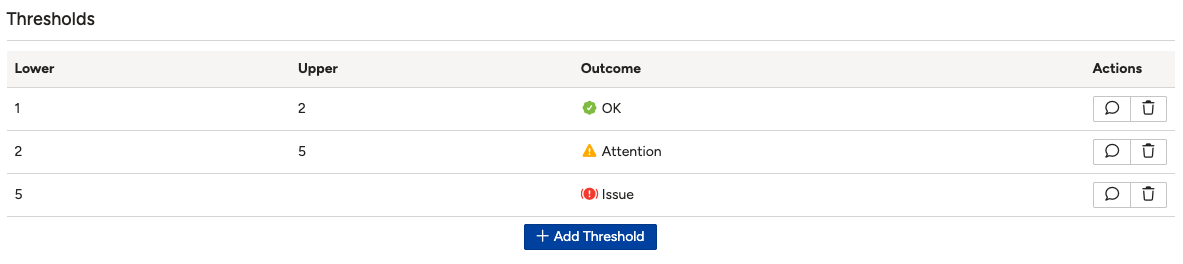
The Thresholds panel on the indicator form, showing threshold bands with their lower and upper values and assigned outcomes.
Example
An indicator is configured with three threshold bands:
- Lower left blank (unbounded), Upper 2 → outcome OK
- Lower 2, Upper 5 → outcome Attention
- Lower 5, Upper left blank (unbounded) → outcome Issue
With this configuration, a response of 1 returns OK, a response of 2 returns Attention (because the lower value of that band is inclusive), and a response of 10 returns Issue.
Testing Thresholds in Staging
- In your staging environment, submit a test response for the indicator.
- Confirm the outcome displayed matches what you expect for that value.
- If the outcome does not match, return to the Thresholds panel and adjust the lower or upper values, then save and test again.
- Repeat with a test value in each band to confirm every outcome triggers correctly before relying on the thresholds in production.
Editing Thresholds
- Open the indicator and go to the Thresholds panel.
- Click Edit on the threshold band you want to change.
- Update the lower value, upper value or outcome as needed, then click Save.
Editing a threshold only affects how new responses are evaluated going forward. Historic responses keep the outcome that was calculated under the thresholds in place at the time they were submitted, even after the thresholds change.
5. Common Issues & Troubleshooting
| Issue | Likely Cause | Solution |
| The outcome shown does not match the response value | Threshold bands have a gap or overlap between them | Check that each band's upper value matches the next band's lower value exactly, remembering the lower value is inclusive and the upper value is exclusive |
| No outcome is available to assign to a threshold | No outcome has been created yet, or you do not have system administrator access | Ask a system administrator to add the outcome in Admin > Outcomes, or request access if you need to manage outcomes regularly |
| Can't add or edit thresholds | Missing Update permission on indicators | Request Update permission on indicators from your system administrator |
| Can't create a new indicator | Missing Create permission on indicators | Request Create permission on indicators from your system administrator |
| A historic response still shows its old outcome after thresholds were changed | This is expected behaviour. Thresholds only apply to responses from the point they are saved onward, so existing responses keep the outcome calculated under the previous thresholds | No action needed. To recalculate a specific response against the current thresholds, edit that response's value and save it |
Best practices:
- Test every threshold band in a staging environment before relying on it in production.
- Leave the first band's lower value and the last band's upper value blank, so every possible response has a matching outcome.
- Use a consistent set of outcome colours and icons across indicators, so results are easy to interpret at a glance.
- Remember that changing thresholds does not retroactively recalculate historic responses. If you need an older response to reflect the new thresholds, edit that response's value.
Click a title to preview it here. Use the Open full article button to read the full version in a new tab.
▾Indicators Overview Open full article »
Related article
Learn how to create and configure an indicator, including its response type, frequency and assigned owners, before adding thresholds.
▾Outcomes: Admin Setup Open full article »
Related article
Learn how to create and manage the outcome values, such as OK, Attention and Issue, that can be assigned to indicator thresholds.
Was this article helpful?
That’s Great!
Thank you for your feedback
Sorry! We couldn't be helpful
Thank you for your feedback
Feedback sent
We appreciate your effort and will try to fix the article