Access Control Matrix
How to read the Access Control Matrix to understand a user's permissions across registers and modules
Contents
- 1. Introduction & Context
- 2. Key Features & Functions
- 3. Requirements
- 4. Step-by-Step Guide
- 5. Common Issues & Troubleshooting
- 6. Related Articles
1. Introduction & Context
The Access Control Matrix is a read-only, visual reference that helps you understand a user's permissions across registers and modules at a glance.
The matrix cannot be edited directly. To change a user's access, you must add or remove Security Groups from the user's account.
Who is it for? Administrators who need to verify or investigate what a user can see and do across the platform.
What does it impact? Nothing directly. The matrix is a reference view only, so reviewing it has no effect on the user's actual permissions or data.
2. Key Features & Functions
- Complete permissions overview: see every register and module a user can access, and which actions they can perform, in a single view.
- Read-only by design: the matrix reflects permissions granted through Security Groups. It is a reference, not an editing tool.
- Search: filter the matrix to a specific register using the search bar at the top of the page.
- Clear indicators: a green tick shows a permission is granted, a white cross shows it is not.
3. Requirements
- Administrator access is required to view a user's Access Control Matrix, which is opened from the Admin Users list view.
- The matrix cannot be edited. Changes to a user's access are made by adding or removing Security Groups on their account.
4. Step-by-Step Guide
How to Read the Matrix
- Left-hand column: lists all registers available in the system.
- Top row: displays each module along with its available permission types.
- Permission abbreviations: under each module, letters represent the access levels. These indicate which actions a user can perform within each module for a given register.
| Abbreviation | Access level |
| C | Create |
| R | Read |
| U | Update |
| D | Delete |
| M | Mass |
| M | Merge |
| S | Share |
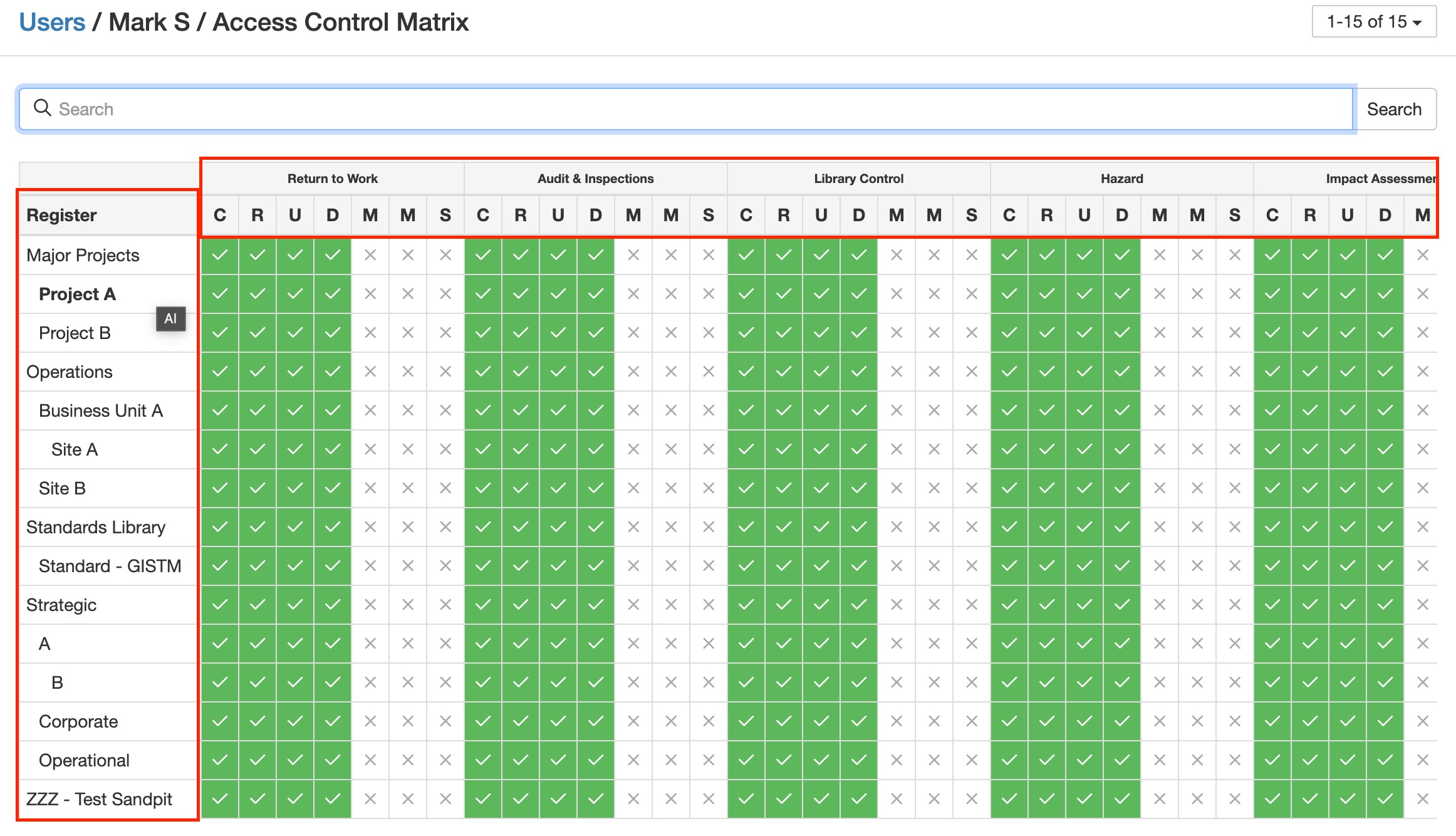
The Access Control Matrix with registers listed on the left and module permissions across the top.
Permission Indicators
- Green tick: permission is granted.
- White cross: permission is not granted.
Searching the Matrix
At the top of the page, use the search bar to quickly find a specific register. For example, typing Project A will filter the matrix to show permissions related only to that register.
Worked Example
Under the Hazard module, the user in the screenshot above has permission to Create, Read, Update, and Delete for Project A, but does not have permission to use Mass actions, Merge, or Share.
5. Common Issues & Troubleshooting
| Issue | Likely Cause | Solution |
| I cannot edit permissions in the matrix | The Access Control Matrix is read-only by design | Change the user's access by adding or removing Security Groups on their account, then check the matrix again |
| The matrix shows no permissions for a user | The user has no Security Groups assigned, directly or through Roles or Teams | Assign the appropriate Security Groups to the user, or to a Role or Team they belong to |
| A register is not visible in the matrix | The matrix may be filtered by a search term | Clear the search bar to display all registers |
| A user has a permission that is not expected | The permission may be granted through a Role, Team, or a Security Group with broader access than intended | Review the Security Groups linked to the user directly and through their Roles and Teams, and adjust as needed |
Best practices:
- Use the matrix as the definitive check when investigating access questions, as it shows the combined effect of all the user's Security Groups.
- Check the matrix after changing a user's Security Groups to confirm the change had the intended effect.
- Use the search bar to focus on the register in question rather than scanning the full matrix.
- Review the matrices of users with broad access periodically as part of your access control housekeeping.
Click a title to preview it here. Use the Open full article button to read the full version in a new tab.
▾Security Groups Open full article »
Related article
How Security Groups grant access, which is where you make the changes that the Access Control Matrix then reflects.
▾Permission Sets Open full article »
Related article
How permission sets define the per-module access levels (Create, Read, Update, and so on) that appear in the matrix.
Was this article helpful?
That’s Great!
Thank you for your feedback
Sorry! We couldn't be helpful
Thank you for your feedback
Feedback sent
We appreciate your effort and will try to fix the article