Versions: FAQ
Answers to the most common questions about version history, what it records and what it does not
Contents
- 1. What are versions, and what are they for?
- 2. What can have a version history?
- 3. How do I open the history on a record?
- 4. How do I open the history on a configuration item?
- 5. How do I read the version history?
- 6. What kinds of change are recorded?
- 7. What kind of data is not captured in versions?
- 8. Something is not working. What should I check?
- 9. Related Articles
1. What are versions, and what are they for?
Versions are the change history. They let you retrace what has changed and who changed it, with the date and time of each change, so you can answer questions like "when did this status appear" or "who moved the due date" without guesswork.
A worked example: an action is showing as overdue and nobody remembers agreeing that date. You open the history on the record and see the original due date, when it was set, and whether anyone has changed it since. That tells you whether the date slipped or whether it was always wrong.
2. What can have a version history?
Two kinds of thing, opened from two different places. Either way the button is called Versions.
| What | Where the history comes from |
| Records | Actions, risks, incidents and other records each keep their own history, opened from the toolbar on the record itself. |
| Configuration items | Workflows, triggers, email notifications, security groups and teams each keep a history of changes to their own settings, opened from the item in Admin. This route is for system administrators. |
3. How do I open the history on a record?
By default, anyone with read access to a record can also read its versions, so this is not limited to administrators. Access can be narrowed per module, in which case only selected teams see the history.
- Open the record.
- Click Versions in the toolbar at the top right, along from Add, Edit and Link.
- The History page opens. Use Back to return to the record, or Export PDF to take a copy away.
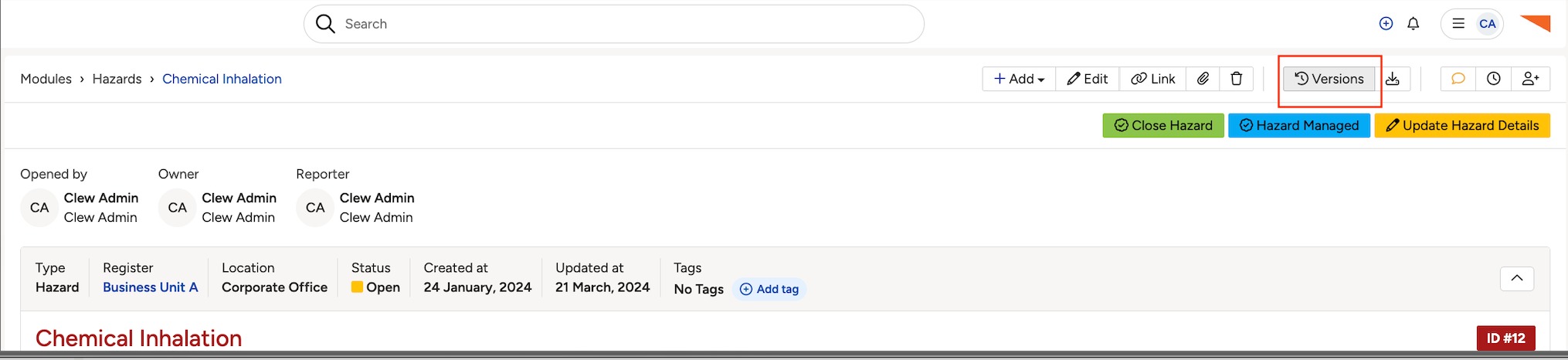
The Versions button in a record's toolbar, at the top right.
4. How do I open the history on a configuration item?
Configuration items live in the Admin area, so this route is for system administrators. If you cannot see Admin, ask an administrator in your organisation to check it for you. The steps are the same whichever item you are looking at.
- Go to Admin and open the area you need, for example Workflows, Triggers, Email Notifications, Security Groups or Teams.
- Open the item you want to check, for example Risk Workflow, or an email notification such as Actions approaching their due date.
- Click Versions in the top-right corner, next to Edit.
- For workflows there is also a shortcut: the Versions icon in the Actions column of the workflow list, which saves opening the workflow first.
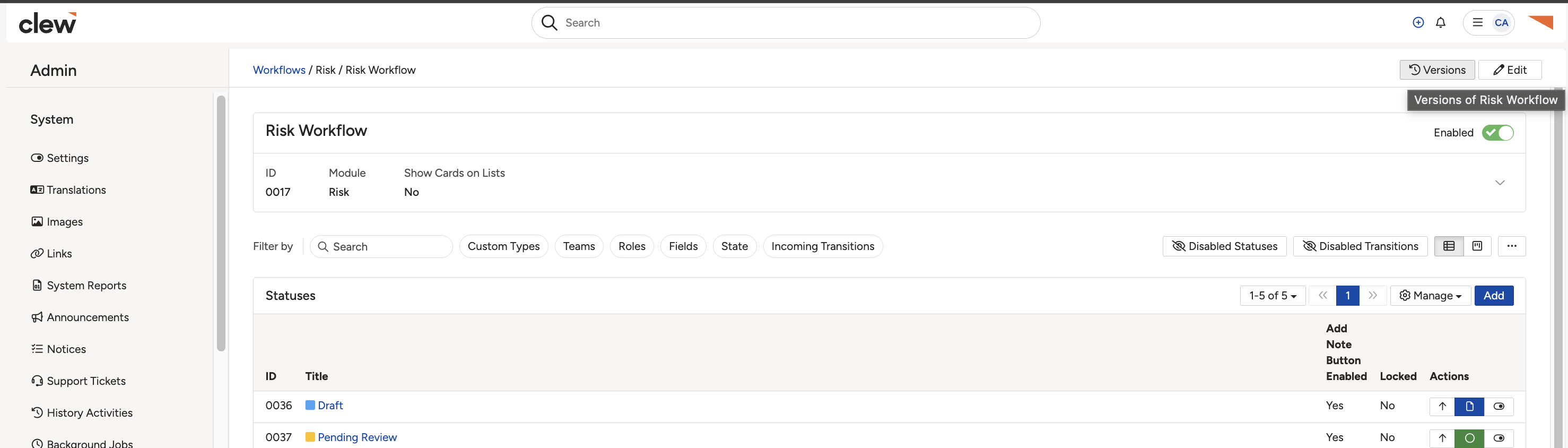
A workflow open in Admin, with the Versions button in the top-right corner.
5. How do I read the version history?
Both histories are laid out the same way. A summary strip at the top gives the ID, the current version number, who created or opened it, the owner, and when it was created and last updated. The label on that first name varies by module, so an action says Created by and an incident says Opened by.
Below that, entries run newest first, grouped under a date heading down the left. Each entry shows its version number, a line saying who did what, and the exact time on the right. A line reads something like "Clew Admin updated Risk Treatment Action ID #100", or "System updated Risk Treatment Action ID #224".
Entries are not limited to the record's own fields. Items sitting beneath it appear here too, so the history of an incident can include changes to an event action underneath it. The entry names the item, for example "Event Action ID #132", so you can tell which one it refers to.
Under each entry is a table with one row per field that changed. The Old value is on the left and the New value is on the right, so each change reads as a before and after pair. On the entry where the record was first created, Old is empty and New shows the values it started with.
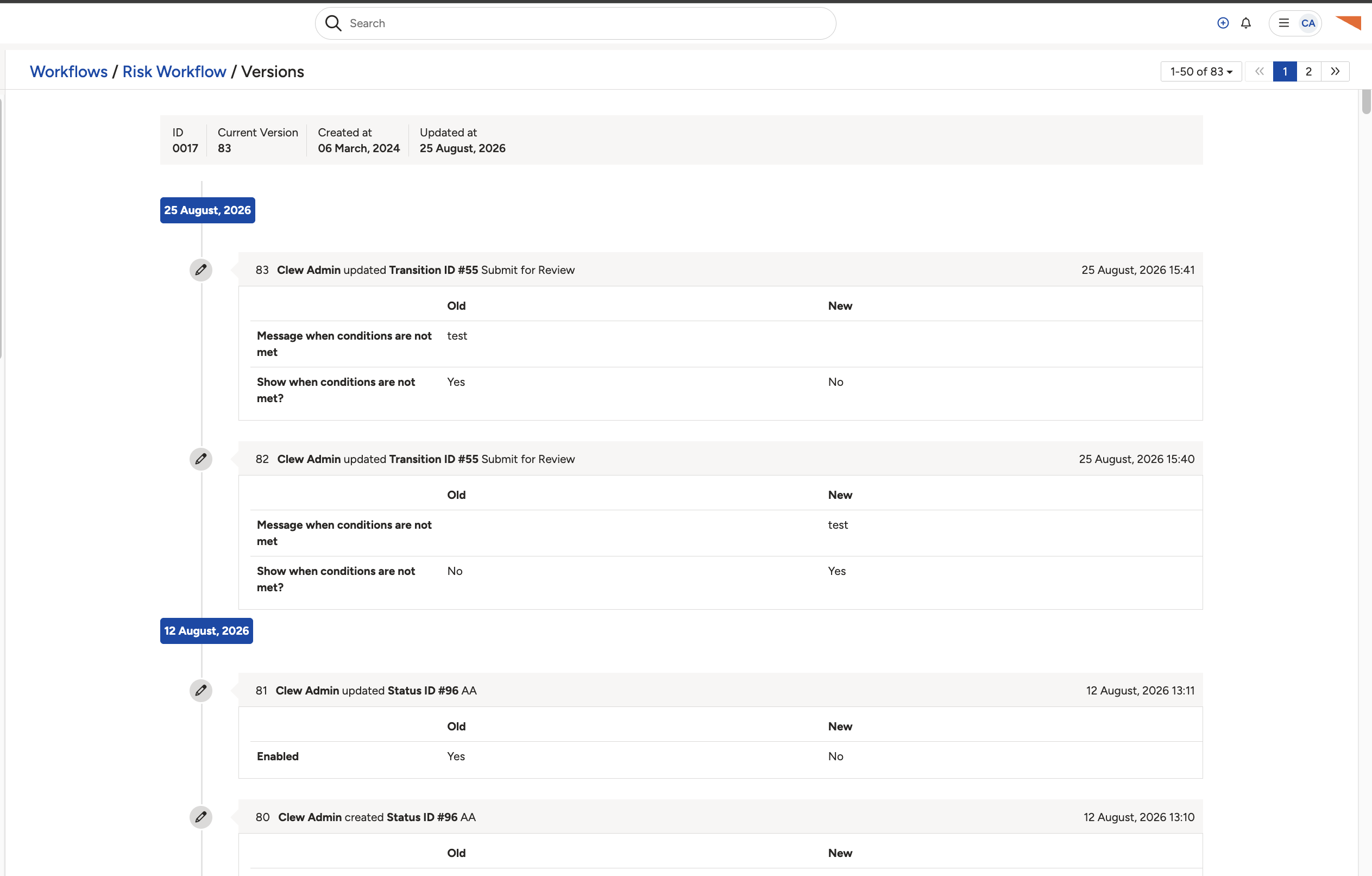
Entries grouped under date headings, each with the fields that changed and their old and new values.
6. What kinds of change are recorded?
On a record, the history covers the events in the record's life and the field values behind them.
| Entry type | What it means |
| Created | The record was created, listing the values it started with, such as title, type, owner, due date and status. |
| Imported | The change came in through an import rather than being typed in. An import can update values on a record that already exists, in which case Old and New are both filled in. |
| Updated | A field was changed, with the old and new value beside each other. |
On a configuration item, the history records changes to that item's own settings rather than record data. On a workflow that means its transitions and statuses.
| Change type | What it means |
| Transitions | Updates to workflow buttons. Entries name the Transition ID, which you can search for within the workflow itself. |
| Status | Changes to the available workflow statuses and the fields connected to them. Entries name the Status ID. |
7. What kind of data is not captured in versions?
Version history is not a complete audit of everything that happens. It records the change types listed above, and nothing outside those types appears in the log.
8. Something is not working. What should I check?
| Issue | Likely Cause | Solution |
| There is no Versions button on the record | Reading versions has been restricted to particular teams for that module. By default anyone with read access to the record can see them | Ask a system administrator whether the module has been restricted. Changing it is handled per module by Clew rather than in Admin. |
| You cannot reach the workflow history | Workflow configuration sits in Admin, which needs system administrator permissions | Ask an administrator to check the workflow for you. |
| An entry says System rather than a person | A trigger running in the background made the change, for example moving a status to Overdue | Nothing to fix. Read the fields in that entry to see what changed. If the change looks wrong, a system administrator can check which trigger is responsible in Admin. |
| A change you remember making is not in the history | The change is not one of the recorded types, so it is not captured in versions | Check question 6 for what is recorded, and question 7 for what is not. Raise a support ticket if you need a fuller history. |
| You cannot tell which transition an entry refers to | Transition entries are identified by their Transition ID rather than by the button label | Search for that Transition ID within the workflow itself to see which button it belongs to. |
▾How can I check the versions on a workflow? Open full article »
Related article
The step-by-step walkthrough for opening workflow version history from the Admin area and reading the change table.
▾Workflow Statuses: Overview & Functionalities Open full article »
Related article
What each workflow status setting does and who can manage them, which is the configuration that workflow version history records changes to.
▾Trigger Configuration Open full article »
Related article
How triggers are set up, for tracing which one is behind a change logged against System.
Was this article helpful?
That’s Great!
Thank you for your feedback
Sorry! We couldn't be helpful
Thank you for your feedback
Feedback sent
We appreciate your effort and will try to fix the article