Why can't I add an item to a register?
What to check when you can open a register but the option to add a new item is missing.
The short answer
The most common reason is permissions. To add a new item to a register you need Create access for that register. If you can open and view a register but there is no option to add to it, your account most likely has Read access without Create. A system administrator can confirm this on your user account in the Access Control Matrix.
How a system administrator checks it
A system administrator can confirm a user's access for a specific register in a few steps:
- Go to Admin > Users.
- Find the user in the list, open the actions menu on their row and select Access Control Matrix.
- In the matrix, find the row for the register in question. Each register is listed down the left, and the permission columns run across the top, grouped by module.
- Check the C (Create) column for that register. A green tick means the user can add items. A red cross means they cannot.
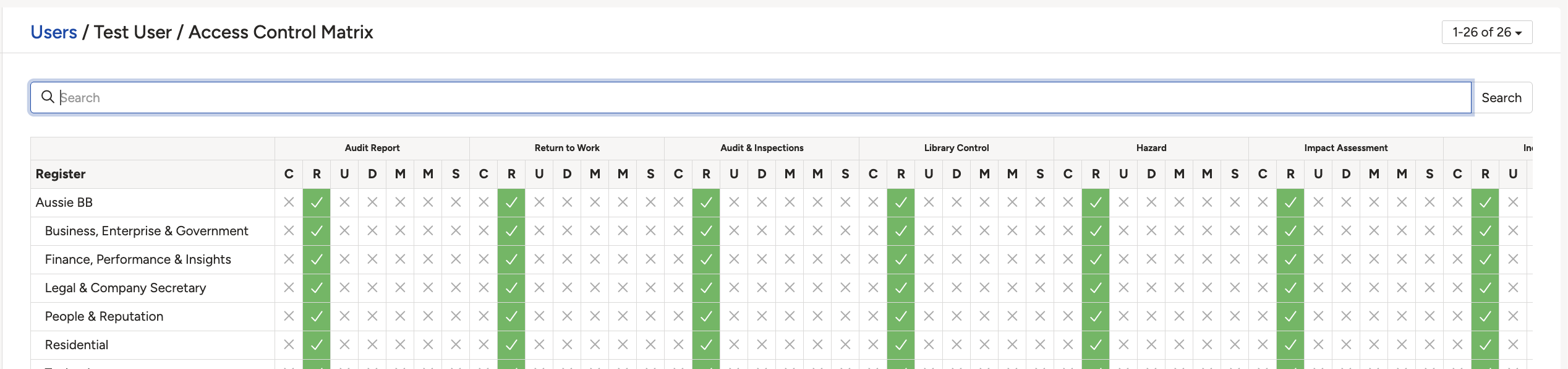
Access Control Matrix showing registers down the left and the Create (C) column marked with a red cross while Read (R) is ticked.
How to fix it
A system administrator needs to grant Create access for the register. Depending on how your organisation manages access, this is set either directly in the Access Control Matrix for that user, or through the permission set applied to their account. Once Create access is in place for that register, the user can add new items to it.
If you are not a system administrator, contact your internal Clew administrator and let them know which register you need to add items to. They can review your access in the matrix and update it.
Click a title to preview it here. Use the Open full article button to read the full version in a new tab.
▾Access Control Matrix Open full article »
Related article
A full guide to reading and setting a user's permissions per register and module, including what each permission column controls.
▾Permission Sets Open full article »
Related article
How permission sets define the default access a user is granted, which is often where a register's Create permission is set or removed.
▾Adding New Users Open full article »
Related article
How to create a user account and set the access it starts with, including the registers and modules the user can work in.
Was this article helpful?
That’s Great!
Thank you for your feedback
Sorry! We couldn't be helpful
Thank you for your feedback
Feedback sent
We appreciate your effort and will try to fix the article