What can I link, and what is the difference between primary and secondary?
How linking works in Clew, and when to use a primary link versus a secondary link.
The short answer
You can link a record to many other items, and each link is either primary or secondary. A record can have one primary link and many secondary links. The primary link is what makes one item a child of another; secondary links connect related items without creating that parent and child relationship. The item types you can link are usually available as either type. Which types appear depends on the record you are linking from.
Primary and secondary links
When you link an item, you choose the Link type. The two options behave differently:
| Link type | How it behaves |
| Primary | One per record. Creates the parent and child relationship, so the linked item becomes a child of the record. Because only one primary link can exist at a time, an item can be a child of only one parent. |
| Secondary | Many per record. Connects related items without making them children. Use it for the everyday connections between records that do not need a hierarchy. |
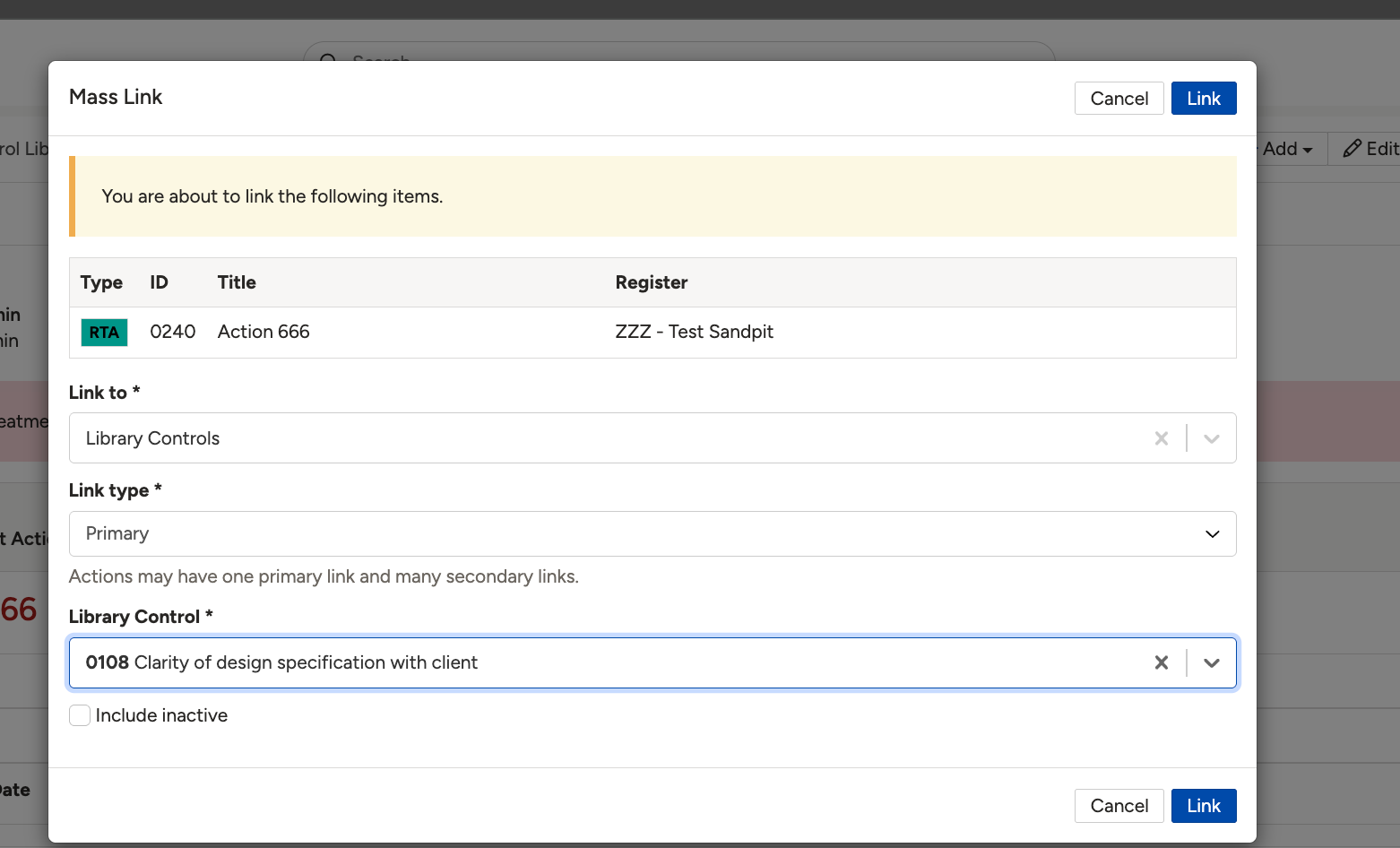
The link dialog with the Link type set, showing the note that a record may have one primary link and many secondary links.
What you can link
The item types available depend on the record you are linking from, so the list in the Link to field changes from one record type to another. As an example, an Action can link to item types such as Actions, Assurances, Audit & Inspections, Audit Rows, Business Objectives, Compliance Sub-Obligations, Controls, Library Controls, Return to Work, Risk Assessments, Risks, Standard Row & Obligations, Survey Responses and Workshops. Open the Link to field on your record to see the types available for it.
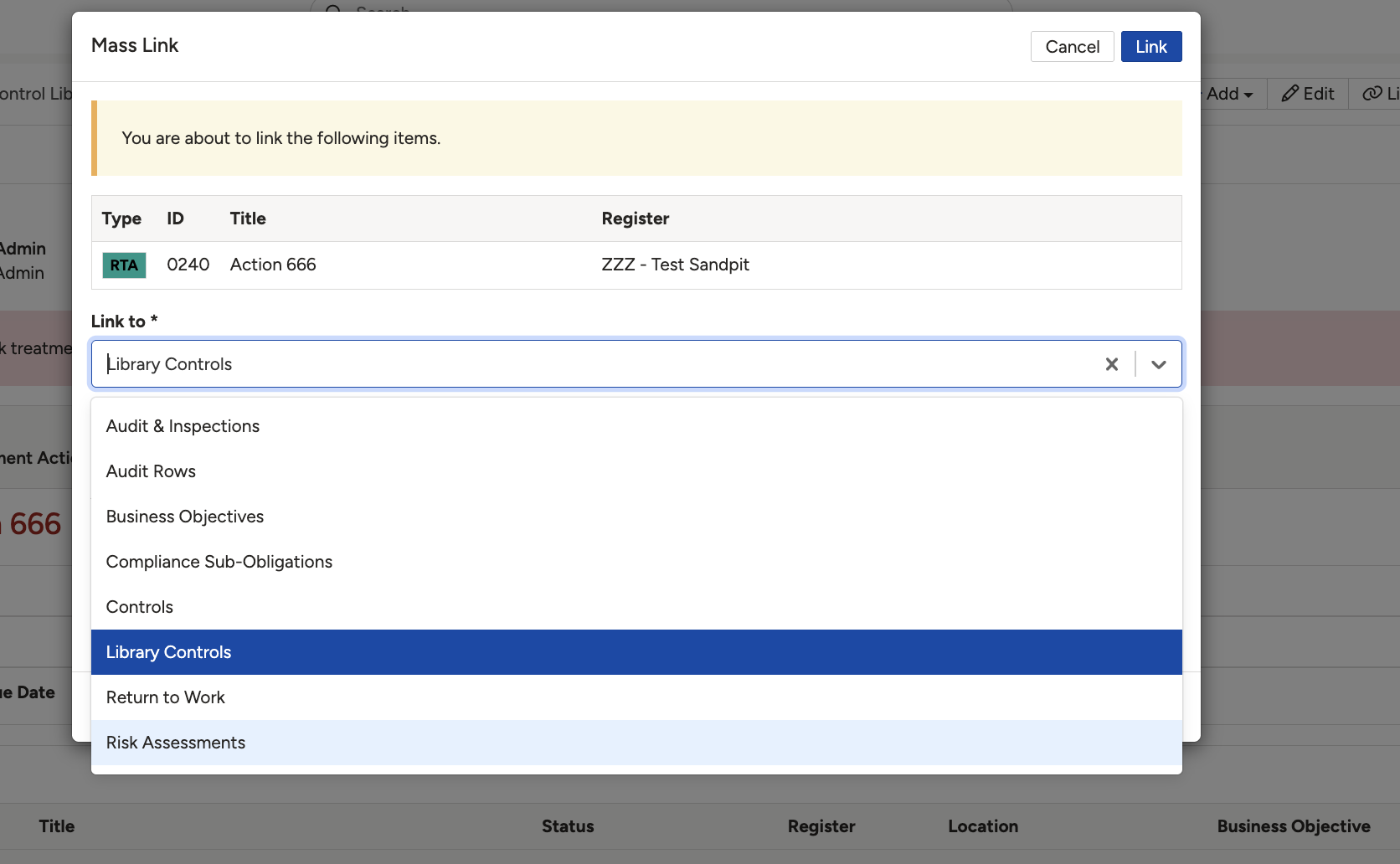
The Link to field open, listing the item types that can be linked.
How to link an item
- Open the record, then click Link.
- In Link to, choose the item type you want to link.
- Set Link type to Primary or Secondary. Remember a record can have only one primary link.
- Select the item, then click Link.
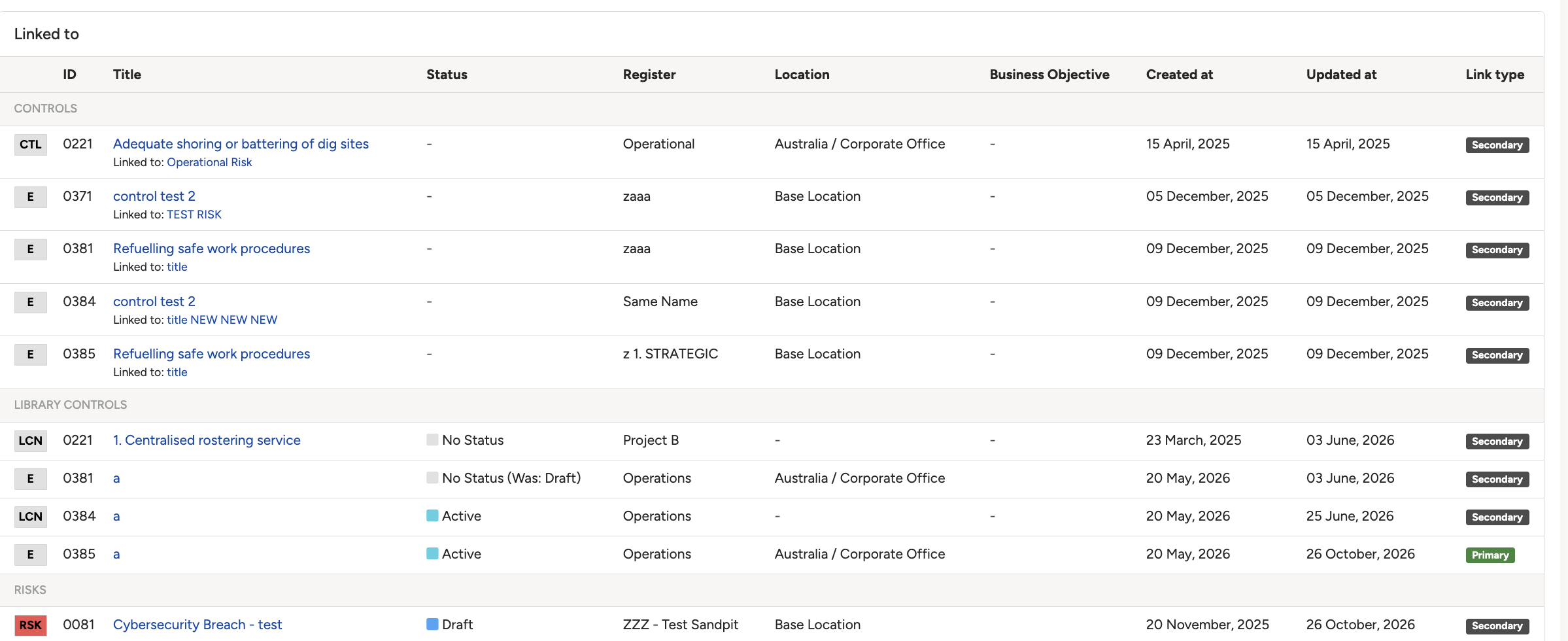
The Linked to panel with one item linked as Primary and two linked as Secondary.
Click a title to preview it here. Use the Open full article button to read the full version in a new tab.
▾Why can't I add a child item even though I see the ADD button? Open full article »
Related article
Why the Add button is there but a child item will not link, and how the one primary link rule causes it.
▾Link a Record Open full article »
Related article
A full walkthrough of linking one record to another, step by step.
Was this article helpful?
That’s Great!
Thank you for your feedback
Sorry! We couldn't be helpful
Thank you for your feedback
Feedback sent
We appreciate your effort and will try to fix the article