What sub-panels can link to the risk standard view?
Which sub-panels on a risk let you link existing records, and how to tell.
The short answer
Most of them. Any sub-panel shown on the Risk custom type can be set up to link existing records, as long as its Enabled Actions include the link action (usually paired with unlink). A few rolled-up or derived panels are the exception and cannot link.
Each sub-panel has an Enabled toggle that controls whether it appears on the risk, and an Enabled Actions setting that controls what you can do on it: add new records, and link, unlink, delete, mass edit, or mass link and unlink existing records. This is configured per organisation, so a system administrator can enable or disable linking on any sub-panel, and the set that can link in your system depends on how it has been set up.
Which sub-panels are available
The sub-panels you can show on a risk are the ones listed on the Risk custom type. In a standard configuration these are:
| Sub-panel | Sub-panel |
| Assets | Mitigating Controls |
| Assurance Activities | Observations |
| Assurances | Performance Standards |
| Attachments | Preventing Controls |
| Audits | Project Activities |
| Causes | Project Costs |
| Change Requests | Project Plans |
| Comments | Recommendations |
| Consequences | Resources |
| Copies | Risks |
| Elements | Standards |
| Hazards | Survey Results |
| Incidents | Tasks |
| Indicators | Treatment Plans |
| Item Workshops | Up Risks |
| Learnings | Workshop Reviews |
| Library Causes |
Whether a given sub-panel can link existing records depends on its Enabled Actions, which the checks below show you how to read. A few rolled-up or derived panels (such as Assurance Activities, Causes, Consequences, Copies, Mitigating Controls, Preventing Controls, Survey Results and Workshop Reviews) have no configurable actions and so cannot link.
How to tell which sub-panels can link
There are two ways to tell: from the sub-panel itself, or in the admin settings.
On the sub-panel
Each sub-panel on the record has a Manage button and an Add button. The actions enabled for that sub-panel appear there. If the Manage menu offers Mass Link and Mass Unlink (it may also show actions like Delete), you can link existing records to that sub-panel. The Add button creates a new item instead.

A sub-panel's Manage menu open, showing Delete, Mass Link and Mass Unlink.
In the admin settings
A system administrator can check or change which actions a sub-panel allows:
- Go to Admin > Custom Types, then open Risk.
- Scroll to the section for the sub-panel you want to check.
- Use the Enabled toggle to control whether the sub-panel appears on the risk at all. A green toggle means it is shown.
- Look at Enabled Actions. If it includes link (and usually unlink), existing records can be linked in that sub-panel. To allow linking where it is missing, add link and unlink to the list.
The actions you can enable are add, link, unlink, delete, export and so on, and you can set these independently for each sub-panel. Whichever actions you enable here are the ones that appear under the sub-panel's Manage and Add buttons on the record.
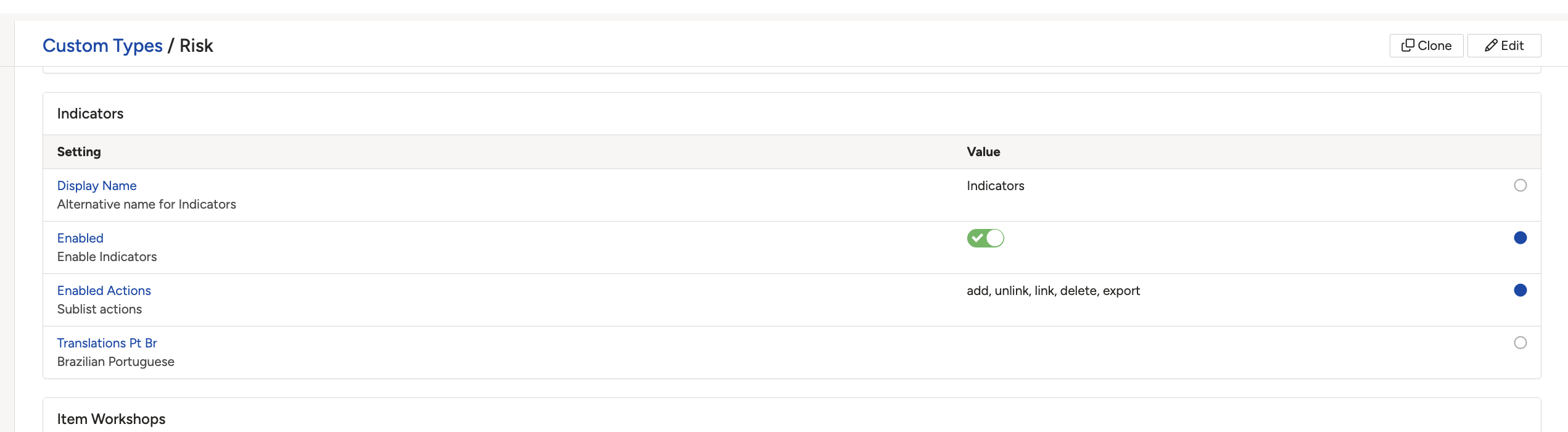
The Indicators sub-panel on the Risk custom type, with Enabled Actions showing add, unlink, link, delete and export.
A sub-panel is enabled but still not showing
Enabling a sub-panel is not always enough on its own. For the sub-panel to appear on the risk, the two custom types also need to be linked to each other. A system administrator can do this:
- Go to Admin > Custom Types, then open Risk.
- Click Edit.
- In the Custom Types field, type the name of the other module's custom type and select it to add it to the list.
- Click Save. The sub-panel now appears on the risk.
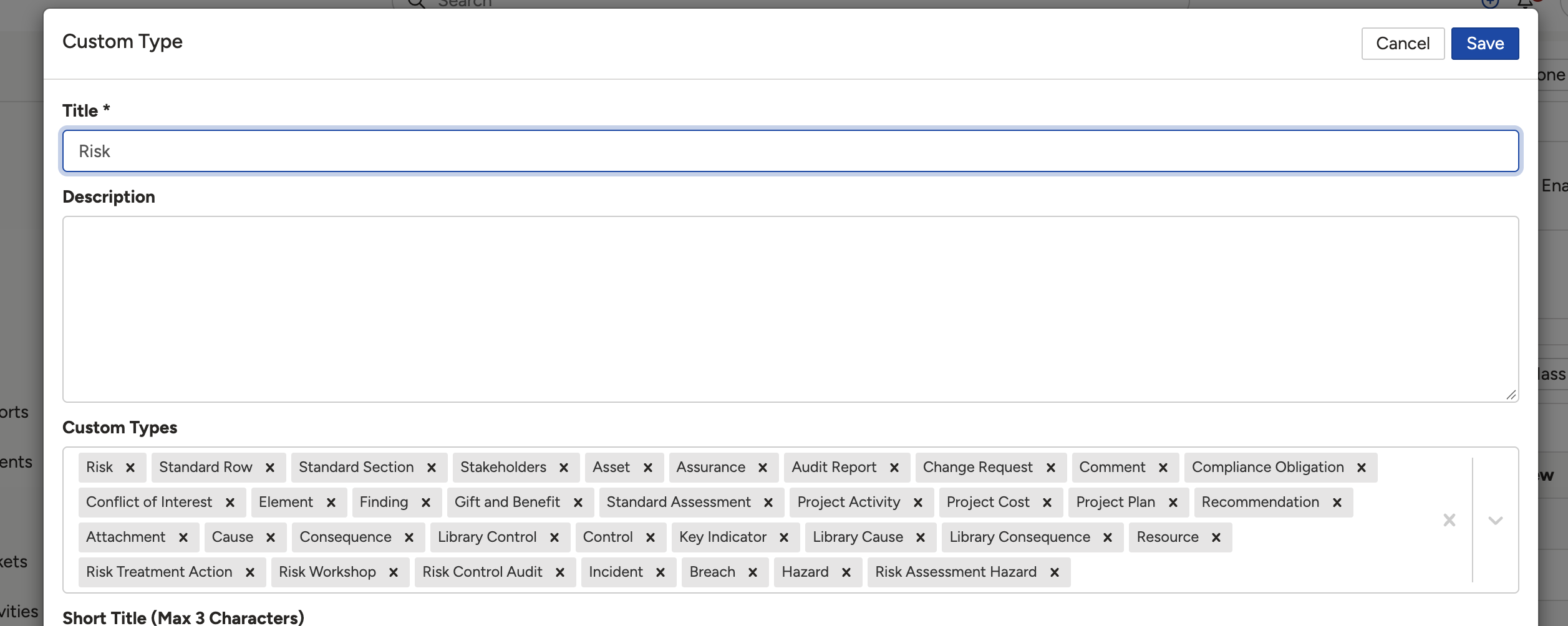
The Custom Types field in the Risk custom type's Edit view, listing the linked module types.
Click a title to preview it here. Use the Open full article button to read the full version in a new tab.
▾What can I link, and what is the difference between primary and secondary? Open full article »
Related article
How linking works, and the difference between a primary link and a secondary link.
▾Link a Record Open full article »
Related article
A full walkthrough of linking one record to another, step by step.
Was this article helpful?
That’s Great!
Thank you for your feedback
Sorry! We couldn't be helpful
Thank you for your feedback
Feedback sent
We appreciate your effort and will try to fix the article