Finding where a custom field is used
How to check which custom types and which forms a field appears on, before you change it
Contents
- 1. Introduction & Context
- 2. Key Features & Functions
- 3. Requirements
- 4. Step-by-Step Guide
- 5. Common Issues & Troubleshooting
- 6. Related Articles
1. Introduction & Context
Custom fields let you add your own fields to the standard ones. A field is created against a single module, and within that module it can be scoped to particular custom types, so it might appear on an Audit Action but not on a Treatment Action.
That scoping is why the question comes up. Before you rename a field, change its type or switch it off, you need to know where it is currently in use, because a change lands on every custom type and every form it is enabled for. All of that is held in one place on the field itself, in the Custom Type Settings section.
A worked example. A team wants a field label changed from Review to Audit in their HSE audits, and wants to be sure the change lands there and nowhere else. Opening the field and reading Custom Type Settings answers that in one screen: every custom type the field is enabled for is listed, so you can see whether anything outside HSE audits would be affected before you touch it.
Who is it for? System administrators. Both finding a custom field and changing one need system administrator permissions.
What does it impact? Anywhere the field is enabled, which can include the new form, the edit form, the mass edit form, the show view and mobile. Changes do not reach the forms until the schema has been synced.
2. Key Features & Functions
- Fields belong to a module: a custom field is created against one module and does not cross into others.
- Scoped to custom types: within that module, the field is switched on or off for each custom type individually.
- Controlled per form: for each custom type, the field can be shown on the new form, edit form, mass edit form, show view and mobile independently.
- Custom Type Settings is the single source of truth: one table on the field shows every custom type and where the field appears for each.
- Searchable list: the Custom Fields page has a search panel and filters, so you can find a field by name rather than scrolling.
3. Requirements
- System administrator permissions. Required both to add a custom field and to see where one is used.
- Access to the schema for the module, since any change you make has to be synced before it reaches the forms.
- The module and custom type names the field relates to, which makes it much quicker to find in the list.
4. Step-by-Step Guide
Finding the field
- Go to Admin, then Custom Fields.
- Use the search panel to find the field you want to review. The list shows its ID, type and module alongside the title.
- Click Edit, the pencil icon in the Actions column, to open the field. There is also an Edit button in the top-right corner once the field is open.
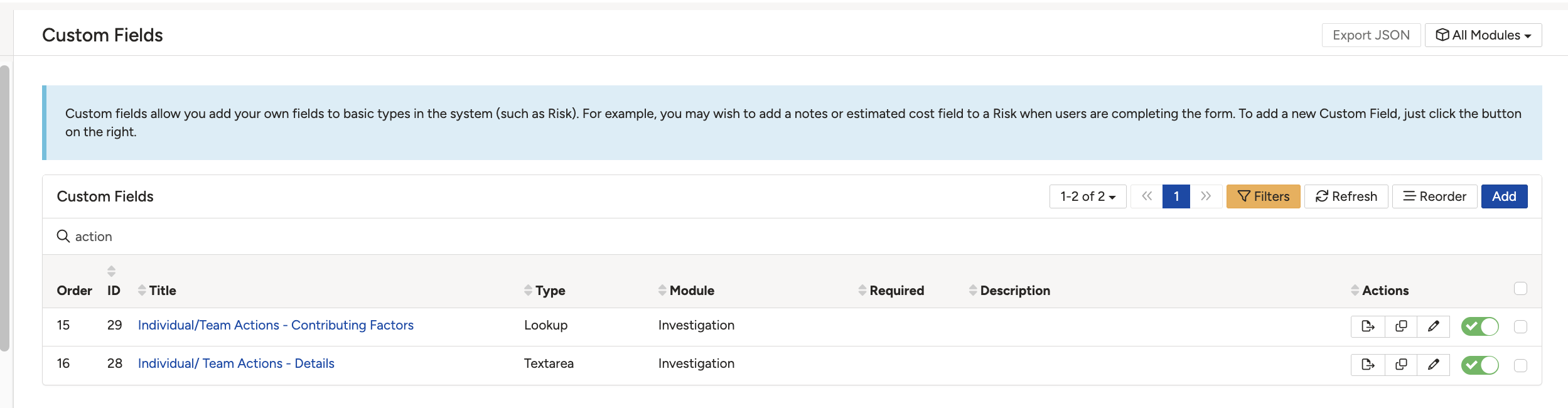
Searching the Custom Fields list narrows it to the fields whose titles match.
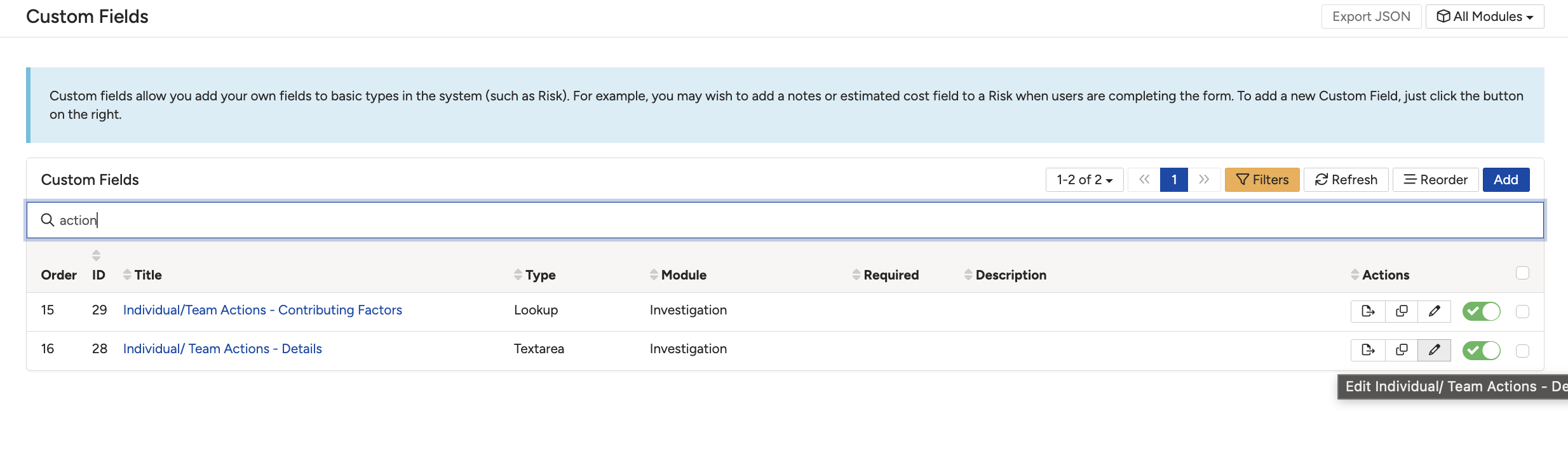
The edit icon in the Actions column opens the field directly from the list.
Reading the Custom Type Settings
- Scroll down to the Custom Type Settings section.
- Each row is a custom type in that module. The Enabled toggle shows whether the field applies to that type at all.
- For the types that are enabled, read across the row to see which forms the field appears on.
- That row-by-row picture is the answer to where the field is used. In the example below only one custom type is enabled, so the field appears nowhere else.
| Column | What it controls |
| Enabled | Whether the field applies to this custom type. With this off, the rest of the row does not apply. |
| All Visible | Shows the field everywhere for this type, rather than picking the individual forms below. |
| New Form | The field appears when a record of this type is created. |
| Edit Form | The field appears when an existing record is edited. |
| Mass Edit Form | The field can be changed through mass edit on a list view. |
| Show View | The field appears when the record is viewed rather than edited. |
| Mobile | The field appears in the mobile app. |
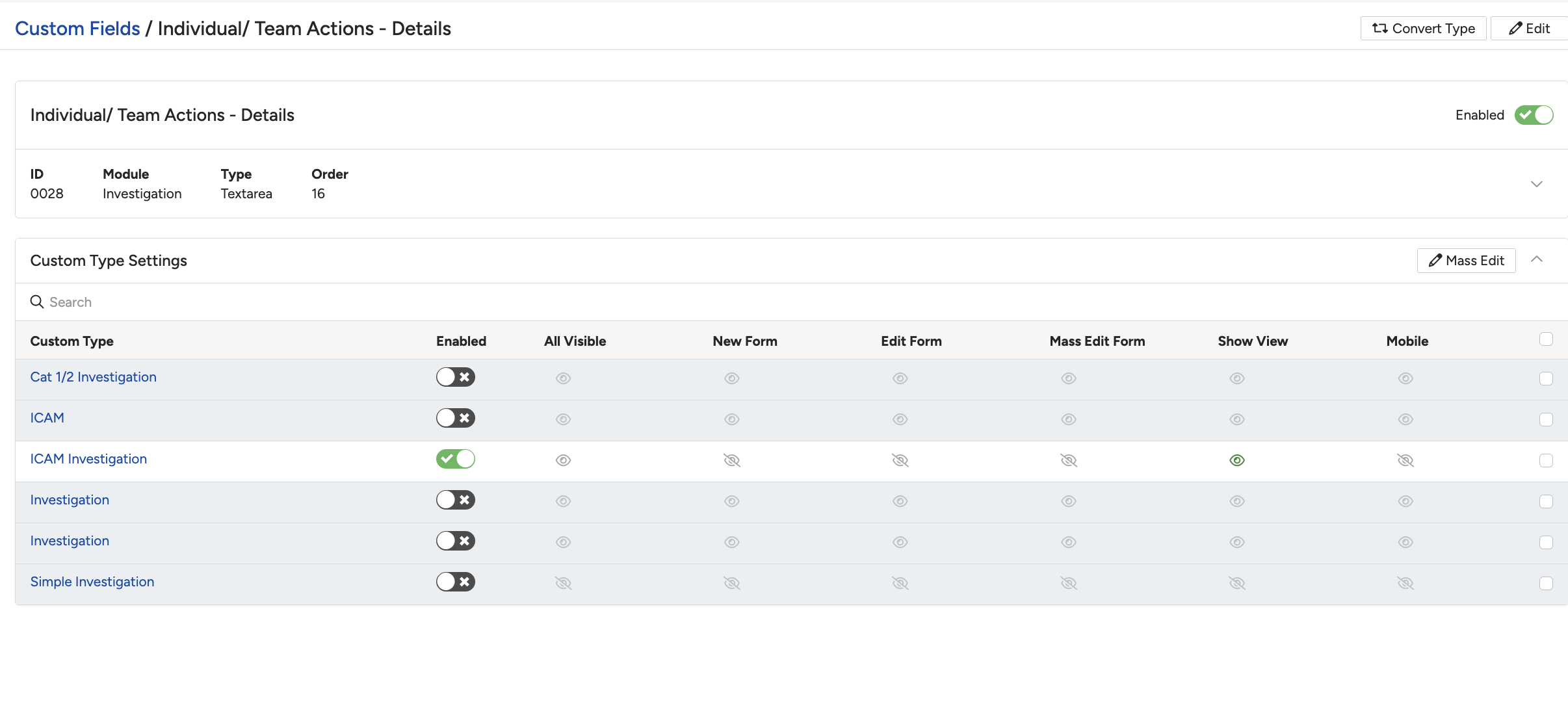
Custom Type Settings, with a row per custom type and a column per form.
Syncing the schema after a change
If you change the field while you are in there, the change does not reach the forms on its own.
- Go to Admin, then Schemas.
- Look for a yellow bar across the top of the page saying the schemas are out of sync. That bar is how you know a change is waiting.
- Click Sync Schemas.
- Reload the form and check the field looks the way you intended.
5. Common Issues & Troubleshooting
| Issue | Likely Cause | Solution |
| You changed the field but the form looks the same | The schema has not been synced since the change | Go to Admin > Schemas, click Sync Schemas, then reload the form. A yellow bar at the top of that page means a sync is outstanding. |
| The field shows on one record type but not another | It is enabled for some custom types and not others | Open Custom Type Settings and check the Enabled toggle on the type in question. |
| The field appears when creating a record but not when editing it | New Form is on for that type but Edit Form is not | Switch on the columns you need in that row, then sync the schema. |
| You cannot find the field in the list | The list is filtered to a different module, or the title differs from what you remember | Search on a distinctive word rather than the full title, and check the module filter is not narrowing the list. |
| You cannot open Custom Fields at all | Your account does not hold system administrator permissions | Ask a system administrator in your organisation to check the field for you. |
Best practices:
- Check Custom Type Settings before changing a field, not after. It is the only place that tells you how far the change will reach.
- Sync the schema as part of the change, not as a separate job later. Most of the confusion around custom fields comes from the gap between the two.
- Give fields titles that say which area they belong to, so they are findable by search when there are hundreds of them.
- Enable only the forms you actually need. Switching a field on everywhere makes the forms longer for everyone.
- Check a real record of each affected type after syncing, rather than assuming the settings had the effect you intended.
▾Custom Fields Open full article »
Related article
What custom fields are and how to create one, including the settings that decide where the field appears.
▾Schemas Open full article »
Related article
What a schema does and where to find the sync button that pushes custom field changes through to the forms.
Was this article helpful?
That’s Great!
Thank you for your feedback
Sorry! We couldn't be helpful
Thank you for your feedback
Feedback sent
We appreciate your effort and will try to fix the article