Survey Drafts
What a draft survey is, how to make it live, and where draft responses are kept
Contents
- 1. Introduction & Context
- 2. Key Features & Functions
- 3. Requirements
- 4. Step-by-Step Guide
- 5. Common Issues & Troubleshooting
- 6. Related Articles
1. Introduction & Context
"Draft" means two things for surveys in Clew, and it is worth being clear which one you mean:
- A draft survey is a survey that is still being built. While its status is Draft, you can set it up and change it, and it is not yet live for people to respond to.
- A draft response is a response that a respondent has started but not yet submitted. Draft responses are kept on the survey, separate from the completed ones.
2. Key Features & Functions
Draft surveys
A survey has a Status. A new survey starts in Draft, which is where you build its questions, sections, and settings, such as the response interval, whether responses are scored, and who can respond. A draft survey is not yet open for responses. When it is ready, you transition it to In Progress / Active to make it live.
Draft responses
When someone is partway through a response, they can click Submit Draft instead of Submit, give the draft a title, and save it to come back to later. On the survey record, the Drafts panel lists these in-progress responses, separately from the completed ones in the Survey Responses panel. Once a draft response is submitted, it moves from Drafts into Survey Responses.
3. Requirements
To build a survey and change its status, you need permission to create and update surveys. To start or complete a response, you need permission to respond to the survey. What you can do also depends on the survey's own settings, such as whether only assigned users can respond.
4. Step-by-Step Guide
Building a survey in draft
- Open Surveys from the Modules menu and create or open a survey.
- Build the survey: add fields, instructions, and sections, and set its options, then click Save. Use Preview to check how it will look.
- The survey stays in Draft status while you work on it, so it is not yet live for responses.
Making a draft survey live
- Open the survey record. Its Status shows Draft.
- Click the workflow button at the top right to transition it to In Progress / Active. The survey is now live and open for responses.
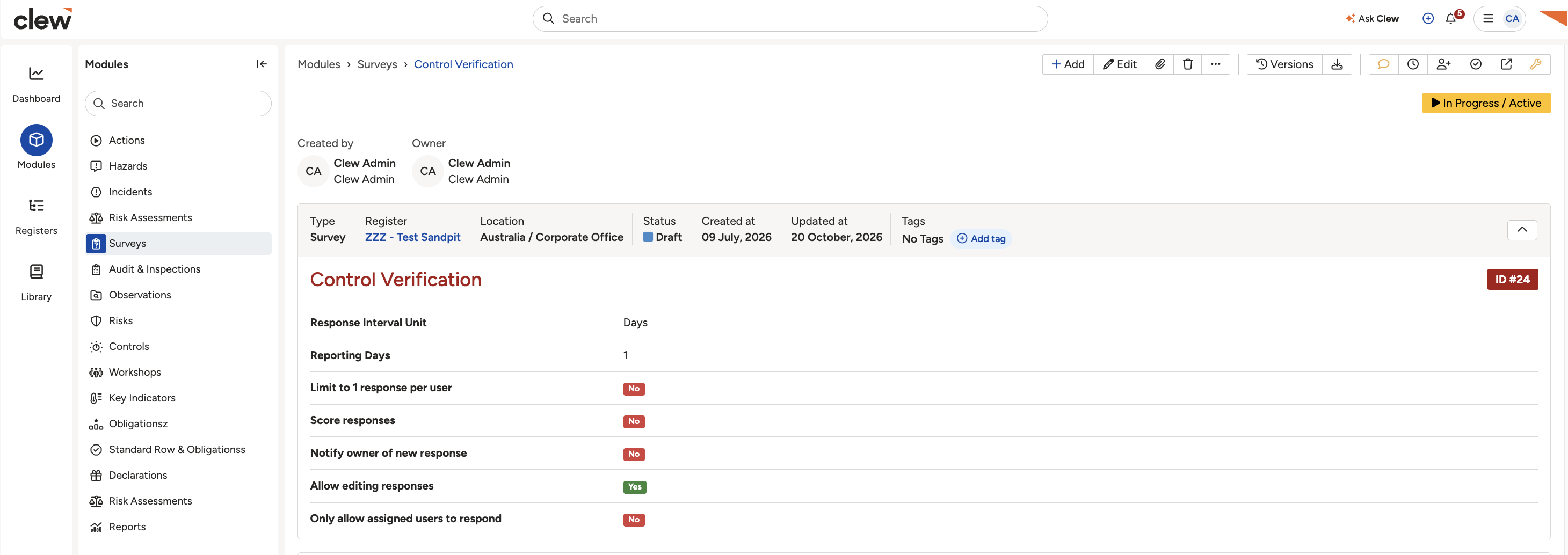
A survey in Draft status with the transition button.

Moving the survey to Active.
Saving a response as a draft
- Start responding to the survey and answer what you can.
- Click Submit Draft at the bottom of the form, rather than Submit.
- Give the draft a Title and click Save.
- The draft is saved to the survey's Drafts panel, ready for you to come back to and submit later.
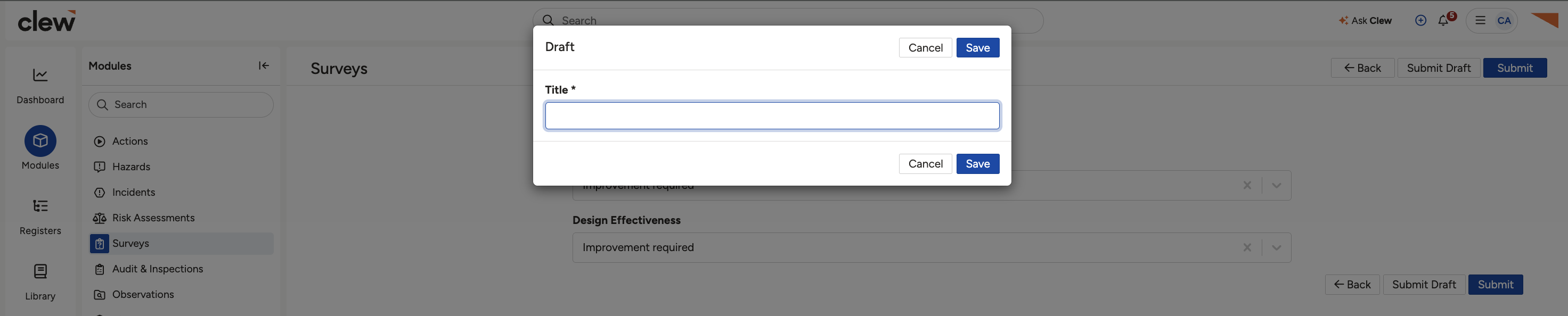
Saving a survey response as a draft.
Finding draft responses
- Open the survey record and scroll to the Drafts panel.
- Each row is a response that has been started but not submitted, with its respondent and when it was created and updated.
- Once a draft response is submitted, it moves into the Survey Responses panel.
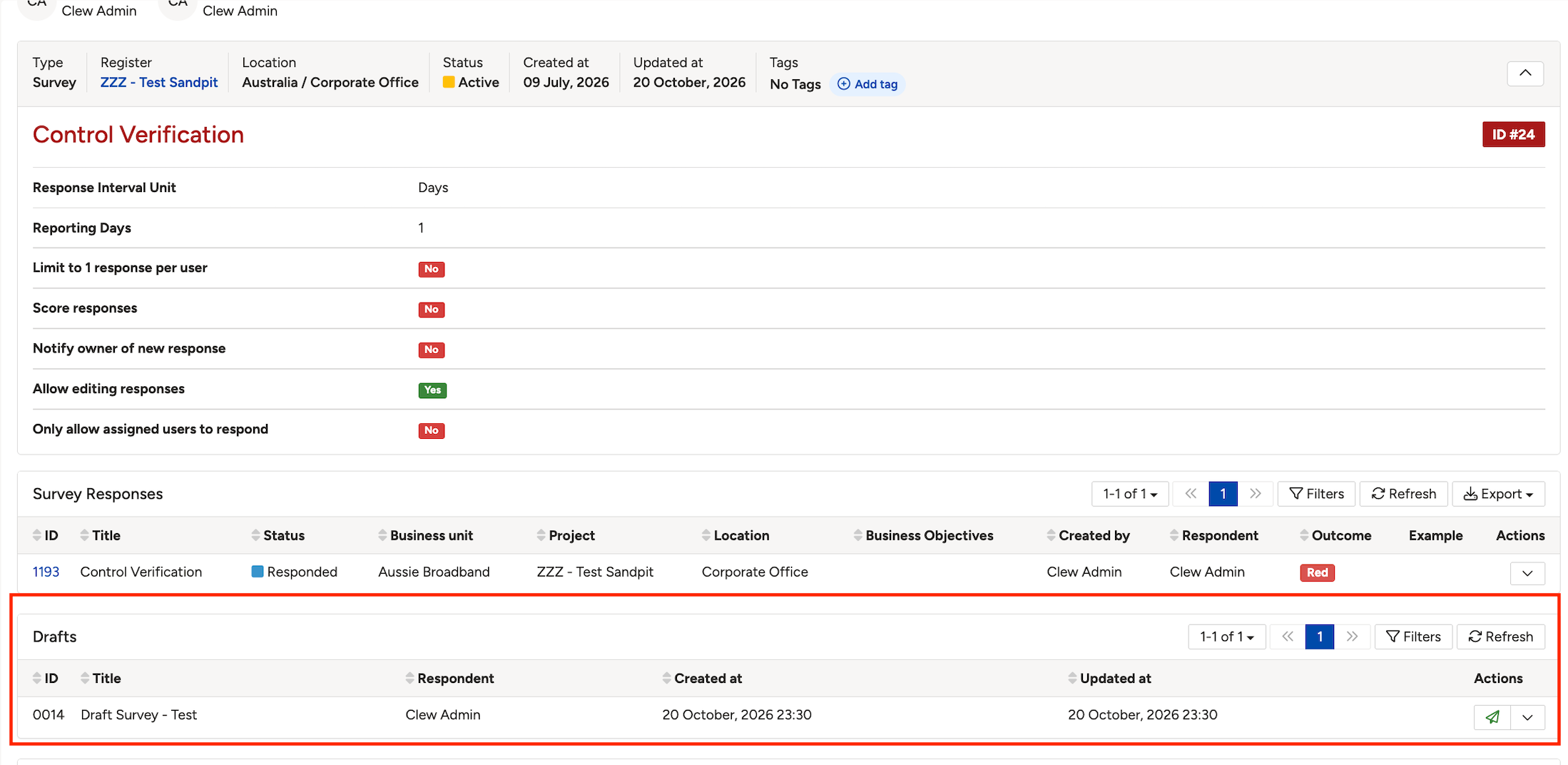
A saved draft response in the survey's Drafts panel.
5. Common Issues & Troubleshooting
| Issue | Likely cause | Solution |
| People cannot respond to the survey. | The survey is still in Draft status. | Open the survey and transition it to In Progress / Active to make it live. |
| A response is not showing in Survey Responses. | It has been started but not submitted, so it is still a draft. | Check the Drafts panel on the survey. It moves to Survey Responses once submitted. |
Click a title to preview it here. Use the Open full article button to read the full version in a new tab.
▾Responding to a Survey Open full article »
Related article
How to complete and submit a response to a survey.
▾Recurring Surveys Open full article »
Related article
How to set a survey to repeat on a schedule.
▾What Determines the Outcome of a Survey? Open full article »
Related article
How a survey's result is decided from its responses.
Was this article helpful?
That’s Great!
Thank you for your feedback
Sorry! We couldn't be helpful
Thank you for your feedback
Feedback sent
We appreciate your effort and will try to fix the article