Why can't I see all teams when sharing a risk?
Why only some teams appear, how to check your own teams, and how to add a user to a team
Contents
- 1. Introduction & Context
- 2. Key Features & Functions
- 3. Requirements
- 4. Step-by-Step Guide
- 5. Common Issues & Troubleshooting
- 6. Related Articles
1. Introduction & Context
When you want to share permission to a risk with a team, you can only view and select the teams you are assigned to. This is why not all teams appear in the dropdown list.
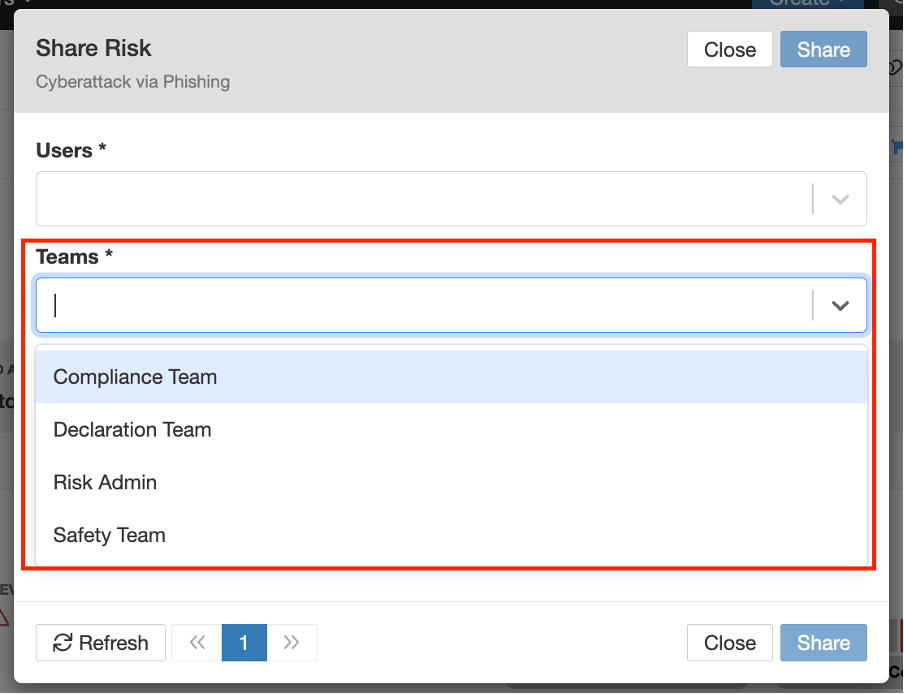
The dropdown shows only the teams you are assigned to.
If you need to share a risk with a team that is not visible, you can:
- Contact the team administrator and request to be added to that team, or
- Share the risk directly with individual users instead.
2. Key Features & Functions
- You see only your teams: when sharing, the dropdown lists only the teams you are a member of.
- Check your teams: see which teams you belong to from My Teams under your name.
- Add users to a team: a Team Manager, Administrator, or System Admin can add members to a team.
3. Requirements
- Any user can check the teams they are assigned to.
- To add a user to a team, you need to be a Team Manager, Administrator, or System Admin.
4. Step-by-Step Guide
Check which teams you are assigned to
- Click your name drop-down in the top-right corner of the screen.
- Select My Teams.
- You will see a list of all the teams you are currently assigned to.
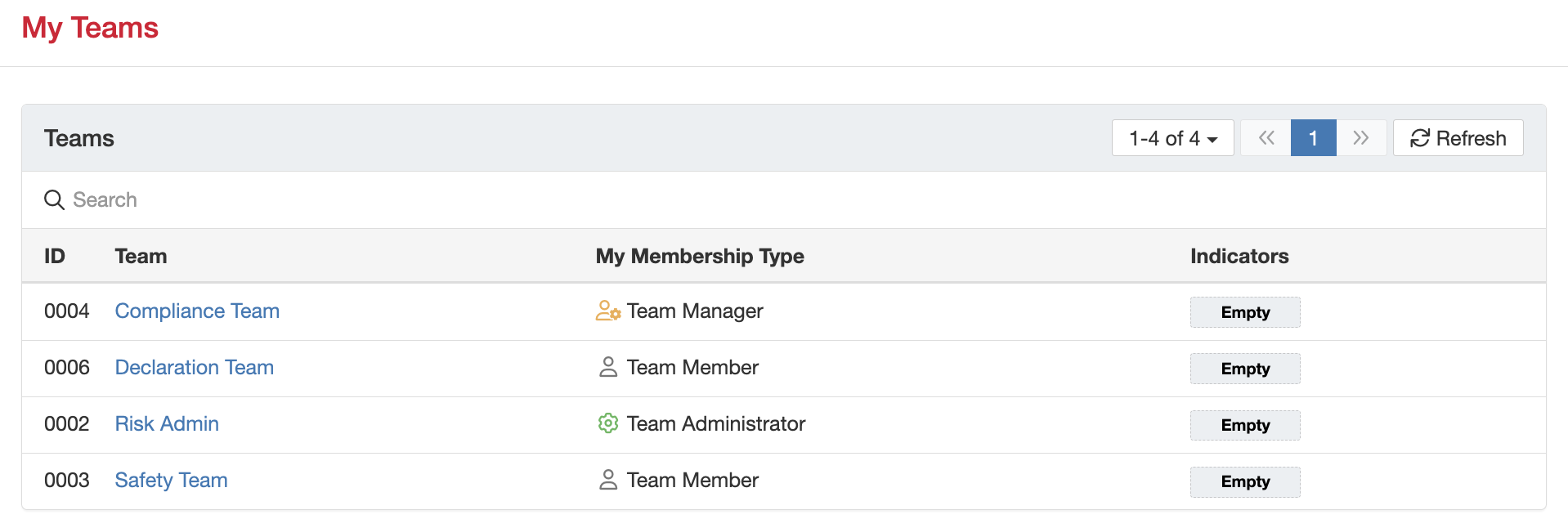
The My Teams list of the teams you belong to.
Add a user to a team
- Go to the Admin section, then Teams.
- Click the team you want to add users to.
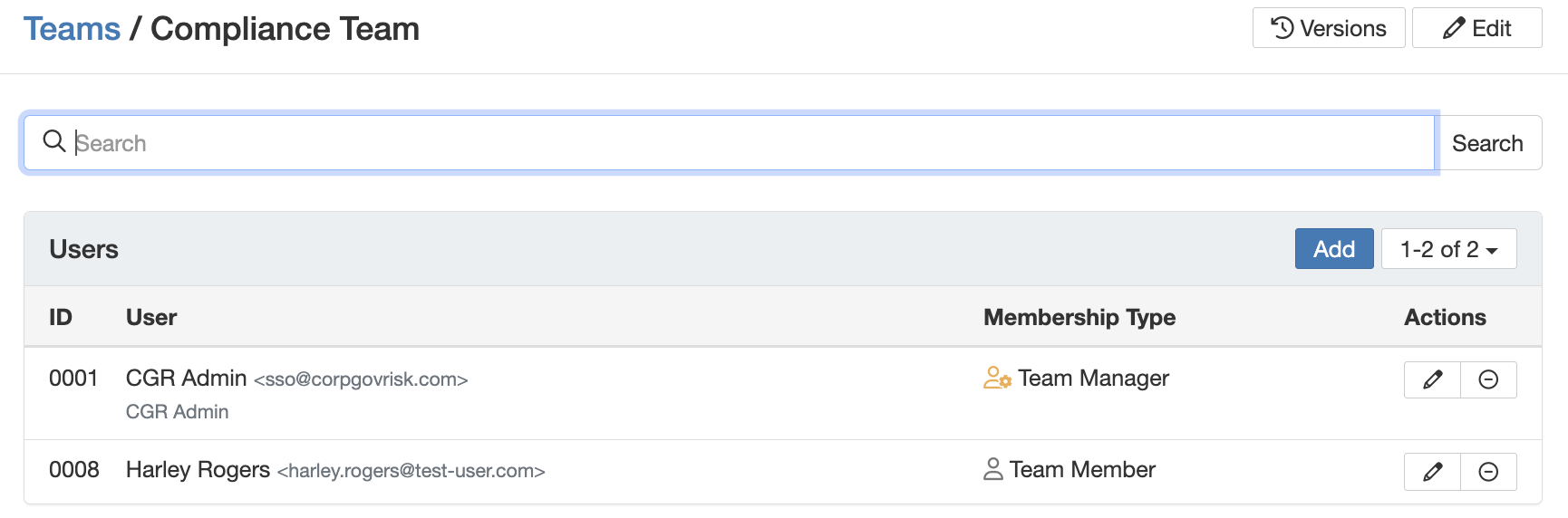
Selecting the team in Admin, Teams.
- Click Add, select the user from the list, and choose the appropriate membership type.
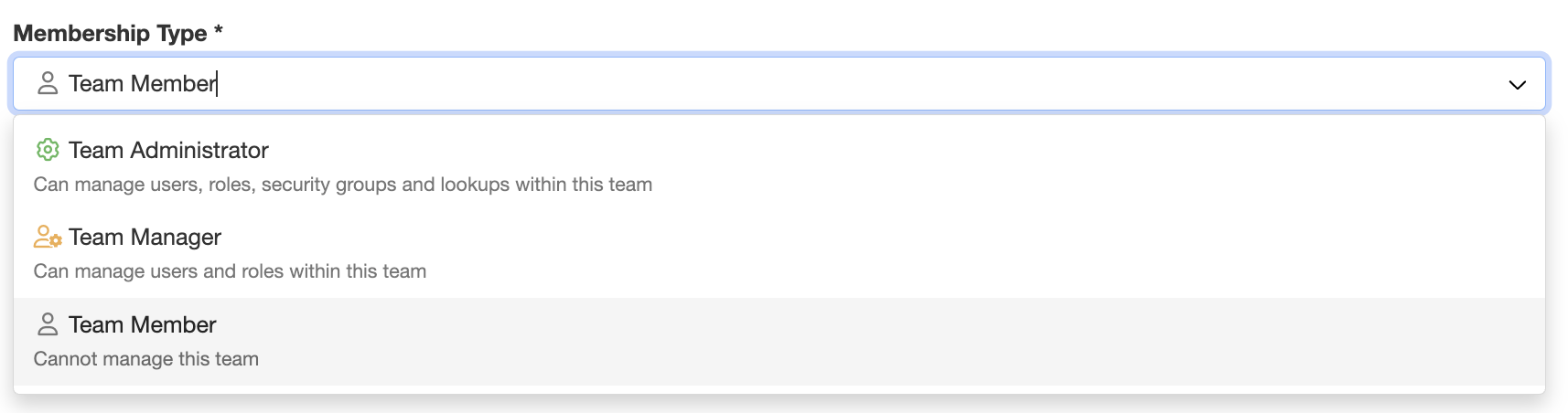
Adding a user and choosing their membership type.
5. Common Issues & Troubleshooting
| Issue | Likely Cause | Solution |
| A team is missing from the share dropdown | You are not a member of that team. | You can only select teams you belong to. Ask to be added to the team, or share directly with individual users. |
| You cannot add a user to a team | You are not a Team Manager, Administrator, or System Admin. | Ask a Team Manager, Administrator, or System Admin to add the member. |
| You are not sure which teams you are in | Team membership is listed in one place. | Open My Teams under your name to see every team you are assigned to. |
Click a title to preview it here. Use the Open full article button to read the full version in a new tab.
▾My Teams Open full article »
Related article
Viewing and working with the teams you belong to.
▾Team Management Open full article »
Related article
How teams are created and managed, including membership.
Was this article helpful?
That’s Great!
Thank you for your feedback
Sorry! We couldn't be helpful
Thank you for your feedback
Feedback sent
We appreciate your effort and will try to fix the article