Why can't I see a custom field on the Edit form?
What hides a custom field from the Edit form, and how to check both places it can be hidden
If a custom field is not visible on the Edit form, it is likely because the field has been configured to be hidden, in either the Custom Field settings or the Schema configuration. Check both places below.
How to check if the custom field is hidden
Custom Field settings
- Go to Admin > Custom Field, search for the custom field, and open it.
- Scroll to Custom Type Settings.
- Ensure the Visible on Edit Form checkbox is selected, then save.
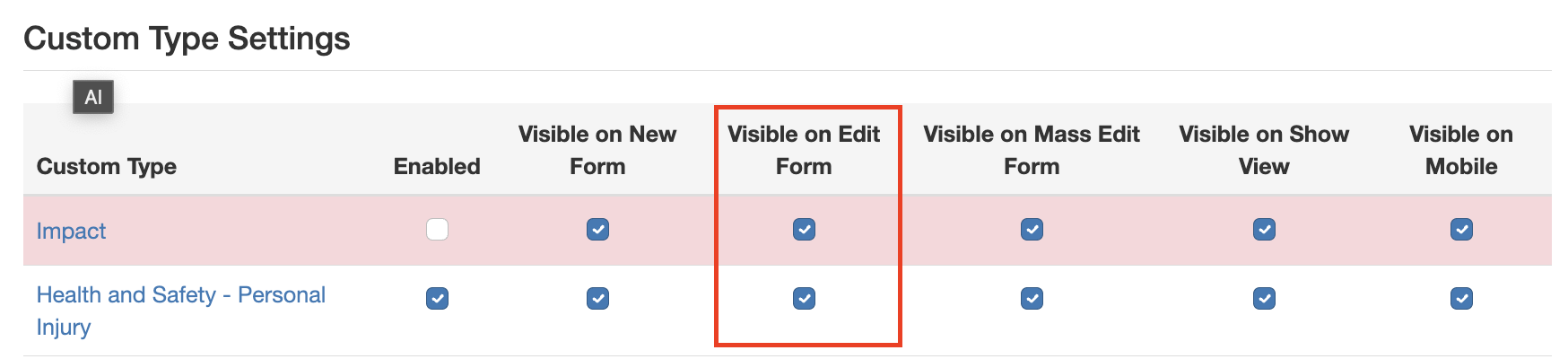
The Visible on Edit Form checkbox in Custom Type Settings.
Schema configuration
- Go to Admin > Schemas.
- Search for the schema and open it.
- Locate the custom field in the Builder and ensure the hide icon, either on the field itself or on its section, is set to visible.
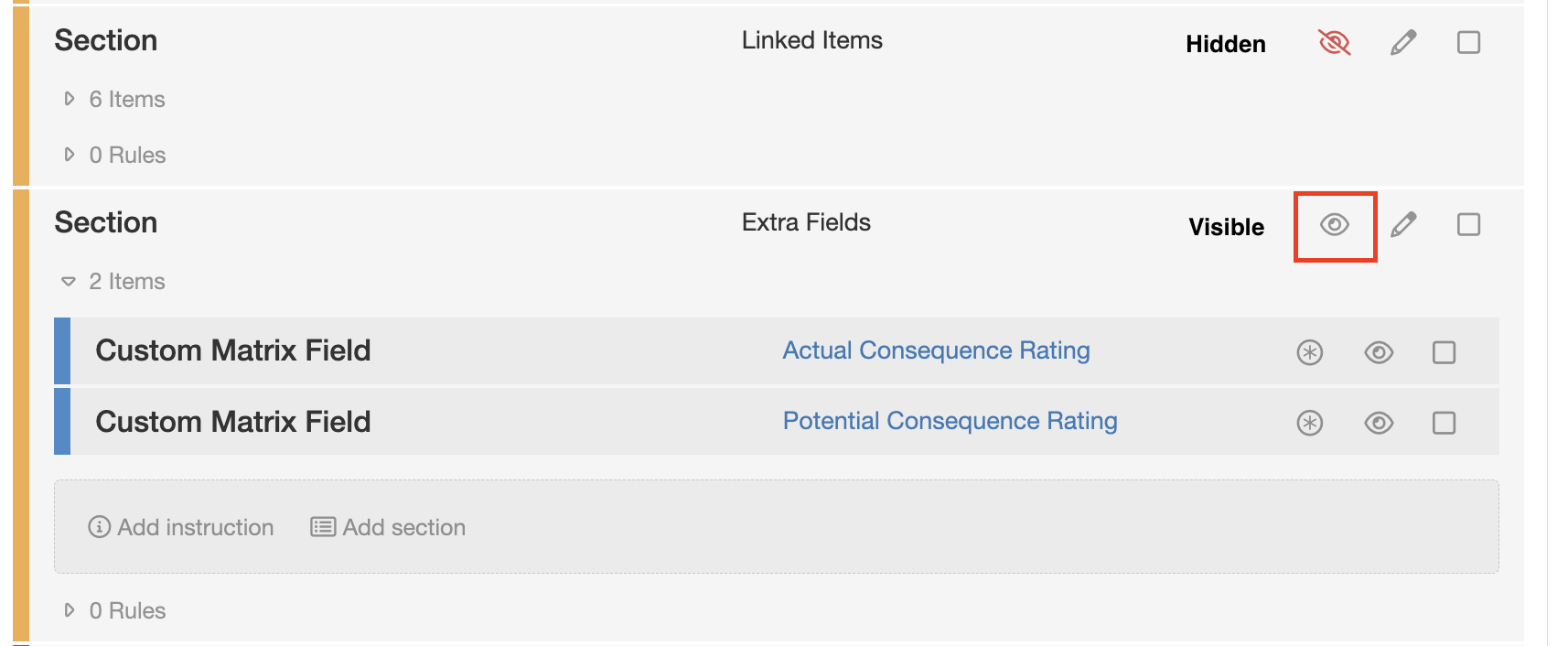
The hide icon on a field, and on its section, in the schema Builder.
Click a title to preview it here. Use the Open full article button to read the full version in a new tab.
▾Custom Fields Open full article »
Related article
How to create and configure custom fields, including their visibility.
▾Schemas Open full article »
Related article
How schemas work, including the Builder and field visibility.
Was this article helpful?
That’s Great!
Thank you for your feedback
Sorry! We couldn't be helpful
Thank you for your feedback
Feedback sent
We appreciate your effort and will try to fix the article