How to attach a file to several records at once using the mass attach function in Clew.
Contents
- 1. Introduction & Context
- 2. Key Features & Functions
- 3. Requirements
- 4. Step-by-Step Guide
- 5. Common Issues & Troubleshooting
- 6. Related Articles
1. Introduction & Context
Mass attach lets you add the same file to several records in one action, rather than opening each record and attaching the file individually. It is one of the mass functions available across all Clew modules.
Who is it for? Any user with permission to perform mass actions in a module.
2. Key Features & Functions
All Clew modules have mass functionality, which lets users:
- Mass Delete
- Mass Edit
- Mass Link
- Mass Clone
- Mass Attach
This article covers Mass Attach.
3. Requirements
Mass functionality in Clew depends heavily on user access and permissions. For example, users who cannot edit records cannot perform mass attach actions. In some cases a user can edit an individual record but mass actions are still blocked, unless the user is explicitly granted permission through a security group.
4. Step-by-Step Guide
If you have permission to mass attach records in Clew, follow these steps:
- Navigate to your module from the Module dropdown menu (in this example, Risk).
- Select a register from the register panel.
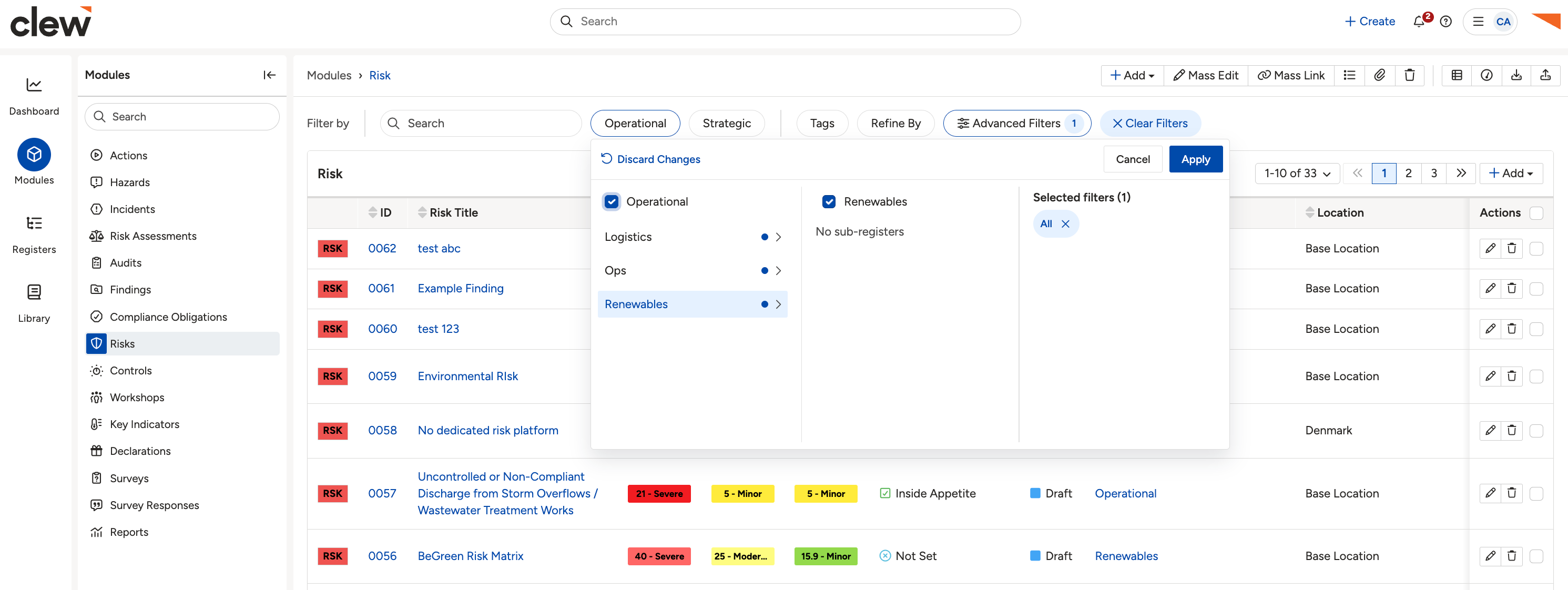
Choose your module from the Module dropdown, then select a register from the register panel.
- Select the checkboxes of the records you want to mass attach, on the right-hand side.
- At the top, click the paperclip icon to mass attach.
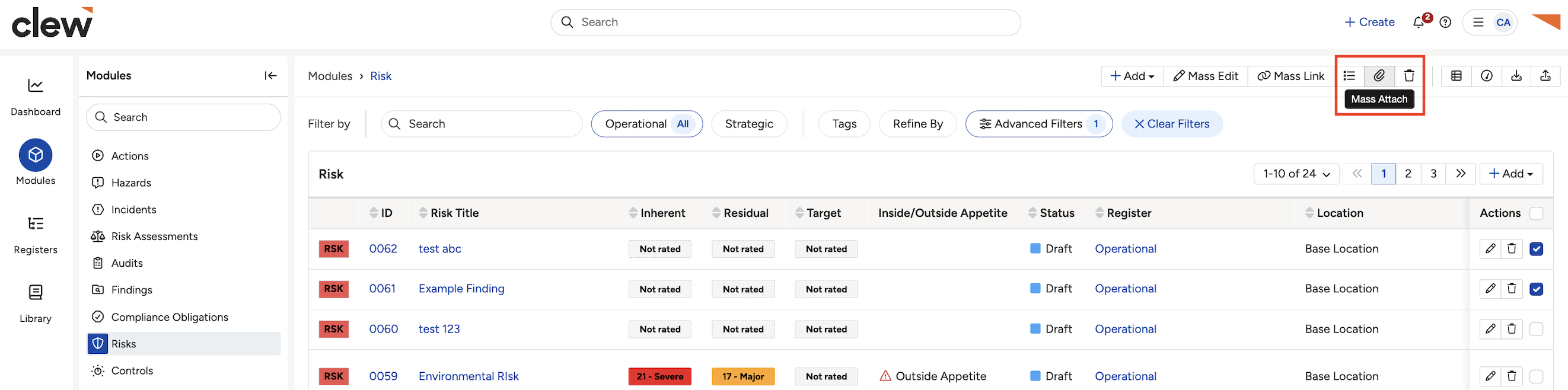
Tick the records you want, then click the paperclip icon at the top.
- Attach the relevant file or files, set the sensitivity level that controls who can access them, and save.
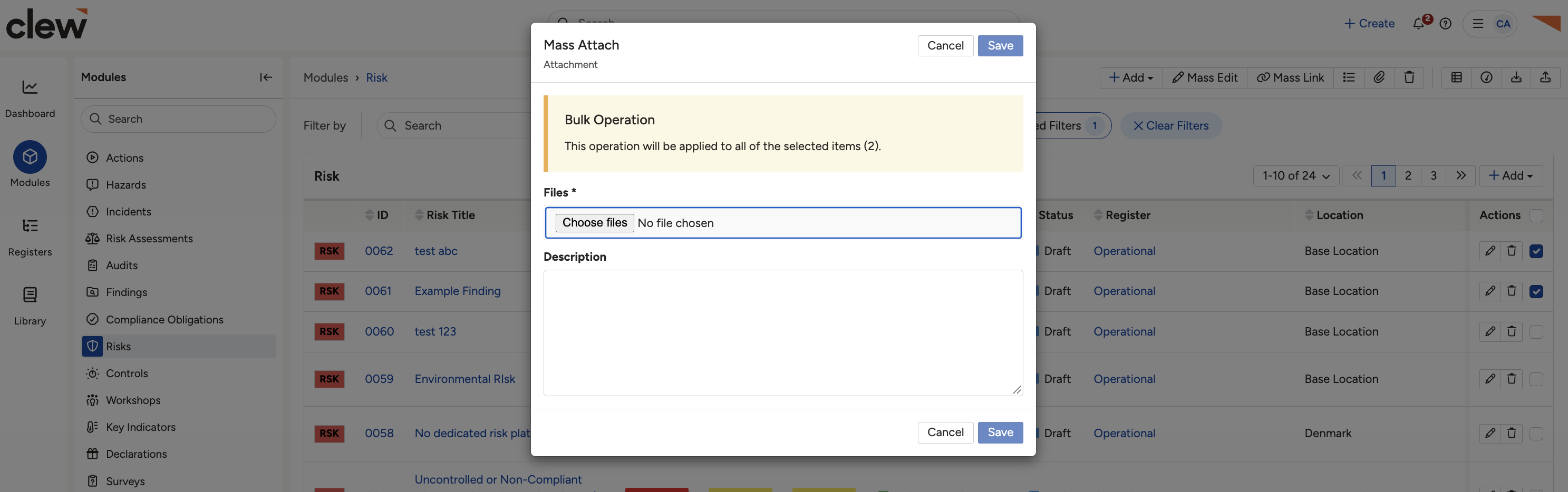
Add your file or files, set the sensitivity level, and save.
5. Common Issues & Troubleshooting
| Issue | Likely Cause | Solution |
| The paperclip icon is not available. | You do not have permission to mass attach, or you cannot edit records in this module. | Contact your system administrator to be granted mass attach permission through a security group. |
| You can edit a single record, but mass actions are blocked. | Mass permission is separate and has not been granted. | Ask your system administrator to grant the Mass permission through your security group. |
| The sensitivity field does not appear. | The sensitivity field is not applicable or enabled for your account. | This is expected. Contact your system administrator if you need classification and sensitivity enabled. |
Click a title to preview it here. Use the Open full article button to read the full version in a new tab.
▾Mass Functionalities Open full article »
Related article
Mass attach is one of several mass actions. See the full overview of mass functionality, including mass delete, edit, link, and clone.
▾Security Groups Open full article »
Related article
Mass permissions are granted through security groups. See how security groups control what a user can do.
▾What is Clearance and Sensitivity Open full article »
Related article
When attaching files, you set a sensitivity level. Learn how clearance and sensitivity control who can see them.
Was this article helpful?
That’s Great!
Thank you for your feedback
Sorry! We couldn't be helpful
Thank you for your feedback
Feedback sent
We appreciate your effort and will try to fix the article