TABLE OF CONTENTS
Context
This article explains how System Administrators can locate and review inactive user accounts within the Admin > Users area of CGR Foundation.
Important Notes
- You must have System Administrator access to perform these actions.
- This article covers viewing inactive users only. For guidance on creating or editing user accounts, refer to the relevant User Management article.
How to check for inactive users?
By default, the Users page displays only Active users. Administrators can adjust the filters to view all users or specifically show only Inactive users.
Please follow these steps:
- Navigate to Admin > Users.
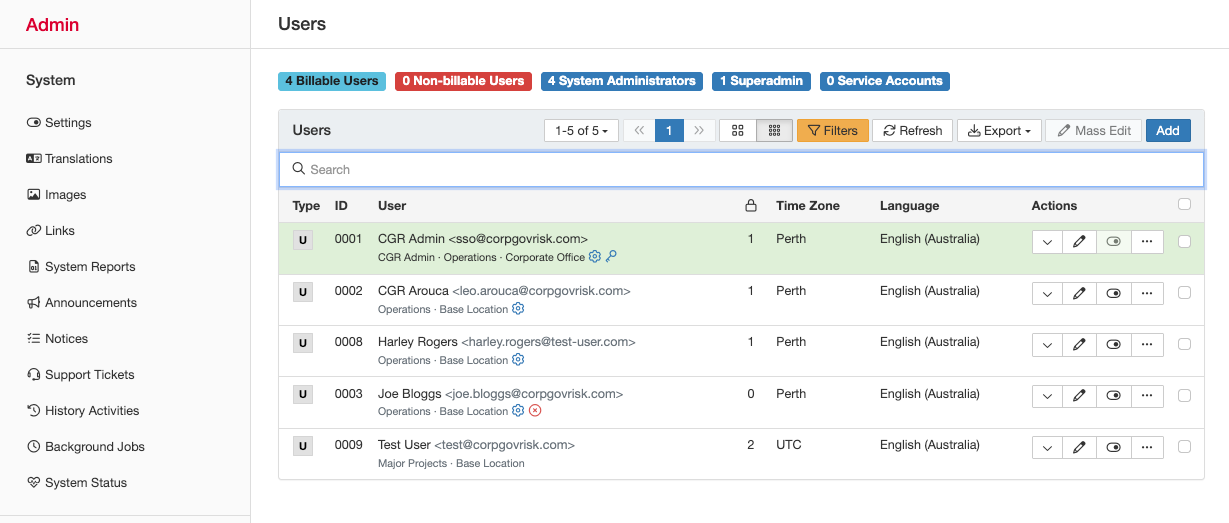
- On this page, click filters [highlighted in amber above].
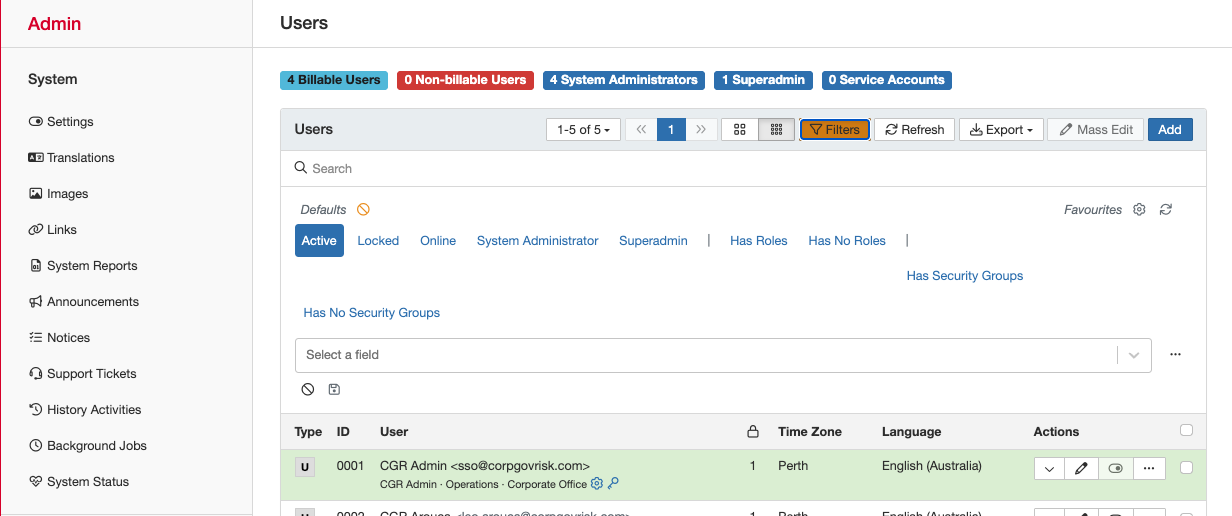
- By default, it selects only active users, this means that you need to click the “Active” button to remove that selection. This will display the active and inactive users [please see below].
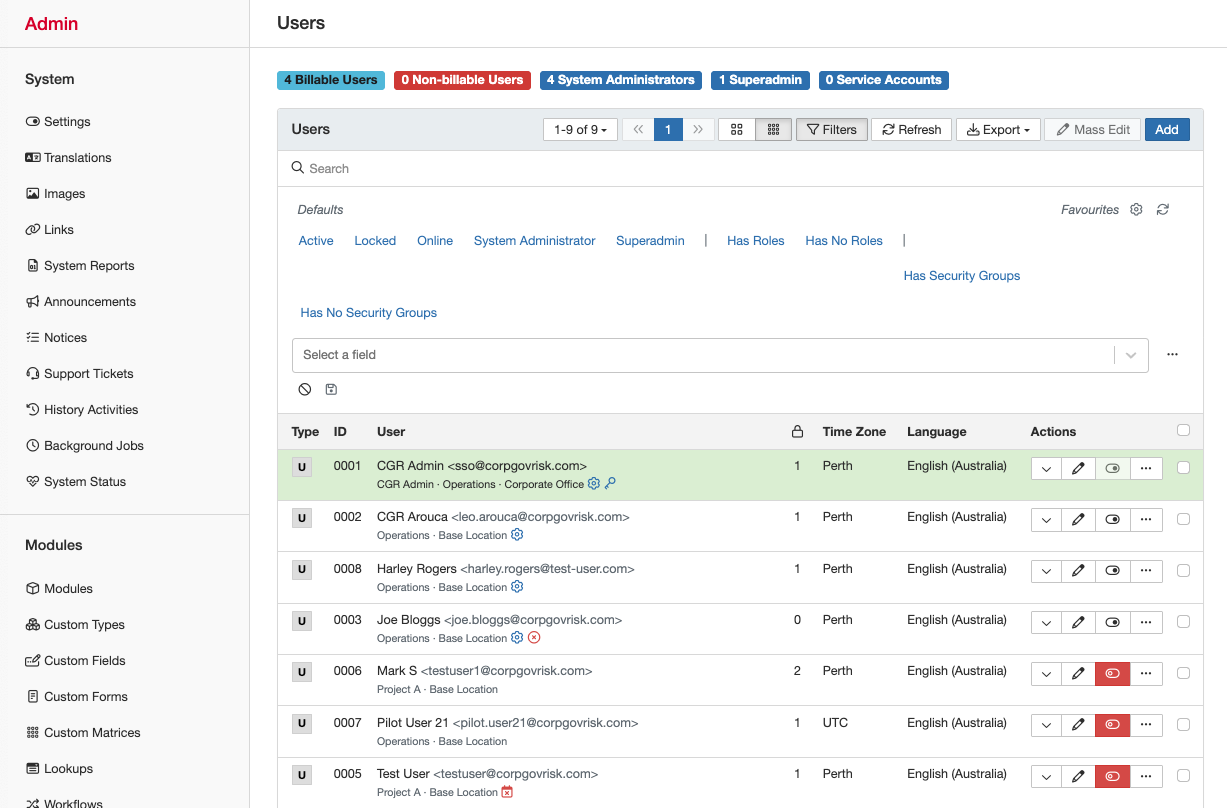
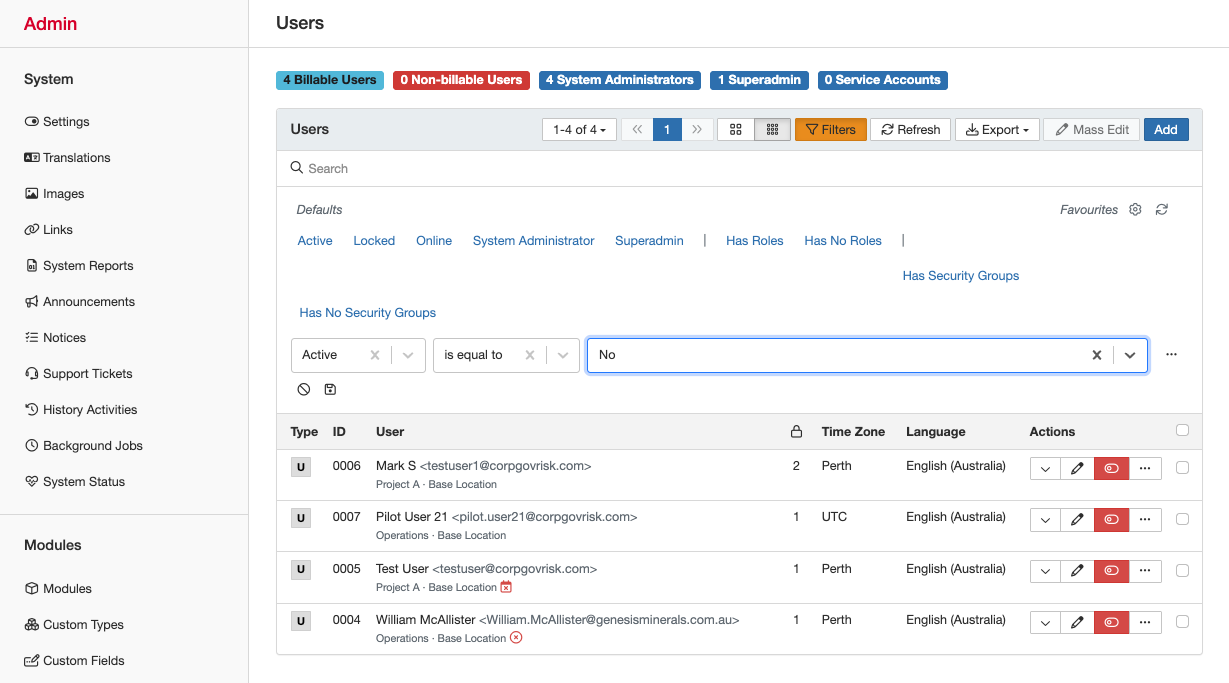
- Now, if you are seeking to only view “inactive” users, you can click the “Select a field” dropdown [please refer to the image above], and select “Active”. This will add this field to the filter, and you can apply “is equal to” → “No”, as shown below, to view only inactive users.
Was this article helpful?
That’s Great!
Thank you for your feedback
Sorry! We couldn't be helpful
Thank you for your feedback
Feedback sent
We appreciate your effort and will try to fix the article