How do I check which modules are enabled?
How to see which modules are active, how to request a new one, and how to enable a disabled sub-type
Contents
- 1. Introduction & Context
- 2. Key Features & Functions
- 3. Requirements
- 4. Step-by-Step Guide
- 5. Common Issues & Troubleshooting
- 6. Related Articles
1. Introduction & Context
When managing your system setup, you may need to verify which modules (for example, Risk, Audit, or Action) are currently enabled in your environment. This can be viewed through the Custom Types configuration in the Admin area. Each module (such as Risk, Audit, Incident, Control, Action, or Alert) must be enabled for use across forms and records.
Who is it for? Administrators managing which modules are available in the system.
What does it impact? A disabled module, or a disabled sub-type, cannot be selected when creating or linking records.
2. Key Features & Functions
- View enabled modules: see which modules are active under Admin, Custom Types.
- Colour coding: a grey row means the module is active and available; a pink row means it is disabled. Disabled (pink) modules do not appear as options when creating or linking records.
- Sub-types: a module can be enabled while one or more of its sub-types are individually disabled.
- Enabling a new module: enabling a whole module is a configuration process that is arranged through a support request, and incurs a cost.
3. Requirements
- Only Admin users can add or modify Custom Types.
4. Step-by-Step Guide
Check which modules are enabled
Enabled or active modules can be viewed from the Admin > Custom Types section.
- Go to Admin > Custom Types.
- Scroll through the list of modules displayed under the Custom Types section.
- Each type (for example, Risk, Audit, Action, Alert, or Control) appears with a coloured background:
- Grey (active): the module is enabled and available for linking or use.
- Pink (disabled): the module is not currently enabled in your environment.

Active modules appear grey; disabled modules appear pink.
Enable a disabled sub-type
Sometimes the main module (for example, Impact Assessment) is enabled, but one or more sub-types (such as Impact) are individually disabled. Even though the parent module appears active, the system will not allow linking or recording for the disabled sub-types.
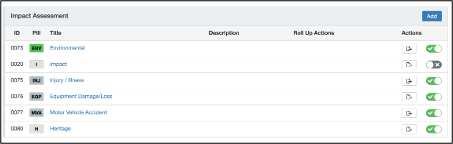
An enabled module with a disabled sub-type beneath it.
To enable it, click the toggle under the Actions column to switch it on (green checkmark). Once the sub-type is active, it is available for selection in related modules and forms, for example when recording an Impact Assessment.
5. Common Issues & Troubleshooting
| Issue | Likely Cause | Solution |
| A module you need is not enabled | Enabling a whole module is a configuration task. | Confirm with your system owner that it should be enabled, then raise a support request. Clew will discuss your requirements and provide a formal quote, as enabling a module incurs a cost. |
| The module is enabled but a sub-type cannot be used | The sub-type is individually disabled. | Click the toggle under the Actions column to switch the sub-type on. |
| A module does not appear when creating or linking records | It is disabled (shown as a pink row). | Disabled modules do not appear as options. Enable the module, or the relevant sub-type, first. |
Click a title to preview it here. Use the Open full article button to read the full version in a new tab.
▾Custom Types Open full article »
Related article
How custom types and their sub-types are configured.
Was this article helpful?
That’s Great!
Thank you for your feedback
Sorry! We couldn't be helpful
Thank you for your feedback
Feedback sent
We appreciate your effort and will try to fix the article