How a System Administrator can check whether an email notification was sent successfully or failed, using Notices.
Contents
- 1. Introduction & Context
- 2. Key Features & Functions
- 3. Requirements
- 4. Step-by-Step Guide
- 5. Common Issues & Troubleshooting
- 6. Related Articles
1. Introduction & Context
The Clew Platform lets administrators check notices that may have succeeded or failed. Notices cover a lot more than just email notifications; they can also cover triggers and bulk operations (for example, mass edit).
The most typical check is around emails sent to users. Sometimes a user reports not receiving an email, which could be caused by several things outside the application itself (for example, the email landing in their spam folder).
This article gives an overview of how to find notices related to emails, but the same process applies to any other type.
2. Key Features & Functions
From Notices you can check the success or failure of:
- Emails sent to users (notifications, digests, trigger notifications, and reminders)
- Scheduled dashboard exports
- Bulk operations such as mass edit, mass link, and mass update
- Directory user synchronisation with external platforms
3. Requirements
- You need to be a System Administrator to perform the steps below.
4. Step-by-Step Guide
To find out whether an email notification worked or not, follow these steps:
- Navigate to Admin > Notices.
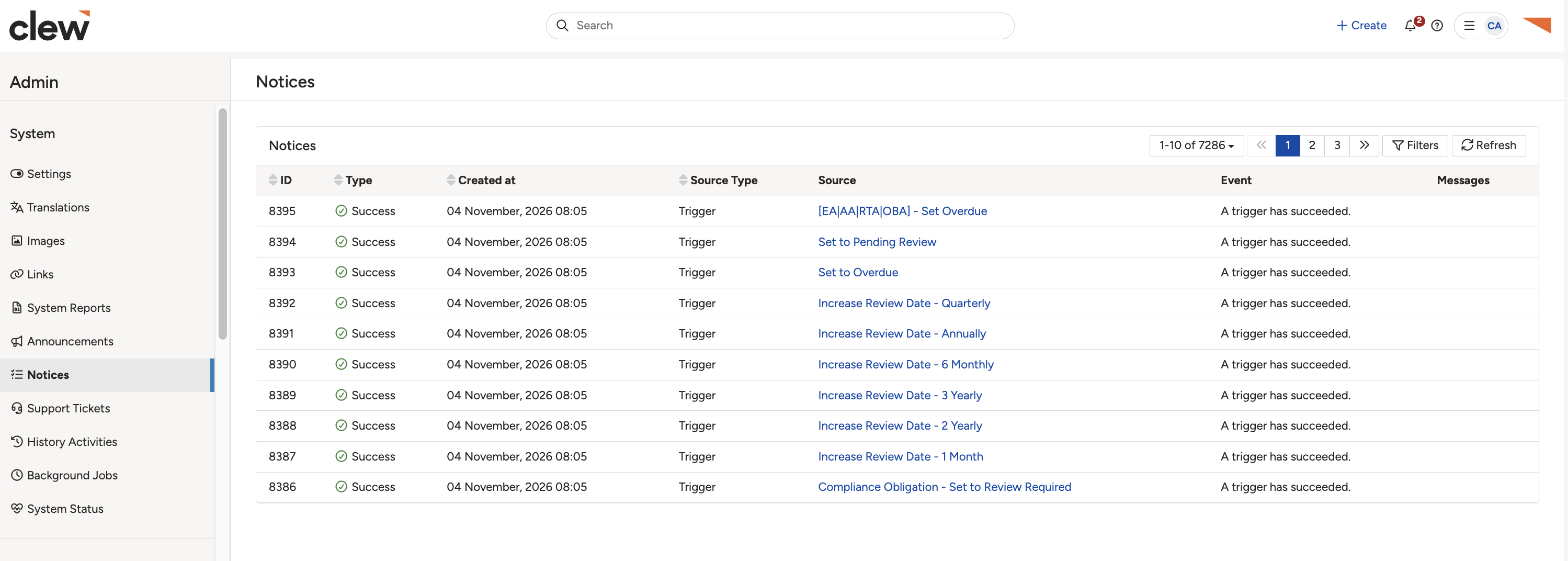
The Notices page in Admin.
- Open the Filters (highlighted in amber). Once open, you will see the filters described below.
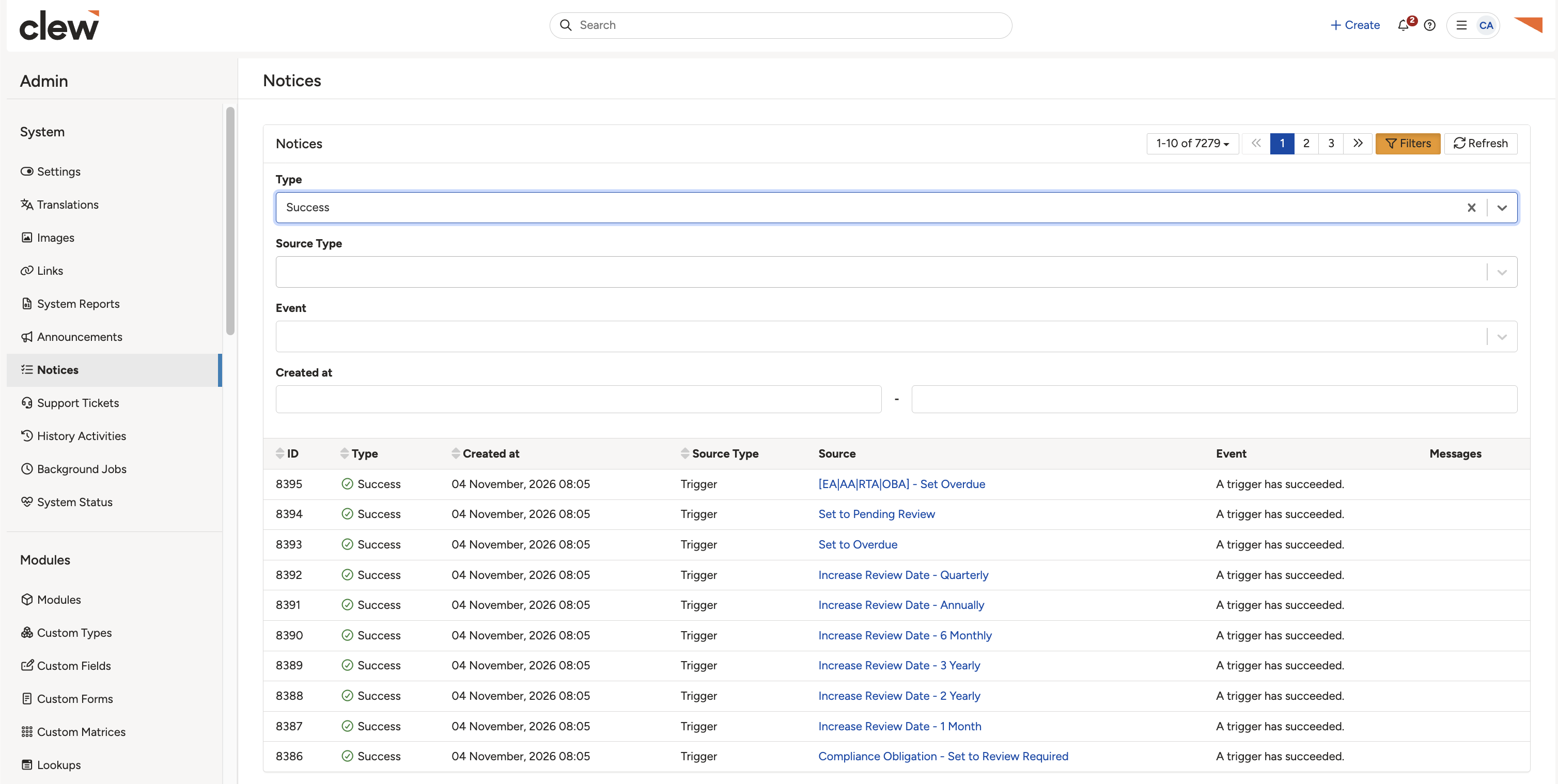
Open Filters to narrow the notices by type, source, event, and date.
| Filter | What it does |
| Type | Success or Failure. Filters the data for successful or failed attempts. |
| Source Type | The kind of notice. Options include:
|
| Event | Relates directly to the options above and lets you be very specific, for example looking for a successful or failed bulk operation notice. |
| Created at | The date range for when the notice should have happened. |
- For this example, finding an email notification sent to a particular user, select:
- Type: Success
- Source Type: Email Notification
- Created at: the date you want to check
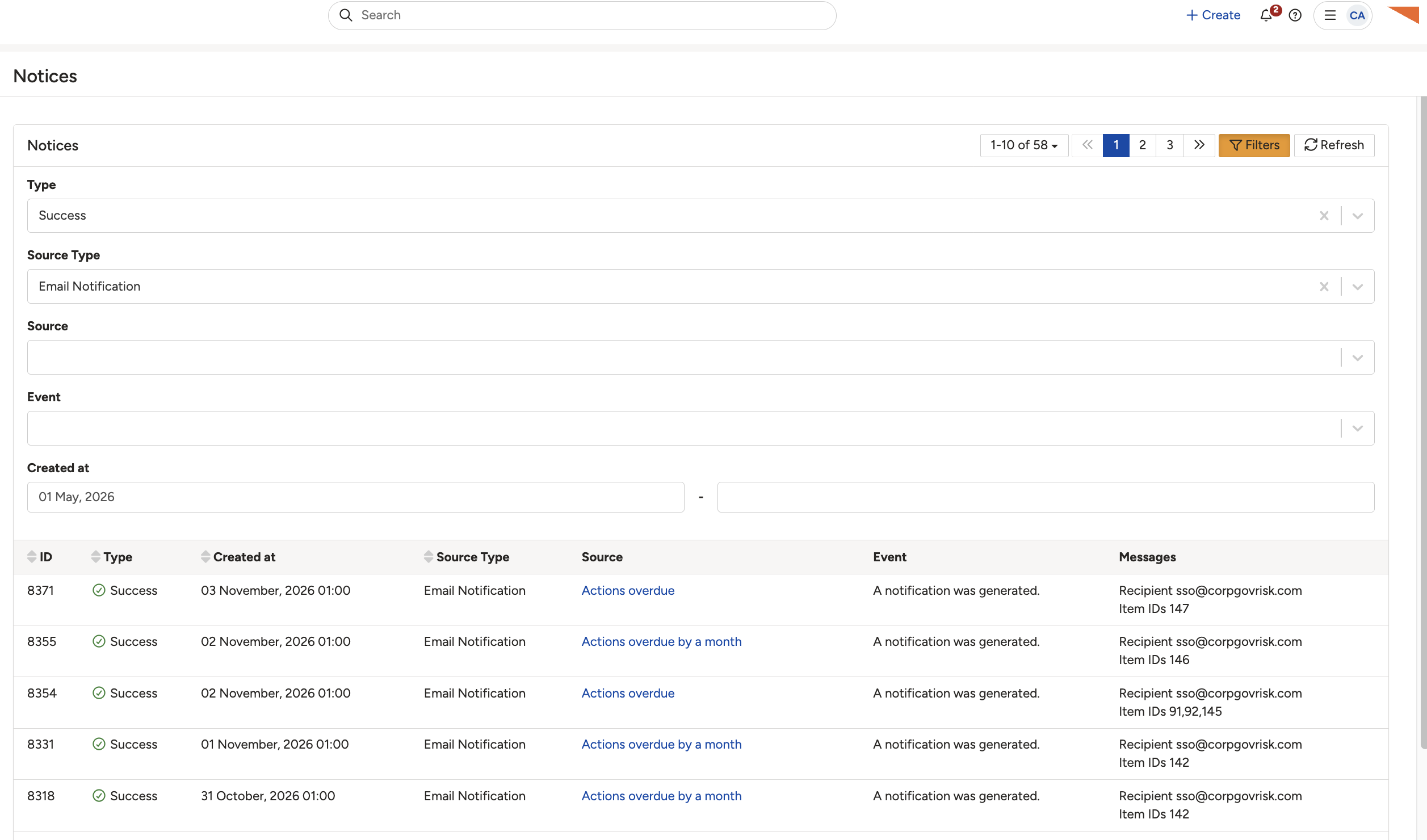
Filters set to find a successful email notification on a given date.
- You can do the same for failed notifications by setting Type to Failure.
5. Common Issues & Troubleshooting
| Issue | Likely Cause | Solution |
| The notice shows Success, but the user says they did not receive the email. | The email left the platform successfully, so the cause is outside the application. | Ask the user to check their spam or junk folder, and check with their mail administrator about filtering. |
| The notice shows Failure. | The send failed within the platform. | Open the notice to review the event detail, and check the related configuration in the admin area. |
| You cannot find a notice for the email. | The filters are too narrow, or the date range does not cover when the email was sent. | Widen the Created at date range and check both Success and Failure under Type. |
Click a title to preview it here. Use the Open full article button to read the full version in a new tab.
▾Notices Open full article »
Related article
The full overview of Notices and everything they track, beyond email notifications.
▾Email Notifications Open full article »
Related article
How email notifications are configured in the admin area of the platform.
▾Trigger Configuration Open full article »
Related article
Trigger notifications also appear in Notices. See how triggers are configured.
Was this article helpful?
That’s Great!
Thank you for your feedback
Sorry! We couldn't be helpful
Thank you for your feedback
Feedback sent
We appreciate your effort and will try to fix the article