Why is a user receiving or not receiving a notification?
How to check which notification is responsible, who it is set to send to, and the conditions that decide whether it sends.
Contents
- 1. Introduction & Context
- 2. Key Features & Functions
- 3. Requirements
- 4. Step-by-Step Guide
- 5. Common Issues & Troubleshooting
- 6. Related Articles
1. Introduction & Context
When a user reports that they received an email they did not expect, or missed one they should have had, this article shows you how to trace exactly which notification is responsible, who it is set to send to, and the conditions that decide whether it sends. This lets you explain the behaviour to the user or pinpoint what needs to change.
In the Clew Platform, automated emails come from one of two places: an Email Notification or a Triggered Notification. Both live in the Admin area, so working through them in order is the fastest way to answer the question.
Who is it for? System administrators. Only system administrators can view email notifications and triggers, so this is an administrator-level diagnostic task rather than something an end user can check for themselves.
What does it impact? Nothing. Everything in this article is read-only checking. You are inspecting how a notification is set up, not changing it. When you have found the cause and need to add or remove a recipient, follow How to update recipients on an email notification (including triggered notifications) instead.
2. Key Features & Functions
To work out why a user is or is not receiving an email, you answer three questions. This article walks through each one.
- Which notification is responsible? Identify whether the email came from an Email Notification or a Triggered Notification, and which specific one.
- Who is it set to send to? Every notification has a Recipients section listing the responsible users, roles, and teams that receive it.
- What condition makes it send? A triggered notification only fires when its event and conditions are met by a record or action. An email notification sends against the event it is configured for.
Worked example. A user says they are not being told when a risk is assigned to them. You open Admin > Triggers, find the trigger that sends on assignment, and check its Recipients. The recipient is set to a role the user is not in, so the email never reaches them. You now know the notification is working as configured, and that the fix is to add the user, their role, or their team to the recipients.
3. Requirements
- System administrator access. Email notifications and triggers are only visible in the Admin area to system administrators.
- The details of the email in question. Ask the user for the subject line, roughly when it arrived (or should have arrived), and the record or module it relates to. This tells you which notification to look at.
- Knowledge of the user's roles and teams. Because recipients can be set by role or team, you need to know which roles and teams the user belongs to.
4. Step-by-Step Guide
Identify which notification you are investigating
- Look at the email the user received or expected. Note the subject line and the module it relates to, for example a risk, an action, or an incident.
- Decide which type to check first. If the email is tied to an event on a record, such as a status change or an assignment, it is most likely a Triggered Notification. If it is a standing notification for a module, check Email Notifications.
- If you are not sure, check both. Start with Admin > Email notifications, then Admin > Triggers.
Check an email notification
- Navigate to Admin > Email notifications.
- Select the notification that matches the email the user is asking about.
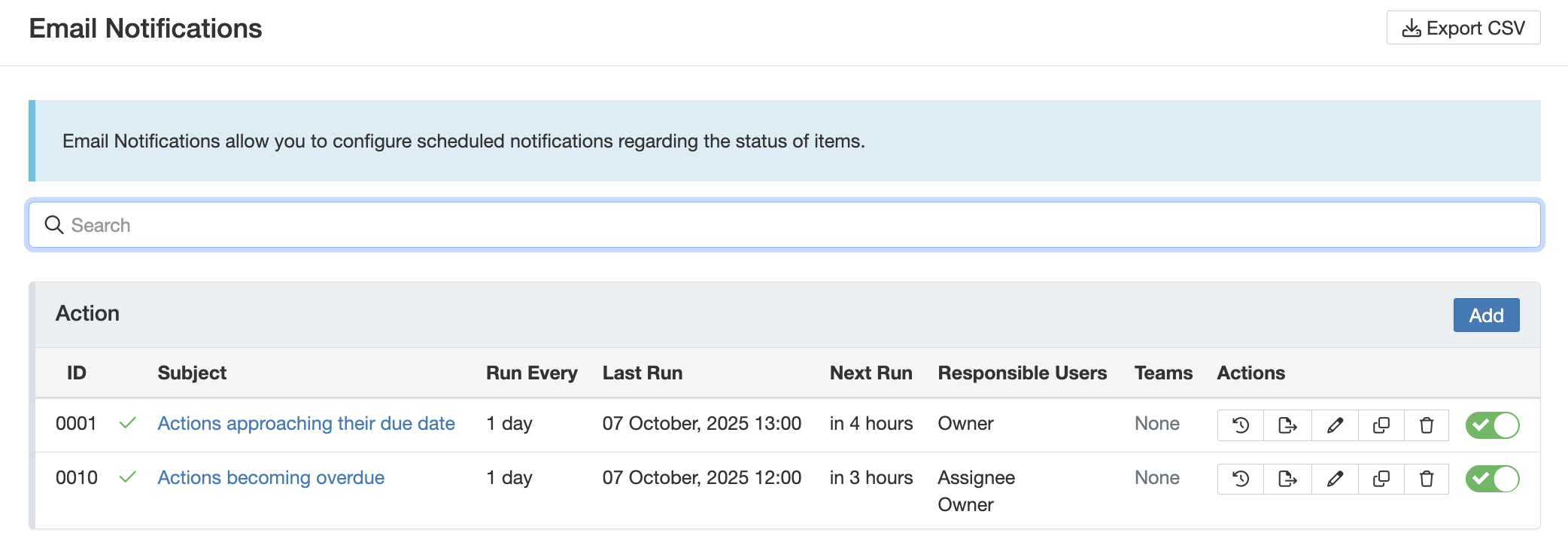
The Admin, Email notifications area, where you select the notification to inspect.
- Click the pencil icon at the end of the row to open the notification.
- Scroll to the Recipients section. This lists the responsible users, roles, and teams the notification is set to send to. Check whether the user appears here directly, or through a role or team they belong to.
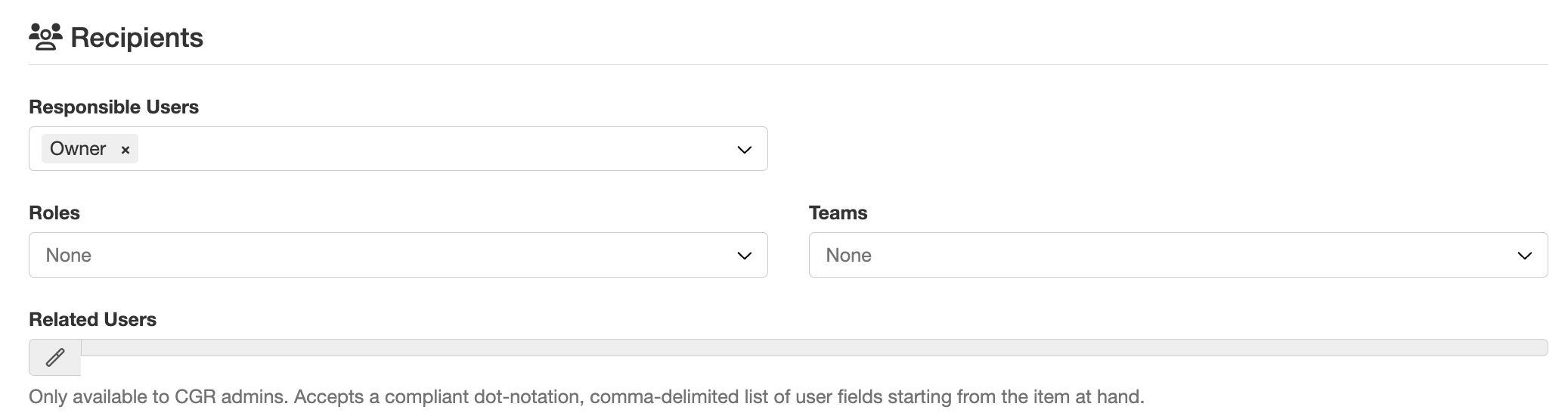
The Recipients section of an email notification, showing responsible users, roles, and teams.
Check a triggered notification
- Navigate to Admin > Triggers.
- Find the relevant trigger. Triggers that send an email can be recognised by the email icon in the Event Handlers column. Click the hyperlinked title to open the trigger.
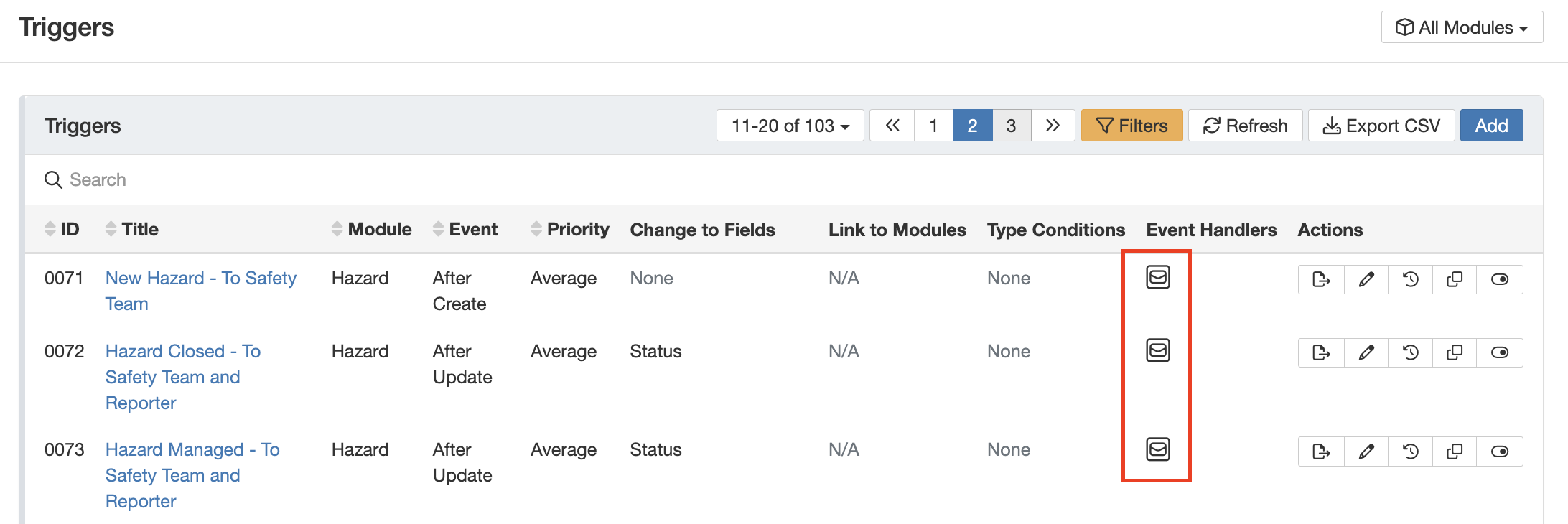
The Admin, Triggers list. The email icon in the Event Handlers column marks a trigger that sends an email.
- Review the trigger's conditions. These define the event and any filters that must be met for the trigger to fire, for example the module, a status change, or a field value. The user only receives the email when a record or action meets these conditions.
- Open the Triggered Notification section and click the pencil icon at the end of the row.
- Go to the Recipients section to see the responsible users, roles, and teams the notification sends to. Check whether the user is included, directly or through a role or team.
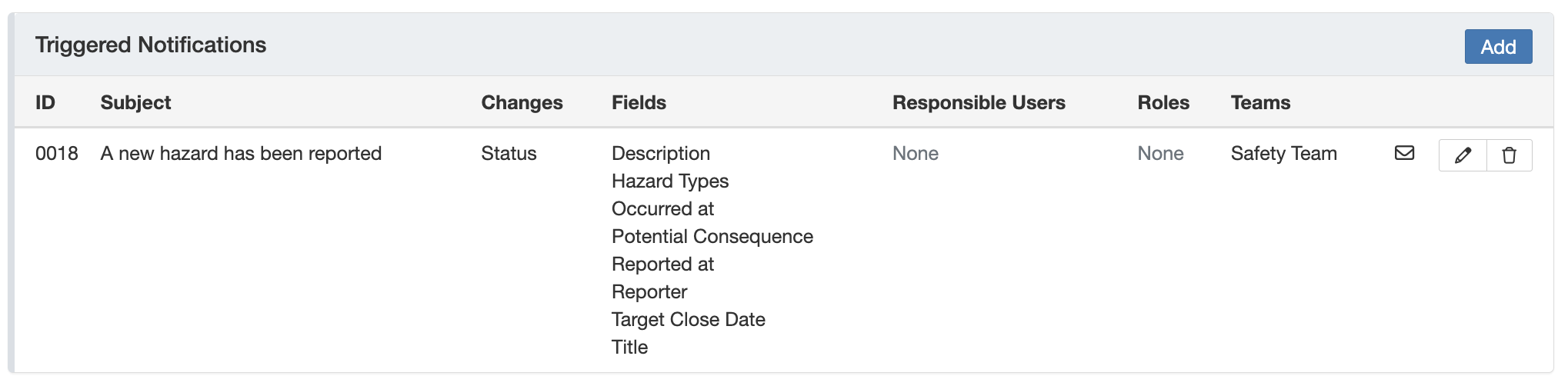
The Triggered Notification section, opened from the pencil icon at the end of the row.

The Recipients section of a triggered notification, showing responsible users, roles, and teams.
Confirm whether the user is in scope
- If the recipient is set to responsible users, confirm the user is actually the responsible person on the record in question. If they are not the owner or assignee, they will not receive it.
- If the recipient is set to a role or a team, confirm the user is a member of that role or team. A user who has recently moved teams or changed role may fall in or out of scope.
- If the user is not in scope, you now have your answer. The notification is behaving as configured, and adding the user, their role, or their team to the recipients is the change required.
Rule out personal preferences and digests
- Check whether the user has changed their own notification preferences, which can reduce or turn off certain emails. See What are the notification options and how can I change my preferences? in the Related Articles section.
- Check whether the notification is delivered as part of a digest. If so, the user receives a single grouped email on a schedule rather than an immediate one, which can look like a missing notification. See How do the digest emails work? in the Related Articles section.
- If everything above checks out but the email still does not arrive, confirm the user's email address is correct and ask them to check their spam or junk folder.
5. Common Issues & Troubleshooting
| Issue | Likely Cause | Solution |
| User is not receiving an email they expect. | No email notification or trigger is configured for that event. | Check Admin > Email notifications and Admin > Triggers. If none exists, one needs to be configured. See the Email Notifications and Trigger Configuration articles. |
| User is not receiving it, but a notification exists. | The user is not a recipient: they are not the responsible user, or not in the role or team set to receive it. | Open the Recipients section and confirm the user's role and team membership. To add them, follow the update recipients article. |
| User is not receiving it, and is a recipient. | The trigger's conditions were not met, so it never fired for that record or action. | Review the trigger's conditions and confirm the record or action actually matched the event and filters. |
| User gets a grouped email later, not an immediate one. | The notification is delivered through a digest, or the user has changed their notification preferences. | Check the digest setup and the user's own notification preferences. See the related digest and preferences articles. |
| User is receiving a notification they did not expect. | The user is the responsible user, or is in a role or team that is set as a recipient. | Identify the notification and open its Recipients. To remove the user, role, or team, follow the update recipients article. |
| No emails arrive at all, from any notification. | The user's email address is wrong, or the emails are going to spam. | Confirm the address on the user's profile and ask them to check their spam or junk folder. |
Best practices:
- Work in order: confirm a notification exists, check its conditions, then check its recipients. This isolates the cause quickly.
- Prefer roles and teams over individual users when setting recipients, so membership changes keep notifications accurate without manual edits.
- When a user's report does not match the configuration, ask for the exact email subject and timestamp. It usually points straight to the responsible notification.
Was this article helpful?
That’s Great!
Thank you for your feedback
Sorry! We couldn't be helpful
Thank you for your feedback
Feedback sent
We appreciate your effort and will try to fix the article