Investigating Who Receives a Notification
How a System Administrator finds out why a user is receiving a notification, using Admin > Notices.
Contents
- 1. Introduction & Context
- 2. Key Features & Functions
- 3. Requirements
- 4. Step-by-Step Guide
- 5. Common Issues & Troubleshooting
- 6. Related Articles
1. Introduction & Context
If a user is receiving email or triggered notifications and you need to find out why, a System Administrator can identify the source by reviewing the notification configuration in Admin > Notices.
Who is it for? System Administrators investigating why a user receives a particular notification.
What does it impact? Reviewing a notification does not change anything on its own. Editing its recipients does change who receives it from then on.
2. Key Features & Functions
- Notices: the admin area that lists notifications, found at Admin > Notices.
- Filter by source type: narrow the list to Email Notifications, Triggered Notifications, or both.
- Filter by date: use Created At to focus on the date a notification was received.
- Recipients: each notification lists its Responsible Users and Roles, so you can see who it is sent to.
- Indirect recipients: a user can also receive a notification through a team it references, not just by being listed directly.
3. Requirements
- You must be a System Administrator to access and review notifications in Admin > Notices.
4. Step-by-Step Guide
- Navigate to Notices. Go to Admin > Notices, click the Filters icon, then search for and select the options you need.
- Filter by notification type. Under Source Type, select one or both of Email Notification and Triggered Notification, as applicable.
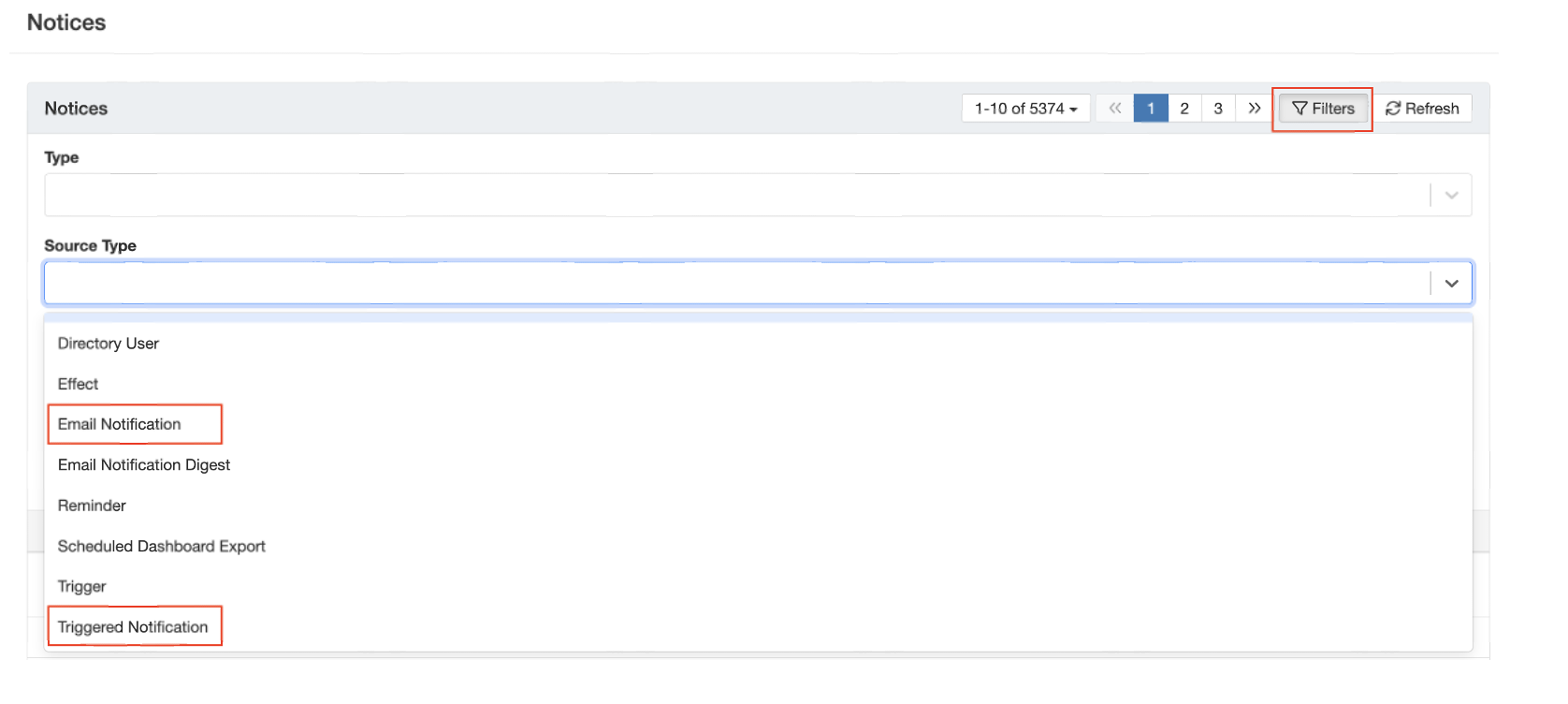
Open Notices and click Filters.
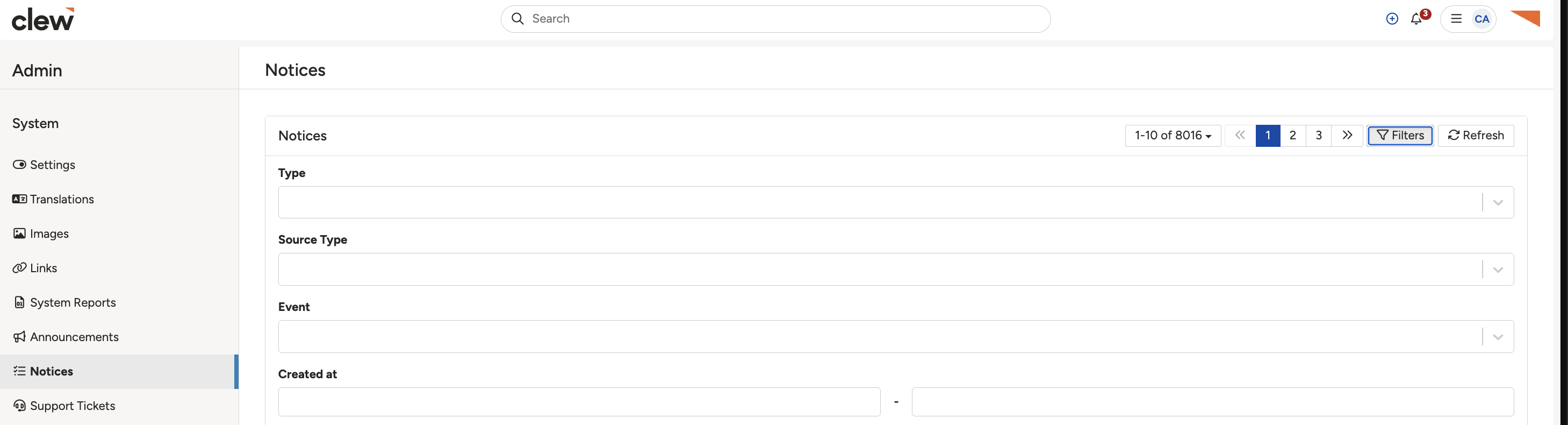
Filter by Source Type under the Notices filters.
- Refine by date. Use the Created At field to narrow the results to the date the notification was received.

Refine by Created At date.
- Open the notification. Click its hyperlinked title to open it, then select Edit in the top-right corner to view or update the list of recipients.
- Review recipients. Check the Responsible Users and Roles fields to see who the notification is sent to.

The Responsible Users and Roles fields show who the notification goes to.
5. Common Issues & Troubleshooting
| Symptom | Cause and what to do |
| A user receives a notification but is not in the Responsible Users or Roles. | They are likely receiving it through a team the notification references. Check the teams on the notification and that user's team membership. |
| You cannot open Admin > Notices. | Reviewing notifications requires System Administrator access. Ask a System Administrator to investigate. |
| There are too many notices to find the right one. | Filter by Source Type (Email or Triggered) and by the Created At date the user received it, to narrow the list. |
▾Notices Open full article »
Related article
How Notices works, the admin area that lists email and triggered notifications you review here.
Was this article helpful?
That’s Great!
Thank you for your feedback
Sorry! We couldn't be helpful
Thank you for your feedback
Feedback sent
We appreciate your effort and will try to fix the article