TABLE OF CONTENTS
Context
The Platform allows admins to check [and add/exclude if necessary] users who may be able to access particular “quick edit forms” in the platform.
These forms appear in record summary pages and the main use case is to enable certain fields to be edited by specific roles against a record. A common case is the Risk Owner being able to edit the risk title.
Why do we use this? Sometimes you want the users who can edit a risk to be able to change controls, causes and consequences, but you may want to stop them from changing core information [such as a title or a register it belongs to].
Important Notes
- You need to be a system administrator to be able to perform the steps below.
- This article does not aim to cover how to create a New custom form. If you are seeking this information, please refer to Custom Form.
How check who can access a certain form?
Please follow these steps:
- Navigate to Admin > Custom Forms.
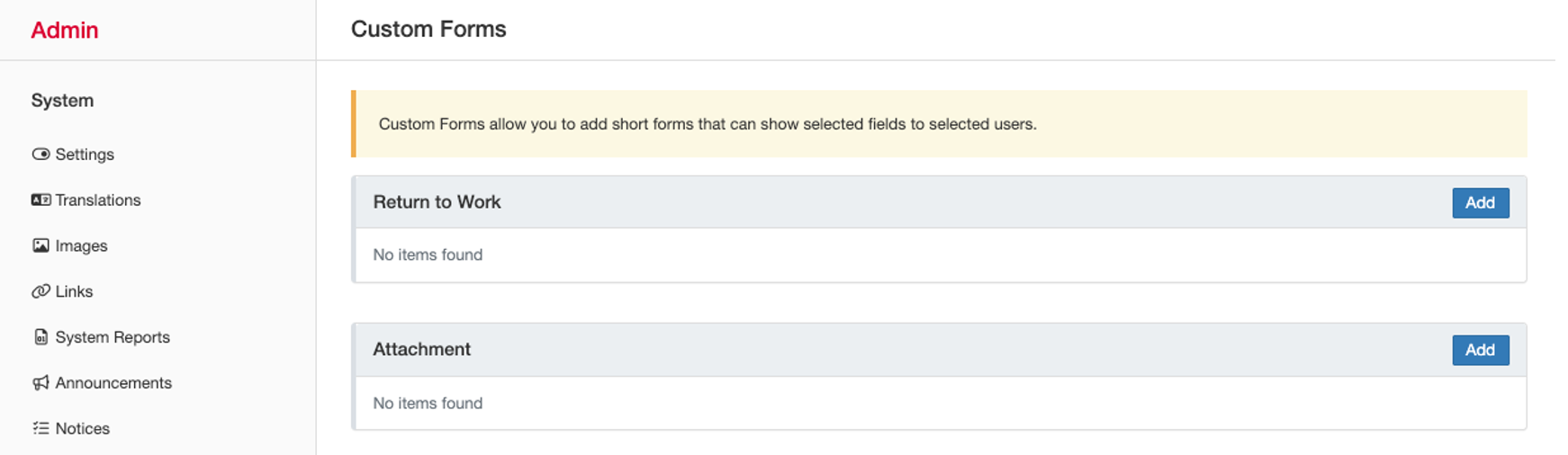
- On this page, scroll down to the Module you want to check [in our case, risk]. Click “Edit” [pencil button on the right side of the row].
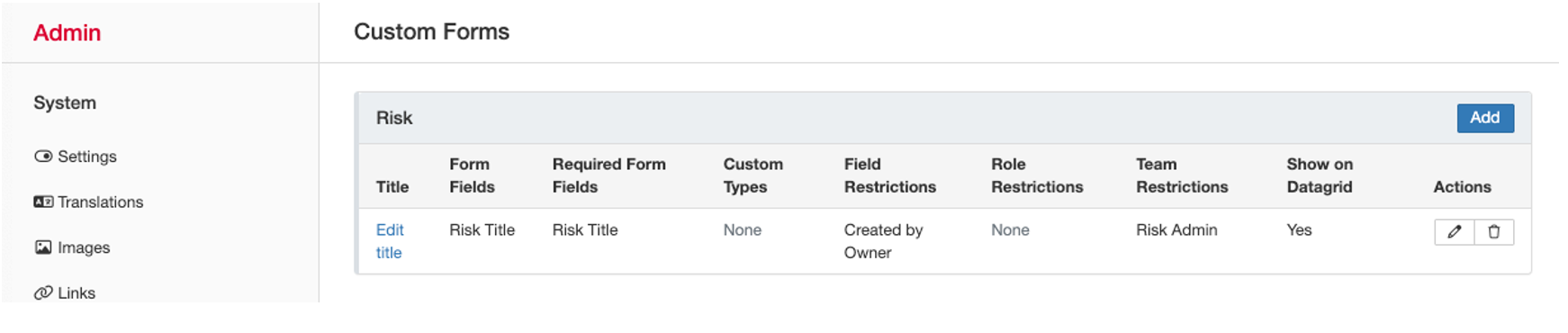
- This will open the form for review. Scroll down to “Restrictions” section.
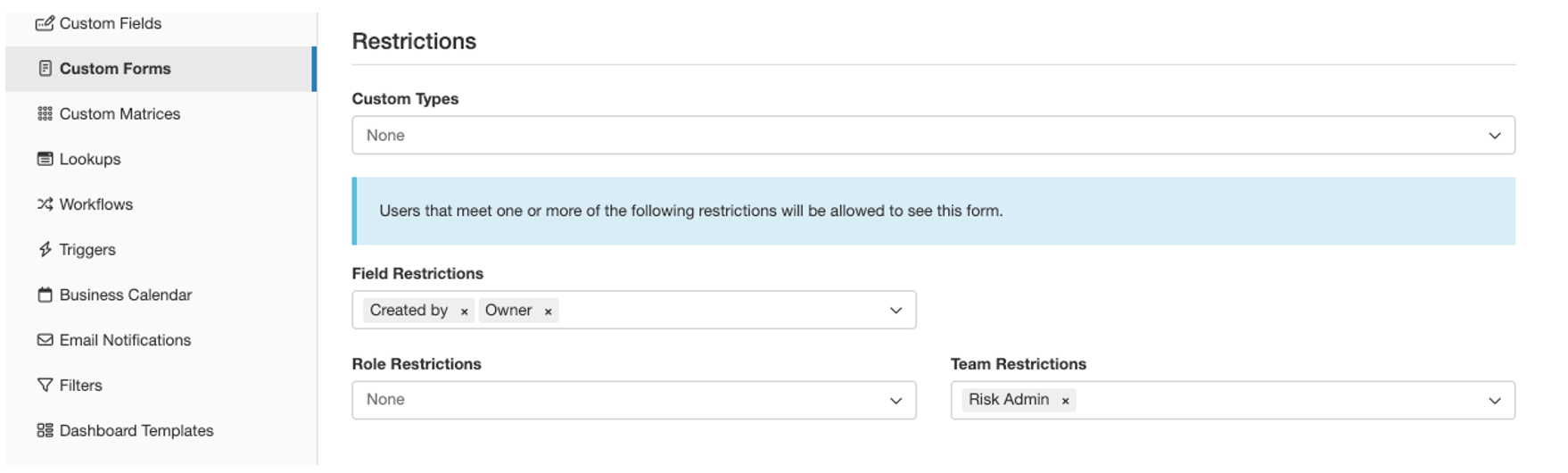
- Field Restrictions: These are the “roles” against the record that are able to view and open the custom form [please note that if these users are not allowed to edit the record, they are unable to view this form regardless of the settings here. In this case, the record “Owner” and “Created By”, meaning, the people named against these.
- Role Restrictions: There are the roles in the application that are attributed to the users. For example, GM for Sales, or CEO roles.
- Team Restrictions: These are teams of users that are able to use the custom form.
Was this article helpful?
That’s Great!
Thank you for your feedback
Sorry! We couldn't be helpful
Thank you for your feedback
Feedback sent
We appreciate your effort and will try to fix the article