How do I create a workflow?
What a workflow is, and how to set up its statuses and transitions for a module
Contents
- 1. Introduction & Context
- 2. Key Features & Functions
- 3. Requirements
- 4. Step-by-Step Guide
- 5. Common Issues & Troubleshooting
- 6. Related Articles
1. Introduction & Context
A workflow is a predefined sequence of steps, or statuses, that a task or process follows as it moves through various stages of completion. It helps you manage and track the progress of work within the different modules of the platform.
Why it matters: workflows let you track the status of audits, risks, or actions through stages such as draft, in progress, review, or closed, giving clarity and control throughout each item's lifecycle.
Who is it for? System administrators who configure how records move through their stages in a module.
2. Key Features & Functions
- Statuses: the stages a record moves through, for example draft, in progress, review, or closed.
- Transitions: the buttons or actions users click to move a record from one status to the next.
- Configured per module: each module has its own workflow configuration.
3. Requirements
- System Administrator access to the Admin area.
- The module you want to configure a workflow for.
4. Step-by-Step Guide
Creating a workflow
- Navigate to the Admin page and search for Workflow.

Finding Workflow in the Admin area.
- To set up a workflow for a specific module, search for the module name or section where you want to add the workflow configuration, and click the blue Add button.
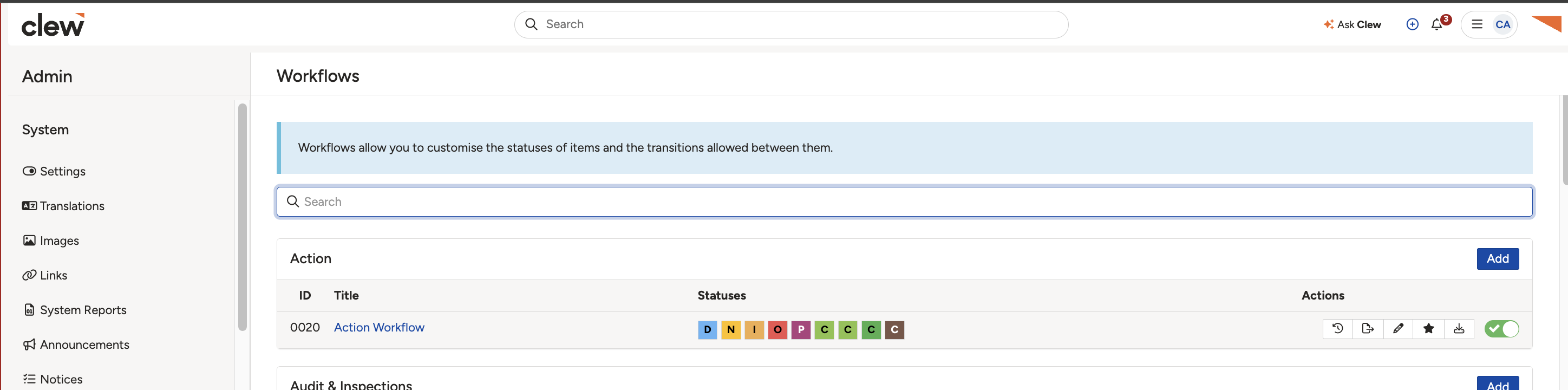
Selecting the module and adding a workflow configuration.
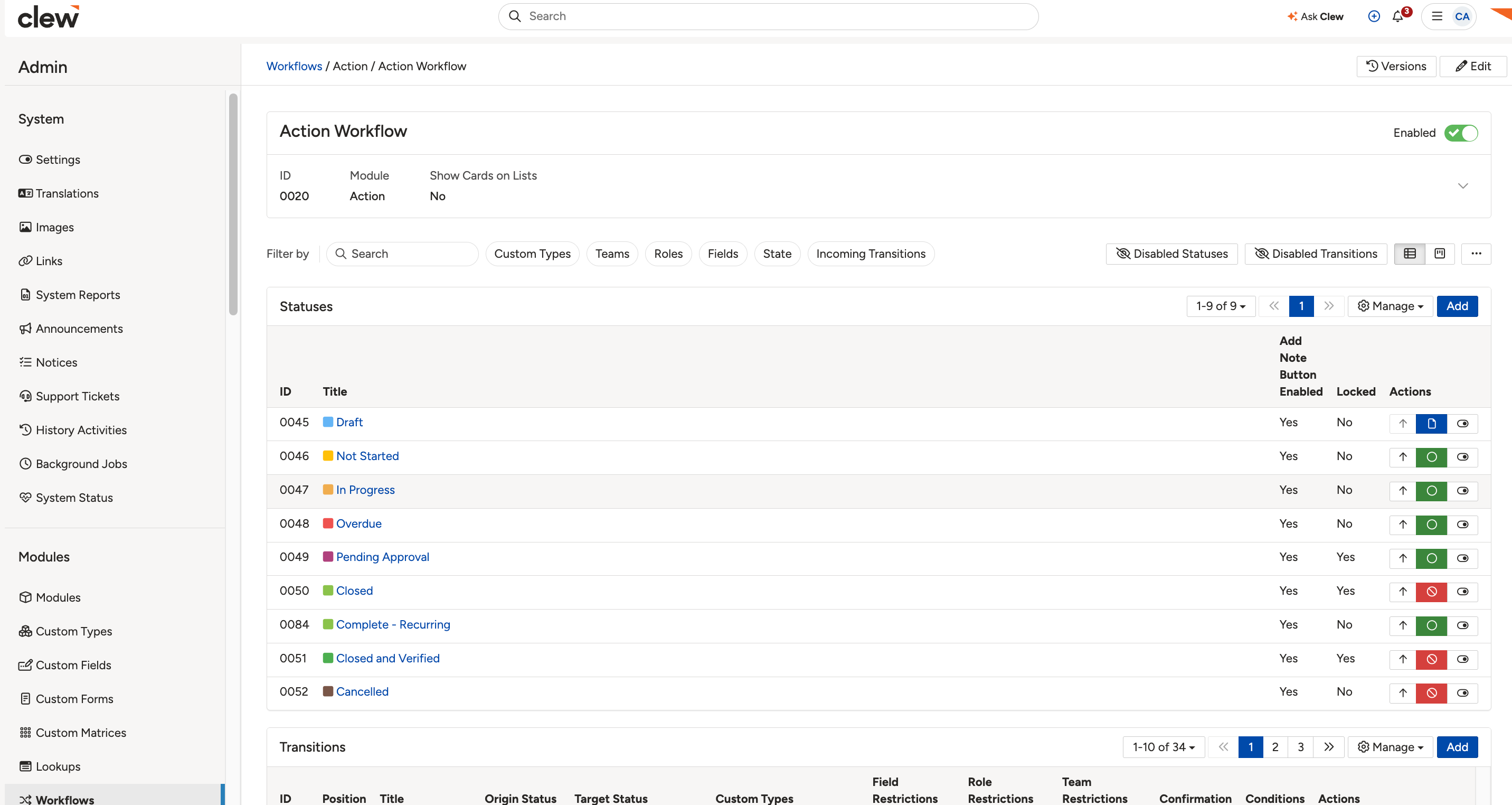
The workflow configuration for the module.
- Click any status to edit it (or add a new one). The Title is mandatory; the other settings control how the status behaves:
| Setting | What it does |
| Title | The status name shown on the record. This field is required. |
| Description | An optional description of the status. |
| Status Type | The type the status maps to. Items with closed statuses do not appear in list views by default. |
| Enabled | Whether the status is active and available in the workflow (Yes or No). |
| Locked | When set to Yes, items cannot be edited or deleted while in this status. |
| Colour | The colour used for the status label, set from the palette or with a HEX code. |
| Add Note | Turn on Enable Add Note Button for all states to show the Add Note button for items in this status. |
| Recipients (Roles) | Users in these roles always receive an email notification when a note is added to an item they can read. Tick Show Extra Email Recipients (Roles) to allow additional roles to be selected. |
| Recipients (Users) | These users always receive an email notification when a note is added to an item they can read. Tick Show Extra Email Recipients (Users) to allow additional users to be selected. |
| Translations | Add translated labels for the status, for multi-language setups. |
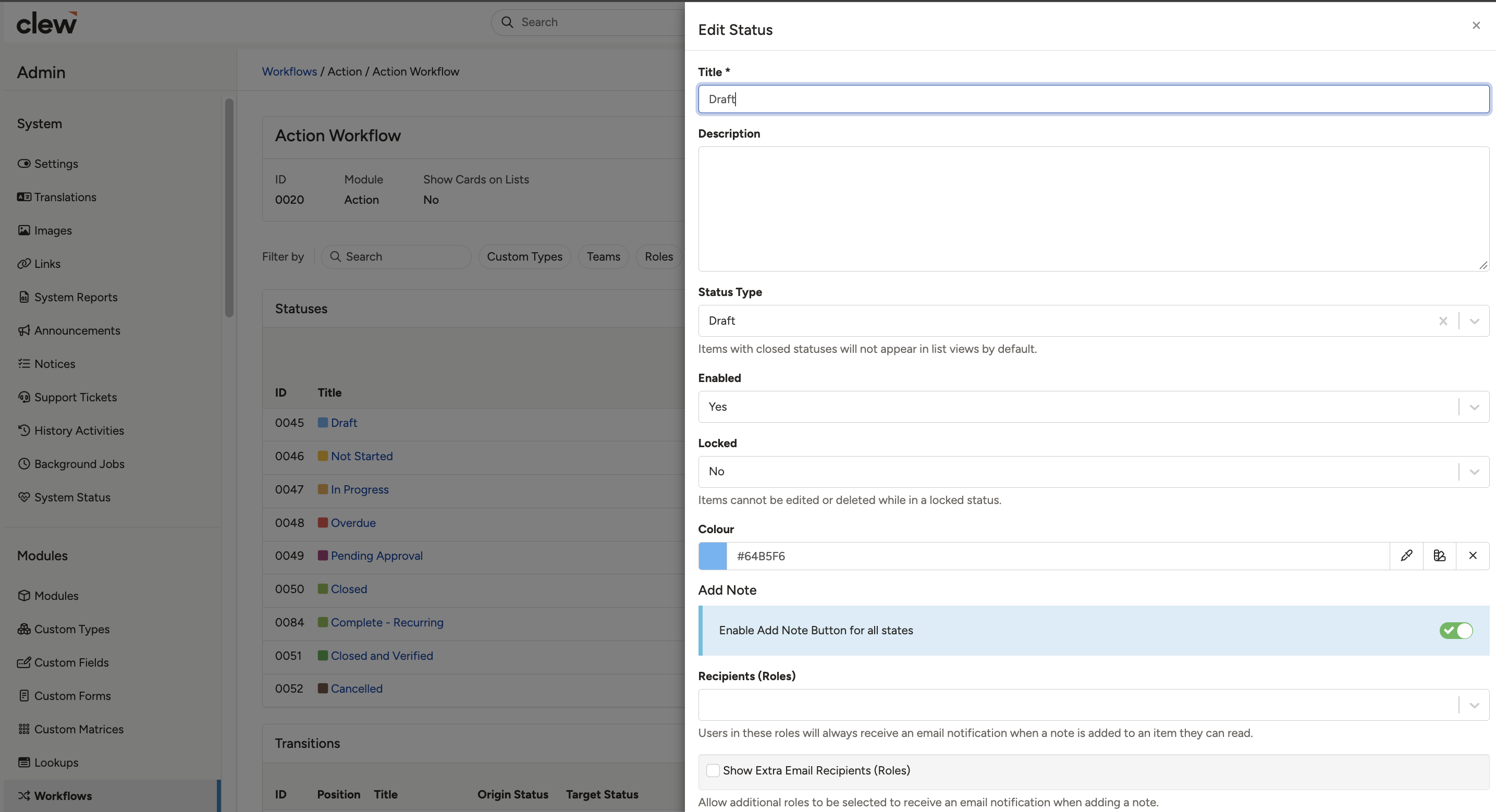
Editing a status and its settings.
- After setting up the workflow statuses, go to the Transitions section, where you create the buttons or actions that users see and use to move a record from one status to another. To add a transition, click the blue Add button.
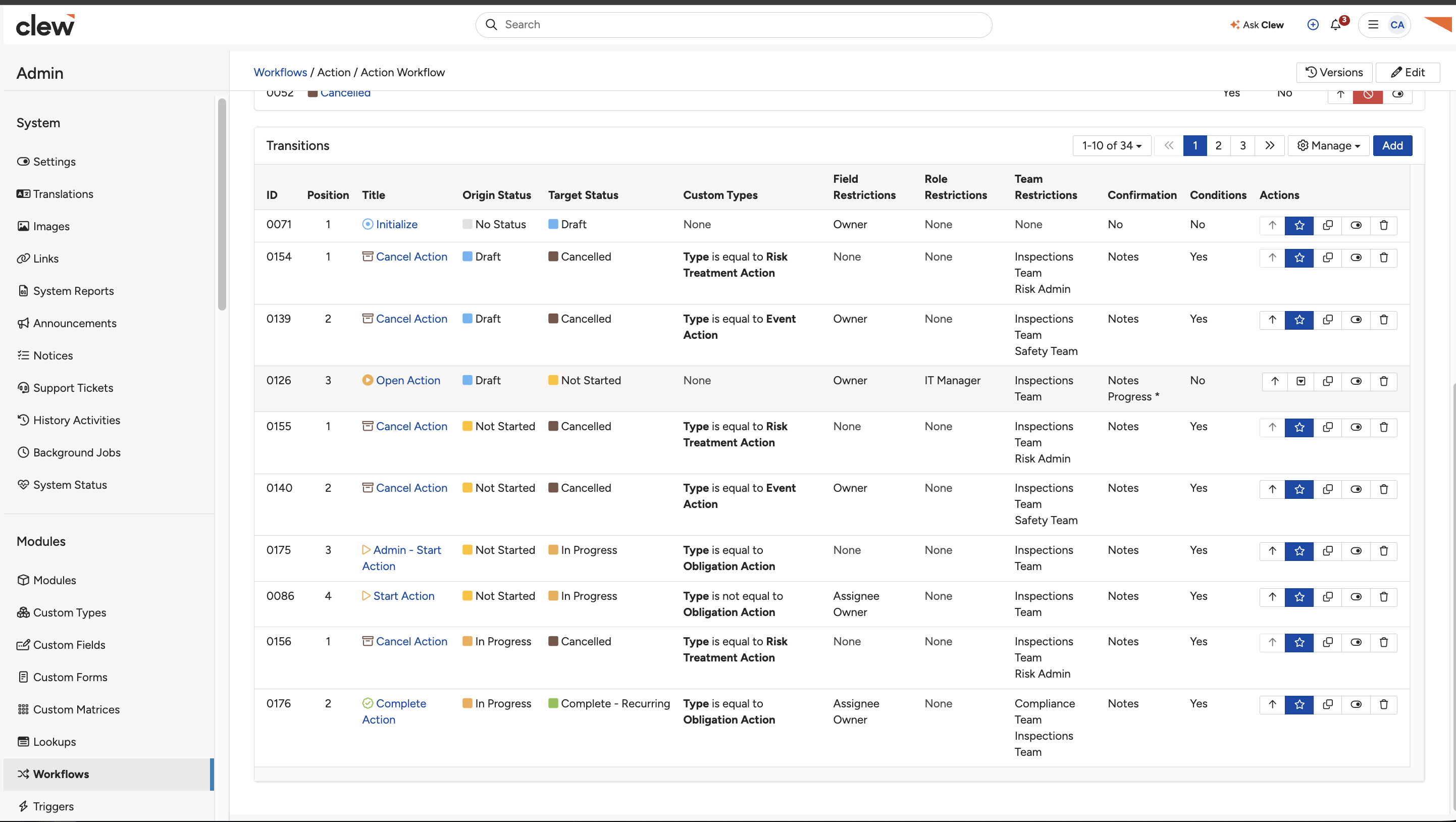
Adding a transition between statuses.
The transition form is split across four tabs:
| Field | What it does |
| Transition Details | |
| Title / Transition Button Label | The label shown on the transition button. This field is required. |
| Description | An optional description of the transition. |
| Origin Statuses | The status or statuses a record must be in for this transition to appear. |
| Target Status | The status the record moves to when the transition is used. This field is required. |
| Icon | An identifying icon for the transition button. |
| Colour | An alternate colour for the button, instead of the target status colour. |
| Transition Button | Where the button appears and how it looks: Standard, Pinned, or Primary. |
| Position | The order of this transition button among the others. |
| Translations | Translated labels for the button, for multi-language setups. |
| Behaviour | Additional behaviour settings for the transition. |
| Restrictions | |
| Role Restrictions | Limit who can use the transition to users with the selected roles. |
| Team Restrictions | Limit the transition to users in the selected teams. |
| Field Restrictions | Limit the transition to specific record roles, such as Owner, Assignee, or Authoriser. |
| Conditions | |
| Condition type | Define when the transition is available. Options include comparing a field to a value, comparing a field to another field, whether all related items are closed or there are no related items, whether there are one or more related items, and on notification day. |
| Confirmation Popup | |
| Confirmation popup | Turn on a confirmation popup for the transition, and choose the fields the user must complete before the transition is applied. |
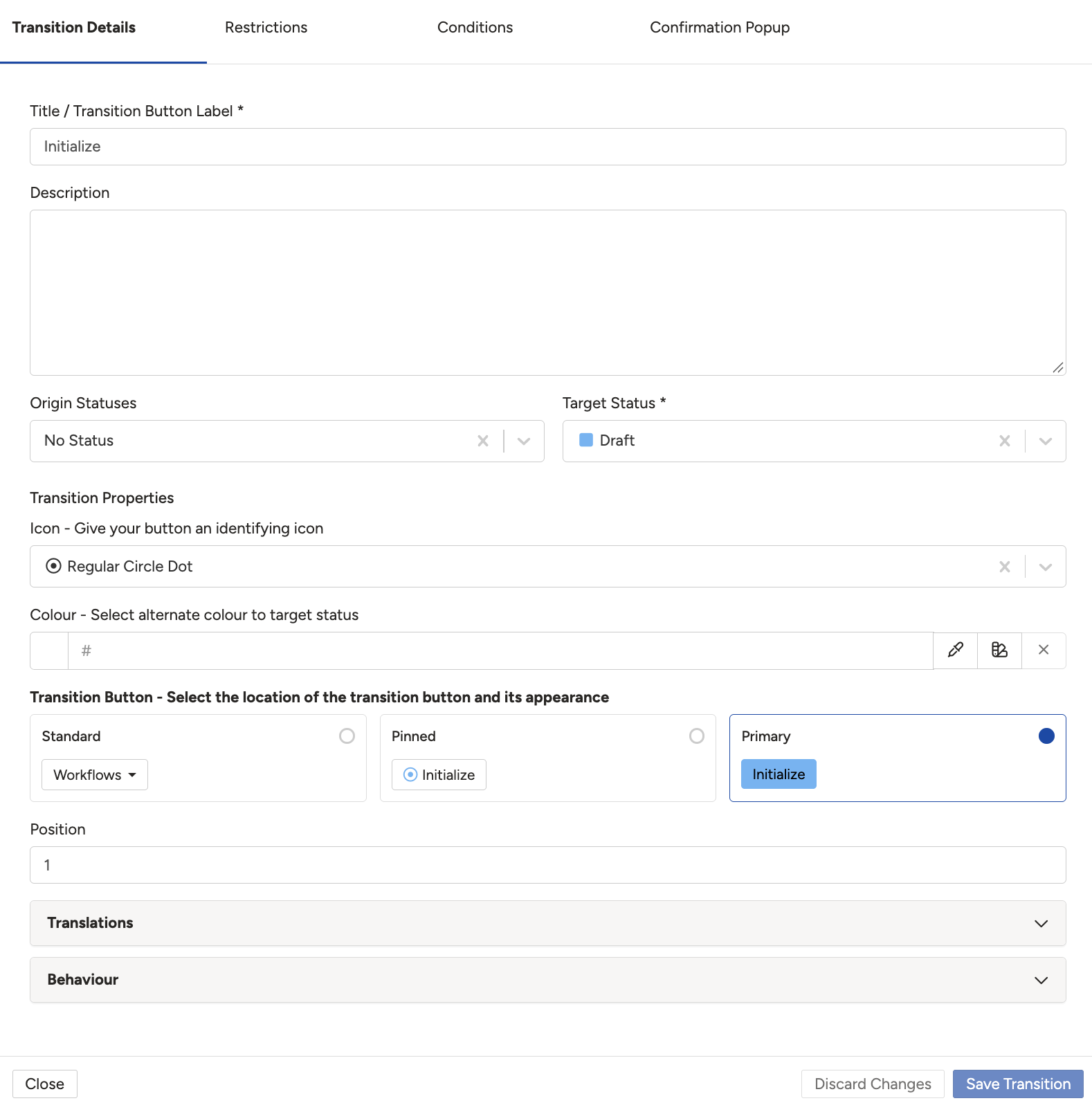
The Transition Details tab of the transition form.
5. Common Issues & Troubleshooting
| Issue | Likely Cause | Solution |
| A status will not save | A mandatory field is empty. | Fill in the mandatory fields, such as the Title, then save again. |
| Users cannot move a record between statuses | No transition exists between those statuses. | Add a transition in the Transitions section to connect the two statuses. |
| A transition button is not visible to some users | The transition is restricted, or the user lacks the required role or team. | See the related articles on workflow transitions and who can use them. |
Click a title to preview it here. Use the Open full article button to read the full version in a new tab.
▾Workflow Statuses: Overview & Functionalities Open full article »
Related article
The full list of status settings, including Open and Closed types, Locked, and email notifications.
▾Workflows Open full article »
Related article
How workflows work across the platform.
▾Workflow Transitions Open full article »
Related article
How transitions move a record between statuses, and how to configure them.
▾Trigger Configuration Open full article »
Related article
How triggers automate actions when a record changes status.
Was this article helpful?
That’s Great!
Thank you for your feedback
Sorry! We couldn't be helpful
Thank you for your feedback
Feedback sent
We appreciate your effort and will try to fix the article