Custom Types
How to create, configure, and manage custom types and sub-panels in the Clew Platform
Contents
- 1. Introduction & Context
- 2. Key Features & Functions
- 3. Requirements
- 4. Step-by-Step Guide
- 5. Common Issues & Troubleshooting
- 6. Related Articles
1. Introduction & Context
Custom Types let you create distinct forms within a module in the Clew Platform, each with its own fields and workflow, so you can capture different kinds of records without one type affecting another.
Common examples include Risks and Opportunities, Risk Treatment Actions, and Audit Actions. Each custom type gives users a tailored data entry experience while keeping records organised within the same module.
Who is this for? System administrators who need to configure modules by adding or editing custom types and enabling sub-panels.
What does it impact? Custom type changes affect how forms appear to all users creating or editing records of that type. Sub-panel changes affect which related record panels are visible on the record view.
2. Key Features & Functions
- Per-module custom types: Each module can have multiple custom types, each with its own configuration. Every module has at least one preconfigured type by default.
- Scoped linked types: Control which action types can be created from a given custom type, so users only see the options relevant to that record.
- Core field visibility: Show or hide specific fields on the New Form, Edit Form, Mass Edit Form, and Show View for each custom type independently.
- Custom field configuration: Add and configure custom fields specific to each type, giving you granular control over what data is captured.
- Sub-panels: Enable related record panels on a custom type's record view, and control which actions (add, link, unlink, delete, export) users can perform from each panel.
- Visibility controls: Hide a custom type from add buttons across the platform, or restrict it from appearing on list views and register pages, to guide how records are created.
3. Requirements
- System administrator access is required to create or edit custom types via the Admin section.
- Each module always has at least one existing custom type. You cannot delete the last remaining type for a module.
- To enable a sub-panel, the relevant action type must first be added to the Custom Types field on the parent custom type.
4. Step-by-Step Guide
Creating or Editing a Custom Type
- Navigate to Admin > Custom Types. This will open a list of existing custom types grouped by module. Note that every module has at least one custom type that is preconfigured by default.
- To create a new custom type, click Addnext to the relevant module panel. To edit an existing type, click the edit button next to it. A form will open with the fields listed below.
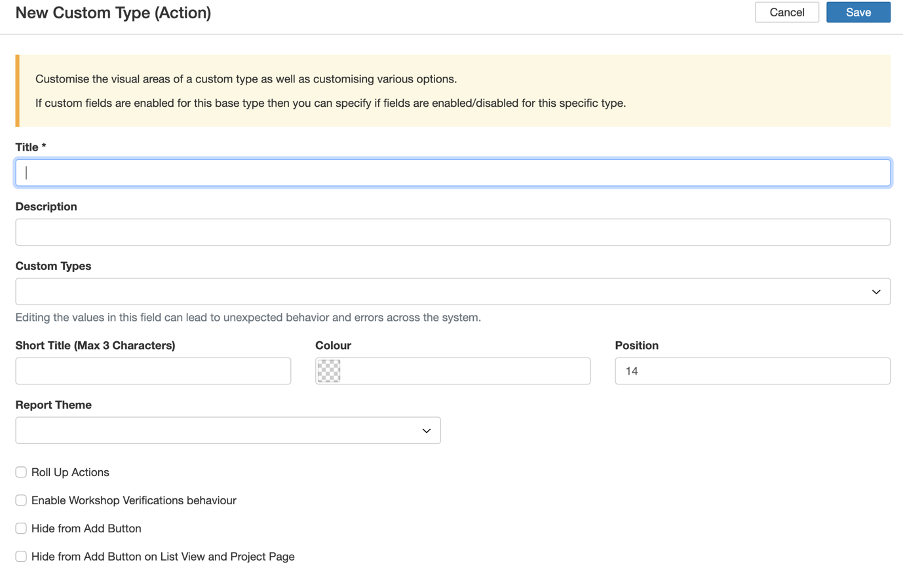
The Add Custom Type form.
- Complete the fields using the table below. Only the Title field is required. Click Save when done.
| Field | Description |
| Title | The name of the custom type. This is what all users will see throughout the Clew Platform. The title should clearly distinguish this type from others in the same module. |
| Description | Optional additional information about the custom type, visible to administrators. |
| Custom Types | Scope which linked record types can be created from this custom type. For example, you might allow only "Risk Treatment Actions" to be created from a Risk type, rather than all available action types. |
| Short title | An abbreviation shown in tables across the platform. Accepts up to 3 characters. If left blank, the system uses the first character of the title. |
| Colour | The colour applied to the Short title column in item lists and dashboard charts, making it easy to distinguish types visually. |
| Rollup actions | Applies to select modules such as Risk. When enabled, actions linked to related records (such as risk controls) are also surfaced under the parent record's Actions sub-panel, rolling up sub-actions from linked items. |
| Hide from add button | Hides this custom type from all add buttons across the platform. Useful when you want to restrict creation to users who access the type via the Create button directly. |
| Hide from add button on list view and project page | Hides this custom type from add buttons on the register page and module list view. Use this when the type should only be created as a linked record, not as a standalone item. For example, Audit Actions should not be created independently. |
Core Field Settings
Core Field Settings let you control which built-in fields are visible on each form and view for this custom type. You can configure visibility separately for the New Form, Edit Form, Mass Edit Form, and Show View.
Any field added to a "Hidden fields" setting will be hidden from users when they use that form or view.
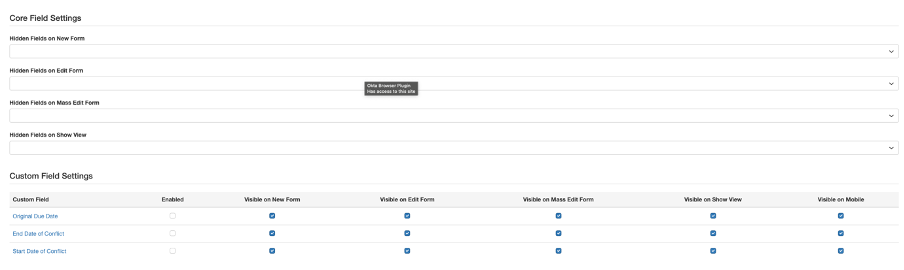
The Core Field Settings panel.
| Setting | Description |
| Hidden fields on new form | Selected fields will not appear when a user creates a new record of this type. |
| Hidden fields on edit form | Selected fields will not appear when a user edits an existing record of this type. |
| Hidden fields on mass edit form | Selected fields will not appear when a user mass edits multiple records of this type at once. |
| Hidden fields on show view | Selected fields will not appear when a user with read-only access views a record of this type. |
Custom Field Settings
Custom Field Settings let you add and configure custom fields specific to this type. Full details are covered in the Custom Fields article.
To access additional settings such as hint text on core fields, use the Fields and Properties panels within the Custom Type. Note that the available options differ depending on the module.
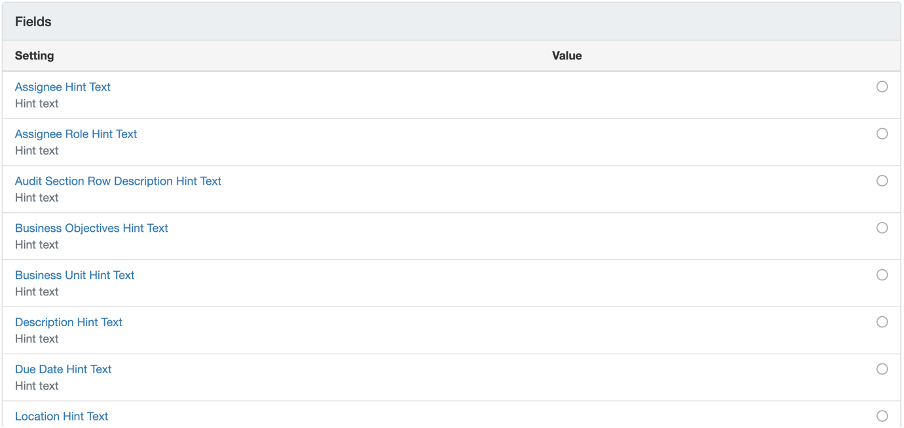
The Fields panel within a Custom Type.
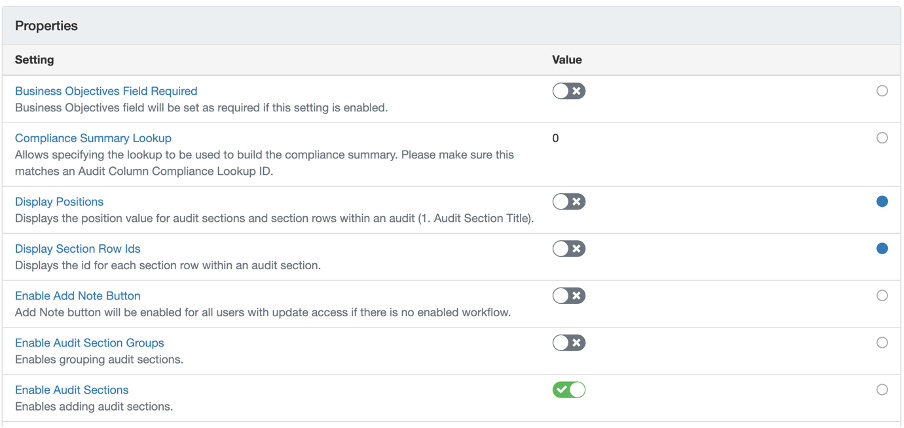
The Properties panel within a Custom Type.
Enabling a Sub-Panel
Sub-panels display related records within a record's view. For example, an Actions sub-panel on a Risk record shows all actions linked to that risk. They provide a structured view of associated data such as actions, attachments, comments, and linked records, all within the same interface.
The following steps use adding an Actions sub-panel to a Risk type as an example.
- Navigate to Admin > Custom Types. This will open the page displaying all custom types grouped by module.
- Select the module and custom type where you want to add the sub-panel. For example, select the Risk module and choose the relevant Risk custom type.
- In the Custom Types field, add the action type you want to link. For example, add "Action" to link it to the Risk type. This makes the action type available to the sub-panel.
- Scroll down to the relevant sub-panel section, such as Task (Action), and click the toggle to enable it.
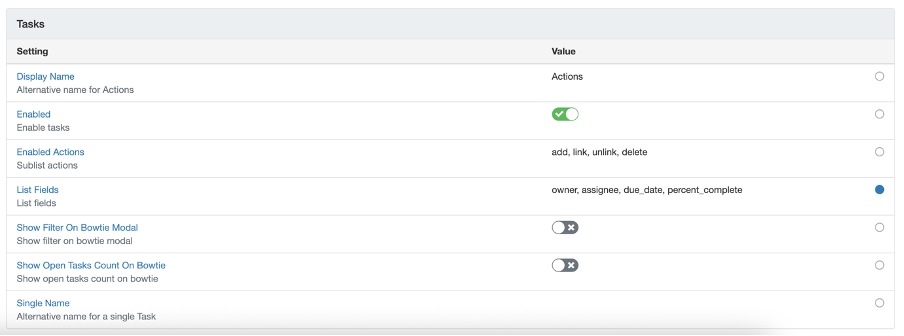
The sub-panel toggle and action configuration fields.
- Enable the actions you want to allow on the sub-panel using the table below. To enable more than one action, enter them as a comma-separated list, for example:
add, link, unlink
| Action | Description |
| Add | Allows users to create and add new records directly from the sub-panel. |
| Link | Allows users to link existing records to the parent record via the sub-panel. |
| Unlink | Allows users to remove the link between a record and the parent without deleting the record. |
| Delete | Allows users to permanently delete a record from within the sub-panel. |
| Export | Allows users to export the records in the sub-panel as a CSV file. |
- Click Save to apply the changes.
5. Common Issues & Troubleshooting
| Issue | Likely Cause | Solution |
| Custom type is not appearing in the add button dropdown | The "Hide from add button" setting is enabled on this type | Edit the custom type and uncheck Hide from add button if the type should be visible to users. |
| Sub-panel does not appear on the record view | The action type has not been added to the Custom Types field, or the sub-panel toggle has not been enabled | Confirm the action type is listed in the Custom Types field on the parent custom type, then scroll to the sub-panel section and enable the toggle before saving. |
| A field is not visible on the form for a specific custom type | The field has been added to the hidden fields list for that form type | Open the custom type, go to Core Field Settings, and remove the field from the relevant hidden fields list. |
| Users are creating standalone records of a type that should only be linked | The visibility restriction settings are not configured on the custom type | Enable Hide from add button on list view and project page on the custom type to prevent it from being created as a standalone record. |
Best practices:
- Give each custom type a clear, specific title that reflects what the record represents. Users see this name throughout the platform when selecting or filtering by type.
- Use the Custom Types field to scope which action types are available from each parent type. This prevents users from creating inappropriate record combinations.
- Before hiding core fields, check whether those fields are required by other parts of the platform, such as triggers or reports, to avoid breaking existing configurations.
- When enabling sub-panel actions, grant only the permissions users genuinely need. For example, avoid enabling Delete if records should be unlinked rather than permanently removed.
Click a title to preview it here. Use the Open full article button to read the full version in a new tab.
▾Custom Fields Open full article »
Related article
How to add and configure custom fields to capture additional data on records, giving each custom type the specific fields it needs.
Was this article helpful?
That’s Great!
Thank you for your feedback
Sorry! We couldn't be helpful
Thank you for your feedback
Feedback sent
We appreciate your effort and will try to fix the article