Receiving Notifications as a Digest
How to combine recurring notifications into a single scheduled digest email.
Contents
- 1. Introduction & Context
- 2. Key Features & Functions
- 3. Requirements
- 4. Step-by-Step Guide
- 5. Common Issues & Troubleshooting
- 6. Related Articles
1. Introduction & Context
The Clew Platform can send notification emails as a digest, combining several notifications into one scheduled email. This is useful if you would rather receive fewer emails in your inbox.
A digest only works for recurring notifications, the ones that run on a schedule (for example a daily check for overdue actions). It is not available for triggered notifications, the ones fired by a record update, such as when an action's owner is changed.
Who is it for? Any user, for their own notifications. System administrators can also disable the digest option for individual notifications.
What does it impact? Setting a notification to digest changes when you receive it, not what it contains. It stops arriving on its normal day and instead arrives on your chosen digest day.
2. Key Features & Functions
- Recurring notifications only: only scheduled notifications can be added to a digest. Triggered notifications always send as they happen.
- One email across modules: a digest can contain data from different modules, depending on which notifications you add to it.
- You choose the timing: pick the day of the week and the time your digest arrives.
- Administrator control: a system administrator can disable the digest option for individual notifications, so users cannot move those to a digest.
3. Requirements
- Access to your own Notifications settings, which any user can open.
- The notification must be a recurring one. Triggered notifications cannot be set to digest.
- The digest option must not have been disabled for that notification by a system administrator.
4. Step-by-Step Guide
- Click your name in the top-right corner, select Notifications, and choose the notification you want in a digest.
- Tick Receive in a digest for that notification. (In this example, the "Action approaching their due date" notification.)
- Select the day of the week and the time you want the digest to arrive, then click Save.
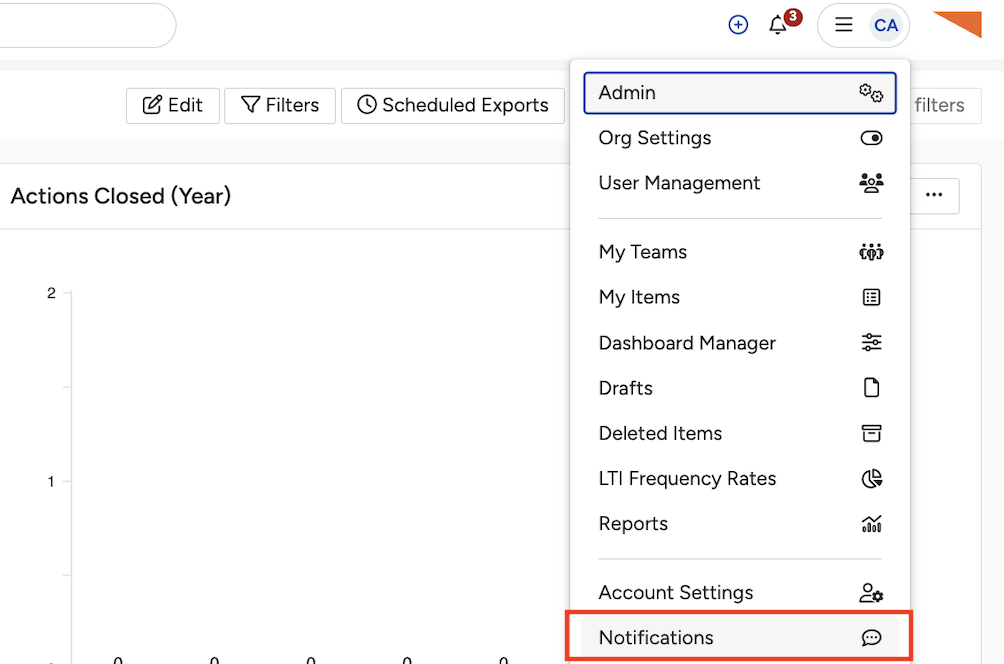
Open the Notifications tab.
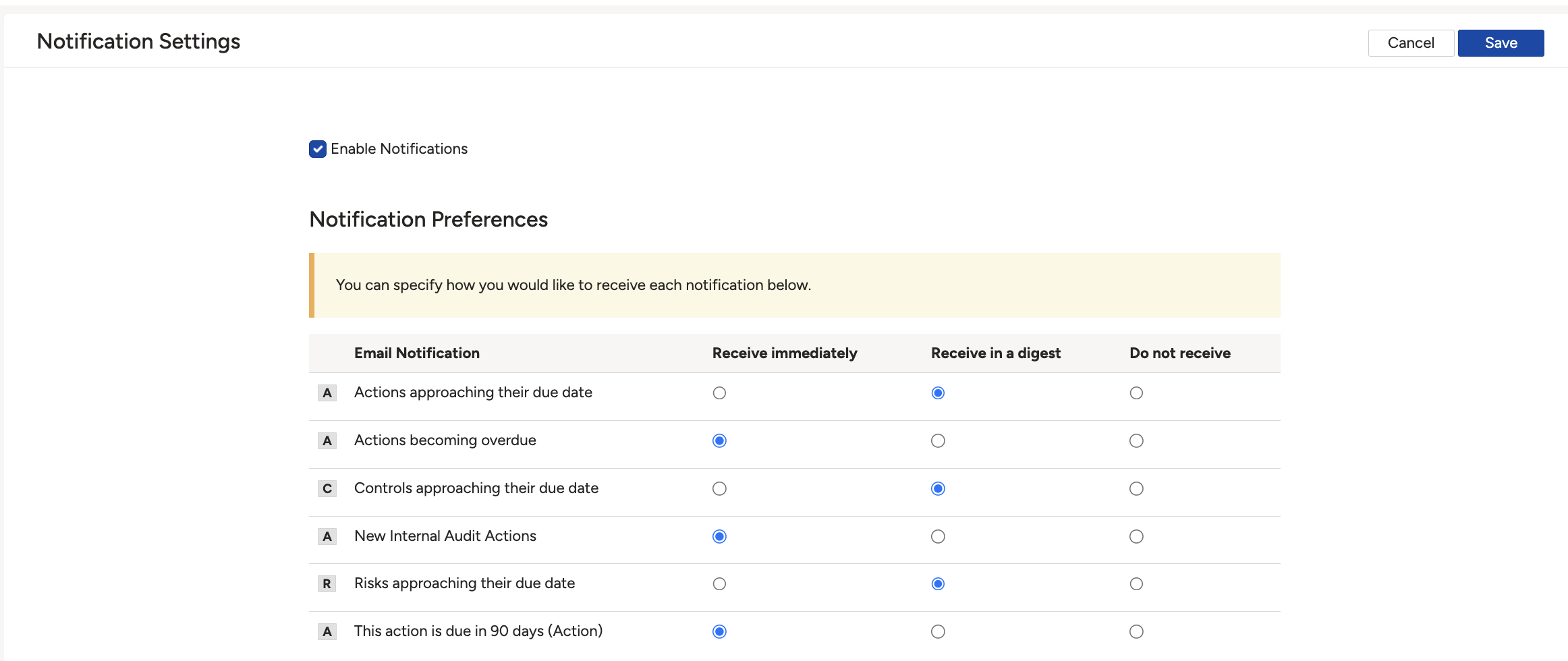
Tick Receive in a digest, then set the day and time.
5. Common Issues & Troubleshooting
| Symptom | Cause and what to do |
| A notification cannot be set to a digest. | It is either a triggered notification (digest is only for recurring ones), or a system administrator has disabled the digest option for it. |
| A digested notification arrived later than expected. | This is expected. A digest only sends on its chosen day, so items that come up between digests wait until the next one. Remove time-sensitive notifications from the digest if this matters. |
| An administrator wants to stop users digesting a notification. | A system administrator can disable the digest option on that individual notification, so users cannot move it to a digest. |
▾Creating a Notification Open full article »
Related article
How to create a notification, including the recurring notifications that can later be added to a digest.
Was this article helpful?
That’s Great!
Thank you for your feedback
Sorry! We couldn't be helpful
Thank you for your feedback
Feedback sent
We appreciate your effort and will try to fix the article