Where is a custom field's Description displayed?
Where the Description appears on forms, and how a system administrator changes it
The short answer
The description of a field is displayed right under the field title on forms, to guide users, and it can be customised by a system administrator. The format is plain text and cannot be customised with rich formatting.

The description appears below the custom field title on forms.
How to change the description
- Go to Admin > Custom Field.
- Use the search bar to look for the module name or field name, and open it.
- Apply the changes to the Description field and save.
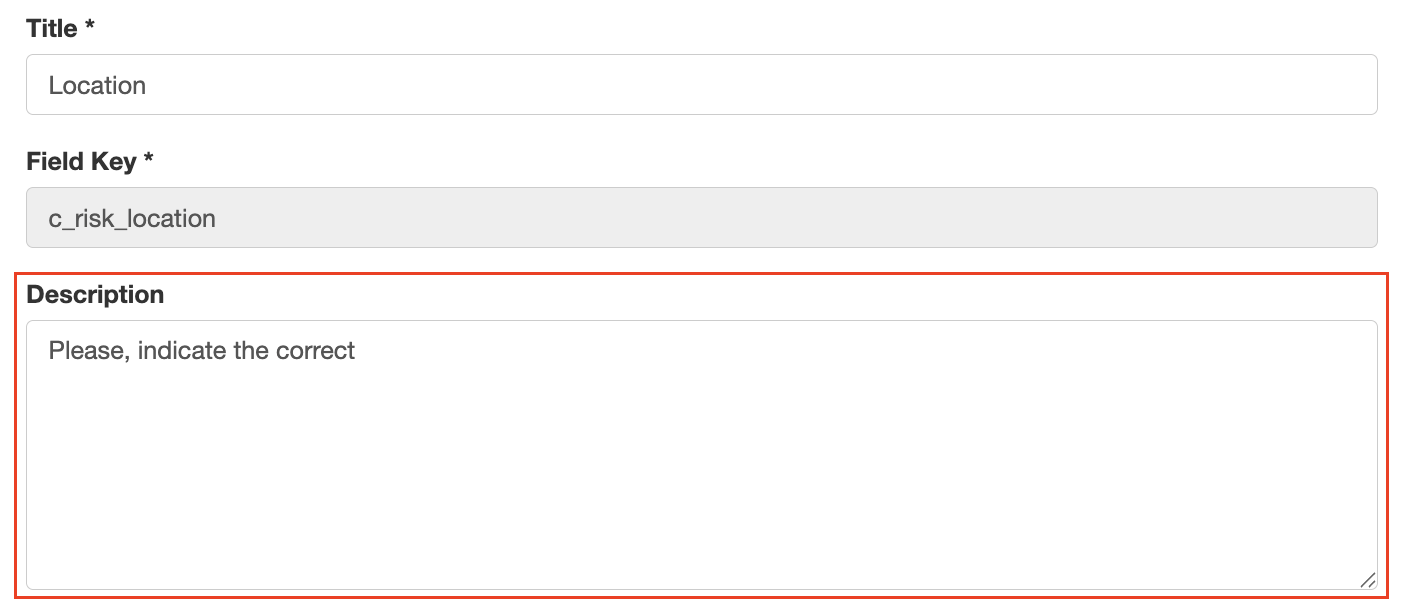
Editing the Description field on a custom field.
- Go to Schemas and click Sync Schemas so the change to the field is visible on the schema.
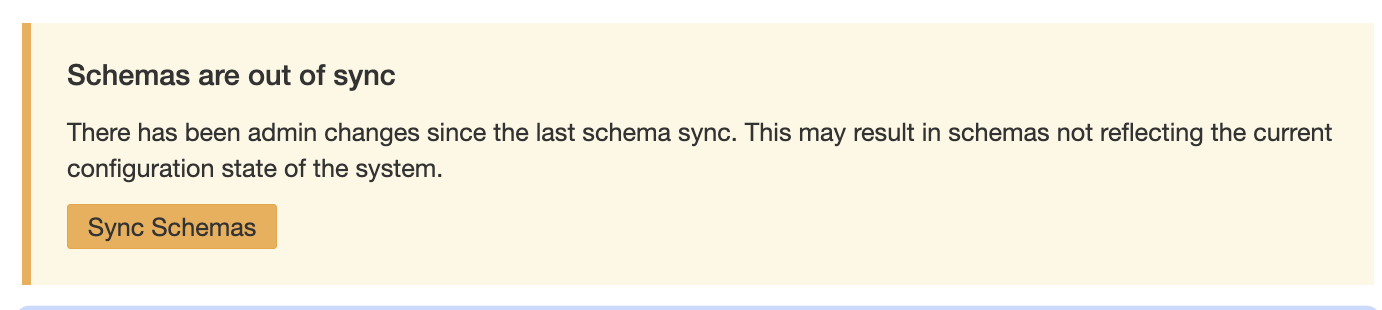
Clicking Sync Schemas so the change appears on the schema.
Click a title to preview it here. Use the Open full article button to read the full version in a new tab.
▾Custom Fields Open full article »
Related article
How custom fields work, including the Description field.
▾Schemas Open full article »
Related article
How schemas work, including syncing field changes.
Was this article helpful?
That’s Great!
Thank you for your feedback
Sorry! We couldn't be helpful
Thank you for your feedback
Feedback sent
We appreciate your effort and will try to fix the article