Custom Forms
How to create and manage custom forms to give users additional edit views on records and tailored column sets in Datagrid
Contents
- 1. Introduction & Context
- 2. Key Features & Functions
- 3. Requirements
- 4. Step-by-Step Guide
- 5. Common Issues & Troubleshooting
- 6. Related Articles
1. Introduction & Context
Custom Forms are additional edit forms for records in a Clew Platform module, and they can also be surfaced as column sets in Datagrid, giving different users a focused, tailored view of the fields they need.
There are two main use cases. In Datagrid, a custom form creates a named column set that users can switch to, making it easy to work with a specific group of fields without configuring columns manually. In record view, a custom form can restrict which edit fields are shown to specific users, based on their role, team, or whether they are named in a field such as Owner.
Who is it for? System Administrators who configure custom forms. End users access the forms via the record view or the Datagrid columns selector.
What does it impact? Custom forms control which fields are visible and editable for specific users on a record, and which column sets are available in Datagrid.
2. Key Features & Functions
- Datagrid column sets: When Show on Datagrid is enabled, the custom form appears as a named column set in the Datagrid columns selector. Users can switch to it to see only the fields in that form.
- Restricted record edit view: Custom forms can be restricted by field, role, or team so that only the relevant users see the link to the form. For example, only users set as the Owner of a record can see a form that shows owner-specific fields.
- Custom Type scoping: Restrict a form to a specific custom type within a module so it only appears where relevant.
- Required fields: Mark specific fields as mandatory within the custom form, independently of the main record schema.
- Field ordering: The order fields are added to the form controls how they appear to the user, top to bottom in form view and left to right in Datagrid columns.
3. Requirements
- System Administrator access is required to create and manage custom forms via Admin.
- Custom forms are available across all Clew Platform modules.
- End users must have update permission on a record to see the link to a custom form in record view.
- If a module's table header appears pink on the Admin Custom Forms page, the module is disabled and custom forms cannot be added to it.
4. Step-by-Step Guide
Creating a Custom Form
- Go to Admin > Custom Forms. The page lists existing custom forms grouped by module. Scroll to the module you want to create a form for and click Add.
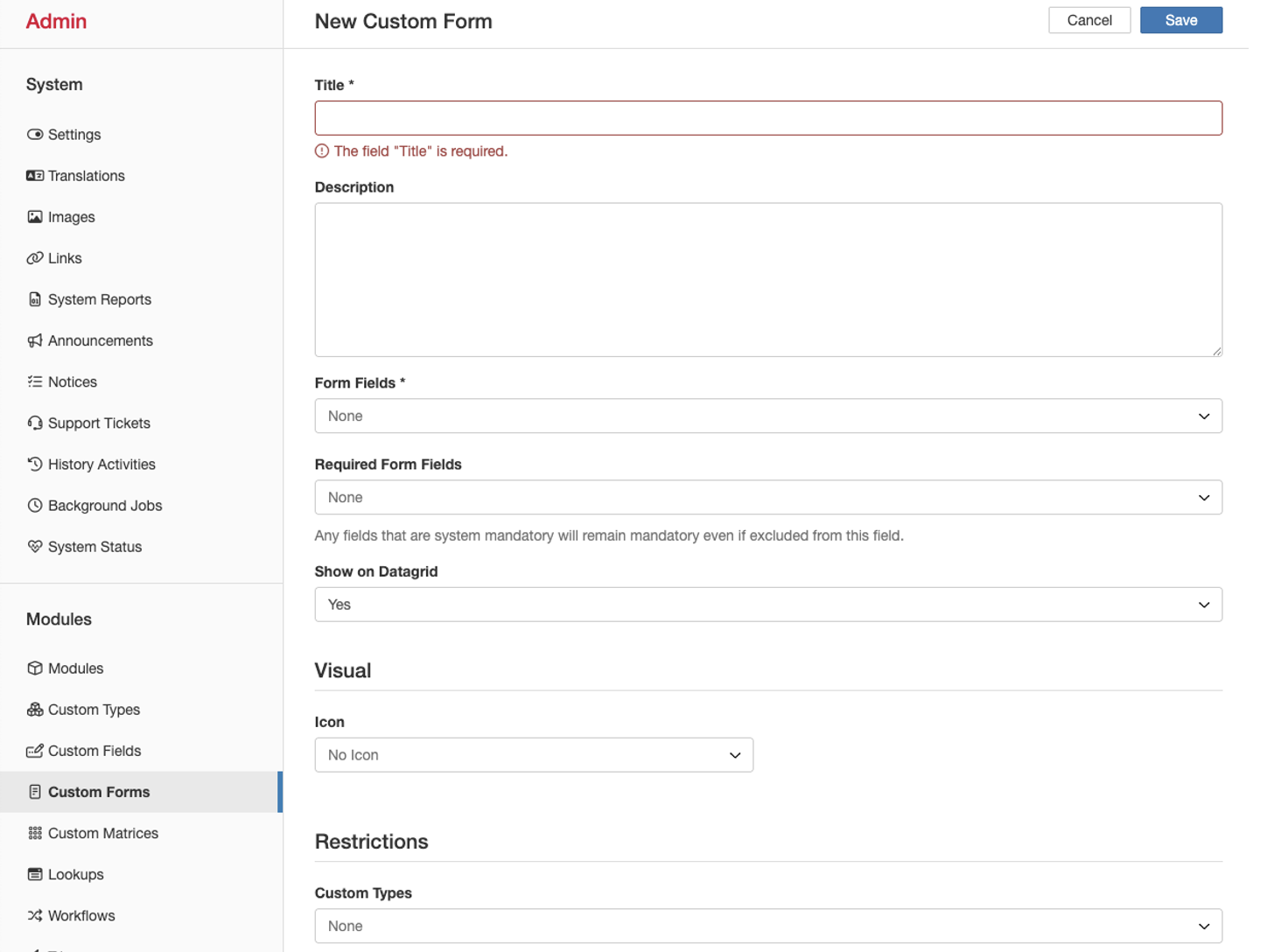
- The form page loads. Complete the following fields and click Savewhen finished:
Field Description Title (required) The name of the custom form. This is displayed in Admin and is what end users see when accessing the form via record view or Datagrid columns. Description An internal description of the form's purpose. Only visible in Admin and useful as a reference for other administrators. Form Fields (required) The fields to display in the form. The order you add them here determines how they appear to users: top to bottom in form view, and left to right in Datagrid columns. Required Form Fields Fields that must be completed before the user can save. Order is not relevant here. Show on Datagrid Set to Yes to make this form available as a column set under Columns in Datagrid. Icon An icon displayed alongside the form title when users see the link in record view.
Configuring Restrictions
The Restrictions section of the form controls who can see the custom form link. All restriction fields are optional.
| Field | Description |
| Custom Types | Restricts the form to a specific custom type within the module. Useful when a module has multiple custom types and the form is only relevant to one. Leave blank to display across all types. |
| Field Restrictions | Restricts visibility to users named in a specific field on the record. For example, selecting Owner means only the user set as Owner on a record will see the form link. |
| Role Restrictions | Restricts visibility to users with specific roles, if roles are configured on your Clew Platform instance. |
| Team Restrictions | Controls which teams can or cannot see the custom form. |
| Title Translations | Sets the form title in additional languages. Only applicable if multiple languages are enabled on your Clew Platform instance. |
The Restrictions section of the custom form configuration page.
Editing and Deleting Custom Forms
Go to Admin > Custom Forms. On the row for the form you want to update:
- Click the pencil icon to open and edit the form.
- Click the bin icon to delete the form. This action is irreversible.

Use the pencil icon to edit a form and the bin icon to delete it.
5. Common Issues & Troubleshooting
| Issue | Likely Cause | Solution |
| User cannot see the custom form link on a record | The user does not have update permission on the record, or does not meet the Field, Role, or Team Restrictions set on the form | Confirm the user has update access to the record. Review the Field, Role, and Team Restrictions on the custom form and ensure the user meets the criteria. |
| Custom form is not appearing as a column set in Datagrid | Show on Datagrid is set to No, or the user does not meet the applicable restrictions | Edit the custom form and set Show on Datagrid to Yes. Also check that the user meets any Team or Role Restrictions applied to the form. |
| The Add button is missing for a module | The module is disabled, indicated by a pink table header on the Admin Custom Forms page | Enable the module in Admin before creating a custom form for it. |
| Custom form is appearing on the wrong custom type | Custom Types restriction is left blank, meaning the form displays across all types | Edit the form and set the Custom Types field to restrict it to the intended type only. |
Best practices:
- Always add a description to your custom form. It is only visible in Admin but helps other administrators understand the purpose of the form at a glance.
- Pay attention to field order when configuring Form Fields. The order is the display order for both the form view and the Datagrid column set.
- Use Custom Types restrictions when a module has multiple types to avoid the form appearing where it is not relevant.
- Deletions are irreversible. If a form may be needed again in future, consider leaving it in place without restrictions rather than deleting it.
Click a title to preview it here. Use the Open full article button to read the full version in a new tab.
▾Schemas & Forms Open full article »
Related section
Browse the Schemas & Forms articles, covering schemas, custom forms, and the other form configuration tools.
▾Workflows & Automations Open full article »
Related section
Browse the Workflows & Automations articles, covering workflows, statuses, transitions, and triggers.
Was this article helpful?
That’s Great!
Thank you for your feedback
Sorry! We couldn't be helpful
Thank you for your feedback
Feedback sent
We appreciate your effort and will try to fix the article