Creating lookup options while filling in a form
Why some lookup fields let you add an option on the spot, and how to turn that on
Contents
- 1. Introduction & Context
- 2. Key Features & Functions
- 3. Requirements
- 4. Step-by-Step Guide
- 5. Common Issues & Troubleshooting
- 6. Related Articles
1. Introduction & Context
While filling in a form you may find that a lookup field, such as Type of Report or Finding Type, does not offer the option you need, and you want to add one there and then. Whether you can depends on a single setting on that field, called Dynamic Lookup.
With Dynamic Lookup set to Yes, you can create a new option as you complete the form. With it set to No, the field is static and you can only pick from the options that already exist. The setting lives on the custom field, in Admin, so it applies to everyone using that field rather than to you individually.
Who is it for? Anyone who has hit a lookup field with a missing option. Changing the setting itself needs system administrator permissions.
What does it impact? Every form where that field appears, and the quality of the data in it. A dynamic lookup grows as people use it, which is convenient but also how near-duplicate options accumulate.
2. Key Features & Functions
| Dynamic Lookup | What users can do |
| Yes | Add new lookup options directly while filling in the form, as well as choosing from the existing ones. |
| No | Choose from the predefined list only. New options have to be added in Admin by a system administrator. |
The setting sits in the Lookup Settings section of the custom field, and it applies per field. Two lookup fields on the same form can behave differently.
3. Requirements
- System administrator permissions. Only administrators can edit or configure custom fields.
- The name of the field as it appears on the form, which is what you will search for in Admin.
- The field must be a lookup. Lookup Settings only appears on fields of that type.
4. Step-by-Step Guide
Checking how a field is configured
- Go to Admin, then Custom Fields.
- Use the search bar to find the field, for example Type of Report or Finding Type.
- Click the Edit pencil icon next to it.
- In the Edit Custom Field screen, find the Lookup Settings section and read the Dynamic Lookup value.
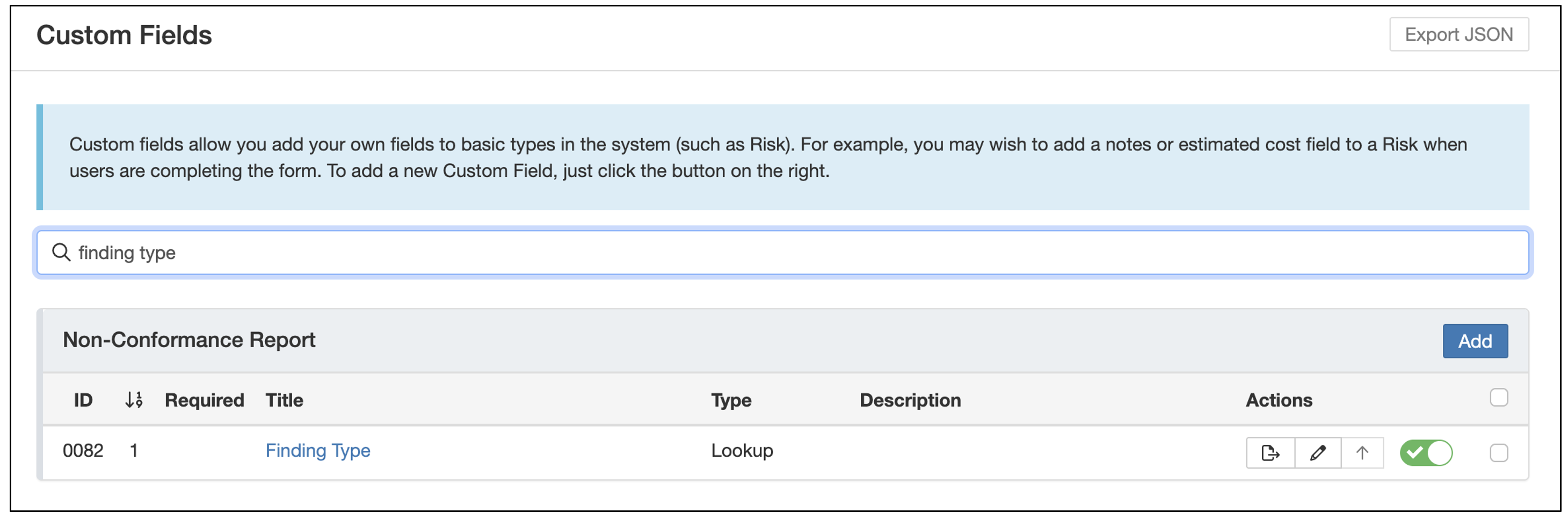
Searching the Custom Fields list for the field you want to check.
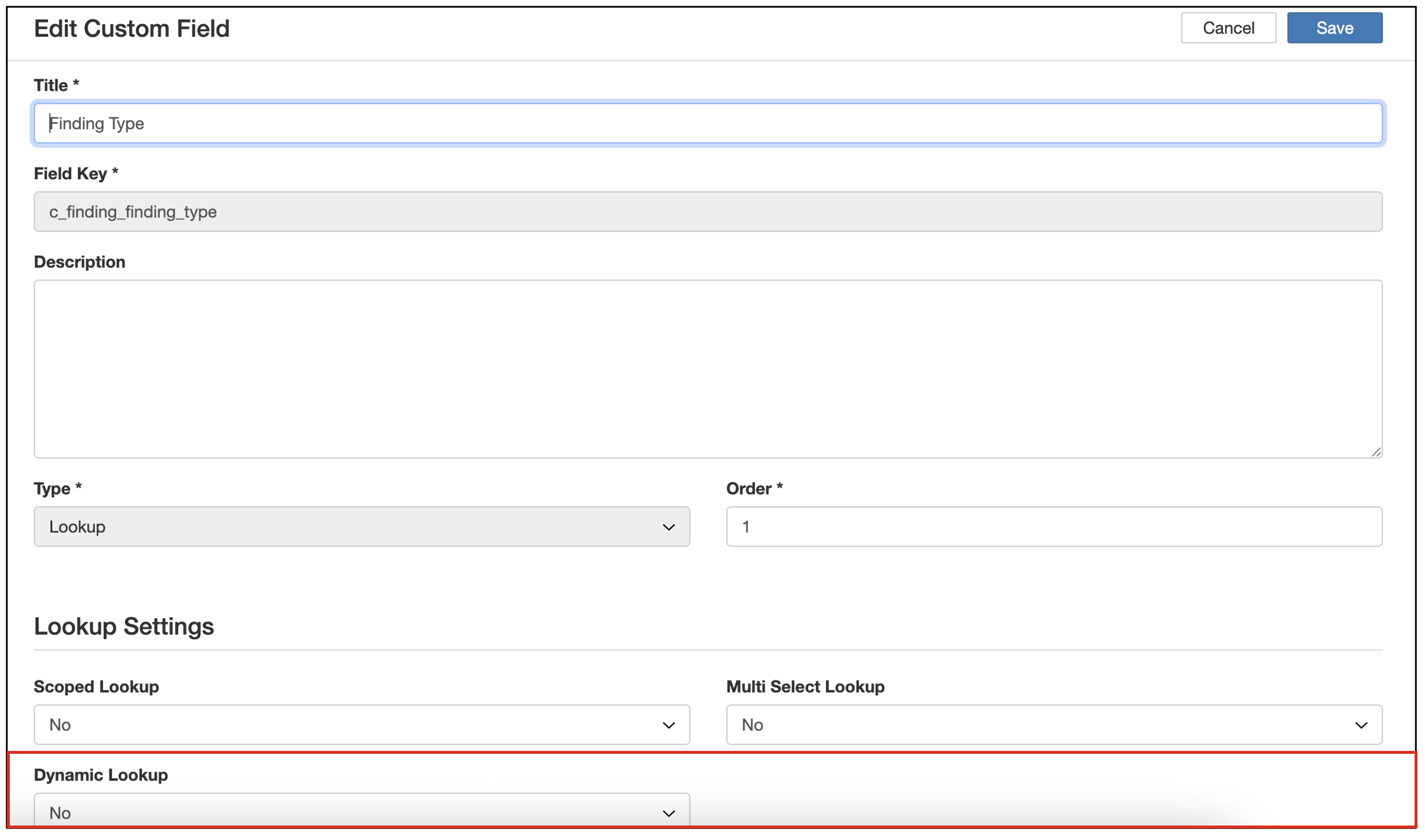
Lookup Settings, where Dynamic Lookup is set.
In the example below, Finding Type is a lookup field with Dynamic Lookup set to No. Users completing that form can only pick from the predefined options and cannot add a new one.
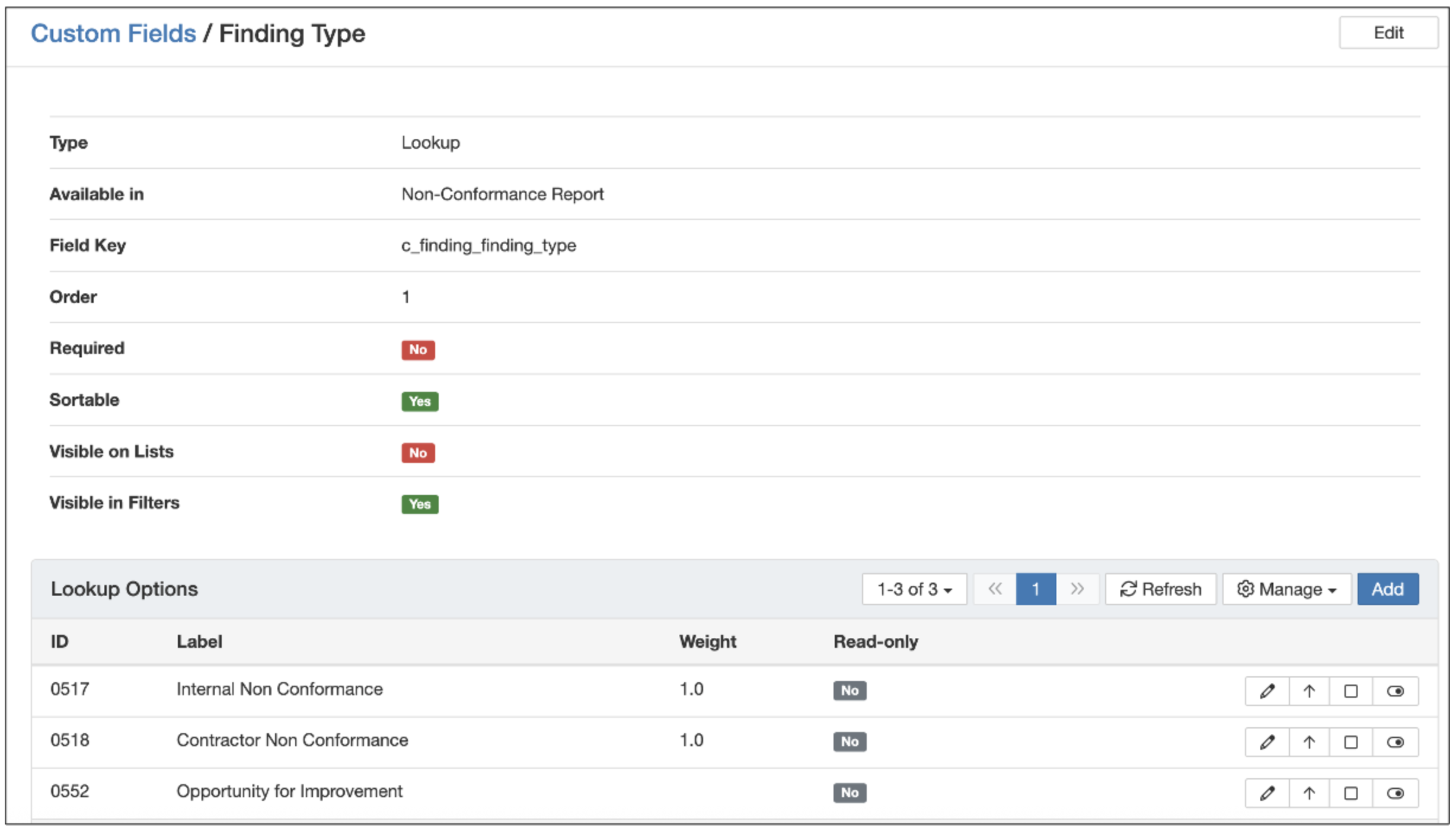
Dynamic Lookup set to No, so the list on the form is fixed.
Turning Dynamic Lookup on
- With the field open in Edit Custom Field, go to Lookup Settings.
- Change Dynamic Lookup from No to Yes.
- Click Save.
- Open the form and check the field. Users can now add new lookup values as they fill it in.
Deciding whether to turn it on
Dynamic Lookup is a trade-off rather than an improvement. Turning it on removes a blocker for the people filling in forms, and it lets anyone add an entry to a list that may be reported on later.
A reasonable rule of thumb: leave it off for fields that feed reports or dashboards, and turn it on for descriptive fields where the list genuinely cannot be predicted in advance. If you do turn it on, review the options periodically and tidy up duplicates.
5. Common Issues & Troubleshooting
| Issue | Likely Cause | Solution |
| You cannot add a new option while filling in the form | Dynamic Lookup is set to No on that field | Ask a system administrator either to add the option in Admin, or to switch Dynamic Lookup to Yes. |
| One lookup field lets you add options and another does not | The setting is per field, not per form | Check each field separately in Admin > Custom Fields. |
| There is no Lookup Settings section on the field | The field is not a lookup type | Check the Type column on the Custom Fields list. Only lookup fields carry these settings. |
| The option list has filled up with near-duplicates | Dynamic Lookup has been on without anyone reviewing what gets added | Tidy the options in Admin, and consider switching the field back to No if it feeds reporting. |
| You cannot open Custom Fields at all | Your account does not hold system administrator permissions | Ask a system administrator in your organisation to check or change the field for you. |
Best practices:
- Keep Dynamic Lookup off for fields that feed reports, dashboards or filters, where consistent values matter more than convenience.
- Before turning it on, check whether the missing option is a genuine gap in the list or a sign the list needs redesigning.
- If it is on, review the options periodically and merge or remove duplicates before they spread through your data.
- Tell the people using the form what the field is for, so added options follow the same pattern as the existing ones.
▾Custom Fields Open full article »
Related article
What custom fields are and how to configure one, including the lookup type this setting belongs to.
Was this article helpful?
That’s Great!
Thank you for your feedback
Sorry! We couldn't be helpful
Thank you for your feedback
Feedback sent
We appreciate your effort and will try to fix the article