Default Selections on Lookup Fields
How to pre-select one option on a lookup custom field so it is chosen automatically
Contents
- 1. Introduction & Context
- 2. Key Features & Functions
- 3. Requirements
- 4. Step-by-Step Guide
- 5. Common Issues & Troubleshooting
- 6. Related Articles
1. Introduction & Context
A default selection lets you pre-set one option on a lookup custom field so that option is already chosen whenever the field appears on a record, which saves users a step and keeps your data consistent.
A lookup custom field gives users a fixed list of options to choose from (for example a status, a category, or a type). By marking one of those options as the default, you tell Clew to pre-select it automatically, rather than leaving the field blank for the user to fill in every time.
Who is it for? Administrators who manage custom fields for a module such as Risk. It is set in the Admin area and is not something a standard end user configures.
What does it impact? Once set, the chosen option is pre-selected whenever the field is shown on a record form for that module, for example when a new record is created. Users can still choose a different option if they need to, so a default is a starting point, not a lock.
2. Key Features & Functions
- Pre-selects one option: the option you mark is automatically chosen when the field appears, so users start from a sensible value.
- Set per option: the default is controlled from the Selected by Default icon on each option row, inside the field's Lookup Options table.
- Applies to Lookup fields: this option is available on custom fields whose Type is Lookup. Other types, such as Item Lookup, Text, Number, or Boolean, do not use a fixed option list and are configured differently.
- Easy to change: you can move the default to another option or clear it at any time, and each change is confirmed on screen.
- Improves consistency: defaulting the most common value reduces blank fields and cuts down on repeated data entry.
3. Requirements
- Administrator access to the Clew Admin area.
- A custom field whose Type is Lookup, belonging to a module such as Risk.
- At least one option already defined in the field's Lookup Options list. If the list is empty, add your options first, then set the default.
4. Step-by-Step Guide
Open the Custom Fields area
- Open the Admin area of the Clew Platform.
- Under the Modules heading, click the Custom Fields tile. You can also reach it from the left-hand menu under Modules > Custom Fields.
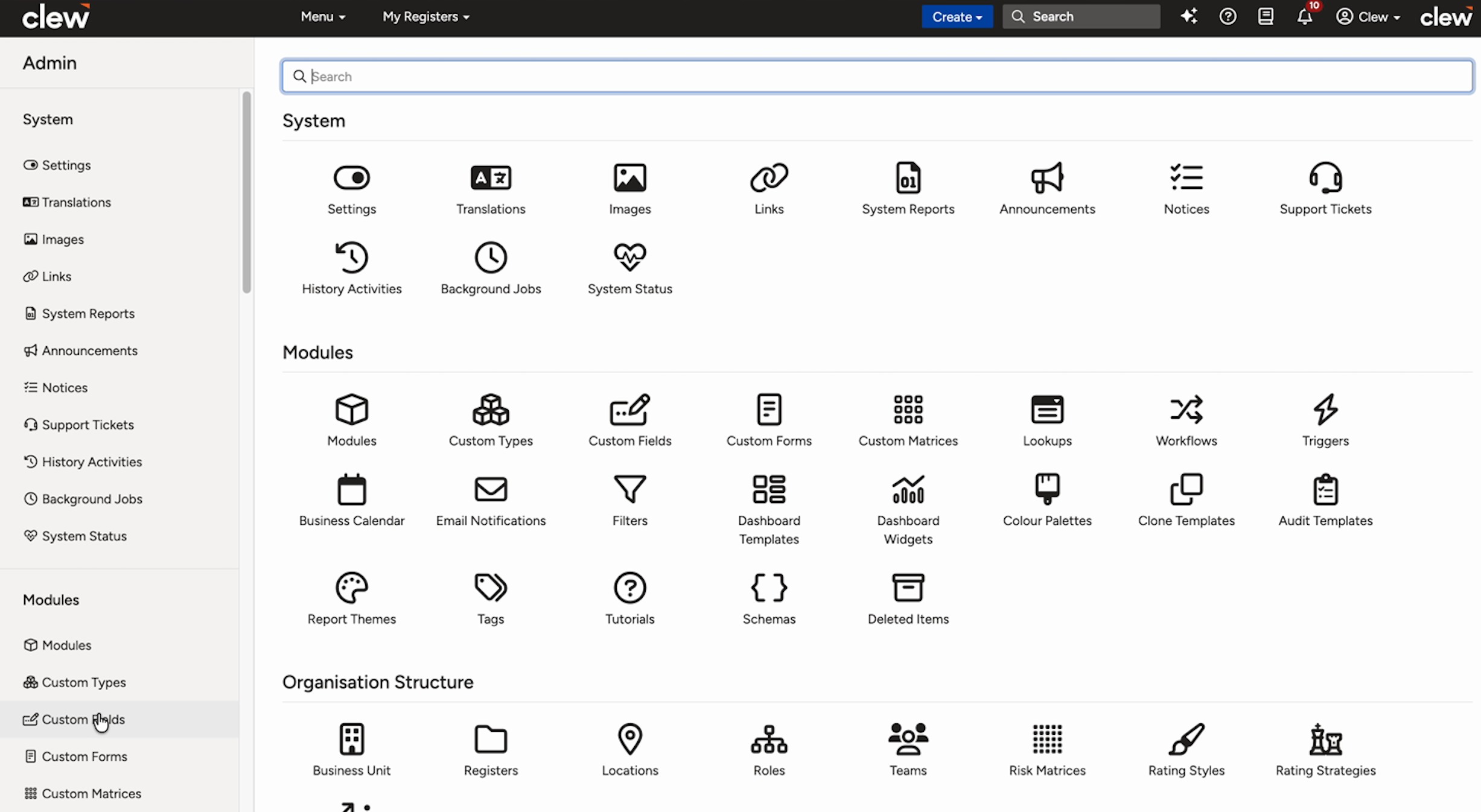
The Admin home page with the Modules tiles shown, highlighting the Custom Fields tile.
Find the lookup field
- On the Custom Fields page, click the module dropdown in the top right (it reads All Modules by default) and choose the module your field belongs to, for example Risk. This filters the list to that module's fields.
- Find your field in the list. Check that the Type column reads Lookup. Use the Search box or the per-page selector if the list is long.
- Click the field's Title to open its detail page.
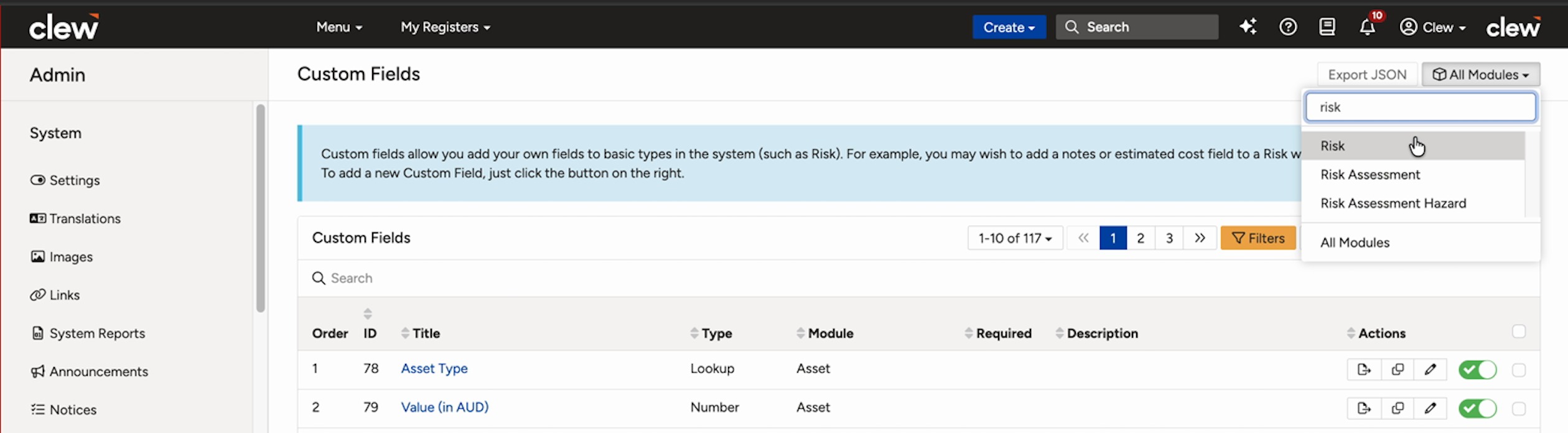
The Custom Fields list filtered by the module dropdown to Risk, with the Type column showing Lookup fields.
Set the default option
- On the field's detail page, go to the Lookup Options table. Each row shows an option's ID, Order, Label, and an Actions column on the right.
- In the Actions column for the option you want as the default, click the checkbox icon. Hovering over it shows the label Selected by Default. It sits between the edit pencil and the green enable toggle.
- A green confirmation message appears reading Successfully updated Lookup Option ID #.... The checkbox now shows a tick, marking that option as the default selection.
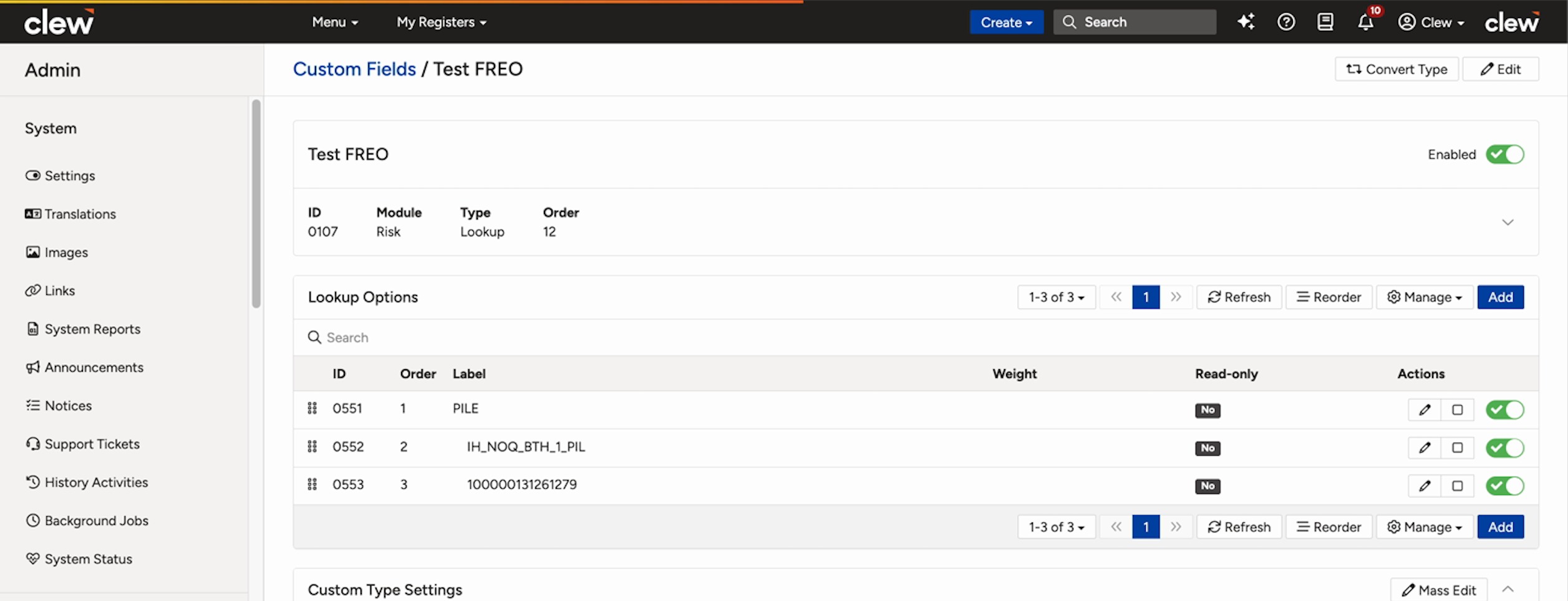
The Lookup Options table on the field's detail page, showing each option and the Actions column.
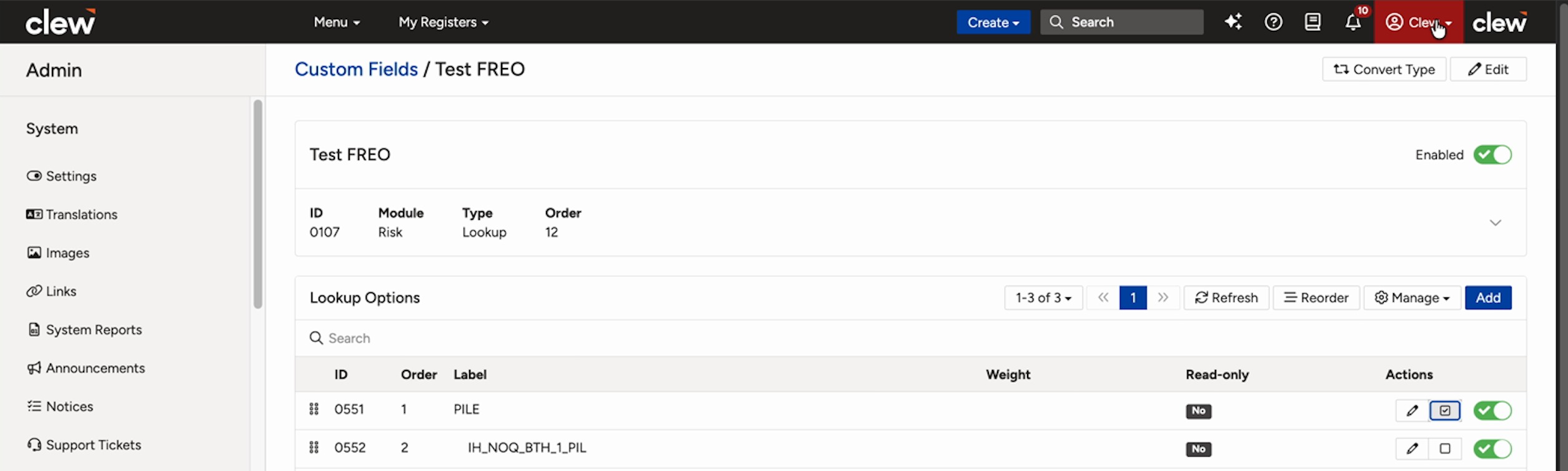
The Selected by Default checkbox ticked on one option, with the green Successfully updated Lookup Option confirmation showing.
Change or remove the default
- To clear the default, click the same ticked checkbox again so it is no longer ticked.
- To move the default to a different option, tick the checkbox on the new option. So that users see one clear starting value, untick any option that should no longer be the default.
5. Common Issues & Troubleshooting
| Issue | Likely Cause | Solution |
| There is no Selected by Default option on my field. | The field is not a Lookup type. Item Lookup, Text, Number, and Boolean fields do not use a fixed option list. | Check the Type column reads Lookup. If it does not, this method does not apply to that field. |
| The default is not appearing pre-selected on new records. | The change may not have saved, the option is disabled, or you are viewing a record created before the default was set. | Confirm the green confirmation message appeared, make sure the option's enable toggle is on, and test on a newly created record. |
| Two options both look like the default. | More than one option has been marked as Selected by Default. | Open the field and untick the extra option so only one is set as the default. |
| I ticked the wrong option. | The wrong row was selected in the Actions column. | Click the checkbox again to clear it, then tick the correct option. Each change shows its own confirmation message. |
Best practices:
- Mark only one option as the default so users have a single clear starting point.
- Choose the most common real-world value as the default to reduce how often users need to change it.
- Let your team know when you change a default, as it changes what they see on new records.
- Leave optional or rarely used lookups without a default when you want users to make a deliberate choice.
Was this article helpful?
That’s Great!
Thank you for your feedback
Sorry! We couldn't be helpful
Thank you for your feedback
Feedback sent
We appreciate your effort and will try to fix the article