Locked records
Why a record cannot be edited or deleted, and what to do about it
Contents
- 1. Introduction & Context
- 2. Key Features & Functions
- 3. Requirements
- 4. Step-by-Step Guide
- 5. Common Issues & Troubleshooting
- 6. Related Articles
1. Introduction & Context
You can create, read, edit, delete and share records according to the access you have been given. Access reaches you in one of three ways:
- Being added to a group that provides the appropriate access rights.
- Being named on a record as owner, assignee, approver or another role, which grants access automatically.
- Another user sharing a record with you directly.
If you have all of that and still cannot edit or delete a record, the reason is usually that the record sits in a locked status. A locked status overrides permissions: it stops changes regardless of what access you hold.
A worked example. A finding has been signed off and moved to Closed, which is configured as a locked status. A week later the wording needs correcting. The owner cannot simply edit it. The record has to move to an unlocked status first, the change is made there, and it is closed again afterwards.
Who is it for? Anyone who has hit a record they cannot change. The administrator sections cover checking and changing which statuses lock.
What does it impact? Locking applies to the whole record while it is in that status, and it applies to every record in that status. It is a deliberate control, so unlocking is a real change and will be visible to others.
2. Key Features & Functions
Your organisation's processes are built as workflows, each made up of statuses representing the life of a record. Typical examples are Draft, Open, Under Review and Closed, though the actual set is configured to your own requirements. When a status is set up, an administrator decides whether it locks.
- Locked status: records in it cannot be edited or deleted, even by a user with full access rights.
- Unlocked status: normal permissions apply, and the record can be updated or deleted according to a user's access.
- Locking is a property of the status, not the record. Every record in a locked status behaves the same way.
- Listed per status in Admin. The Statuses list has a Locked column reading Yes or No, so an administrator can see which statuses lock at a glance.
- Locked is not the same as Closed. Closed is the status type and controls whether items show in list views. A status can be one, both or neither.
Why locked statuses are used. They are typically applied at review or approval stages, where the data needs to stay exactly as it was at that checkpoint. Most statuses stay unlocked for ordinary workflow activity.
3. Requirements
- To edit the record at all: the access permissions to do so, through a group, a role on the record, or a direct share.
- To move the record out of a locked status: access to a workflow button that leads to an unlocked status. This is normally held by the record owner, an approver or a system administrator.
- To check or change which statuses lock: system administrator permissions, since the workflow configuration sits in the Admin area.
4. Step-by-Step Guide
What to do if you cannot edit a record
- Open the record and check its current status.
- Look for a workflow button that moves it to a different status, for example a reopen or return button. If you have one, use it, make your change, then move the record back.
- If there is no such button, contact your organisation's system administrator and ask them to either move the record to an unlocked status, or temporarily unlock the status itself.
Checking whether a status is locked
This part is for system administrators.
- Click your name in the top navigation bar and select Admin, then Workflow.
- Search for the workflow the record uses, for example Risk Workflow.
- Open the workflow to see its details.
- In the Statuses section, the Locked column shows Yes or No for each status.
- Check the Transitions section too, to confirm there is a route out of the locked status and that the right people can use it.
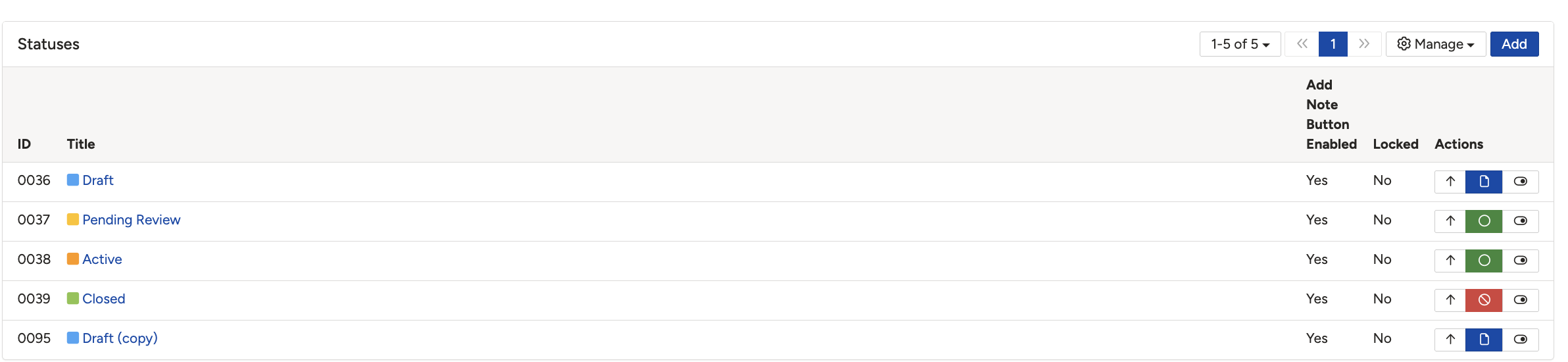
The Statuses list, with the Locked column showing which statuses lock records.
Changing a status from locked to unlocked
- In the Statuses list, click the title of the status you want to change. The Edit Status panel opens.
- Change Locked from Yes to No. The panel confirms that items cannot be edited or deleted while in a locked status.
- Save your changes.
- If you unlocked the status only so a correction could be made, set it back to Yes once the work is done.
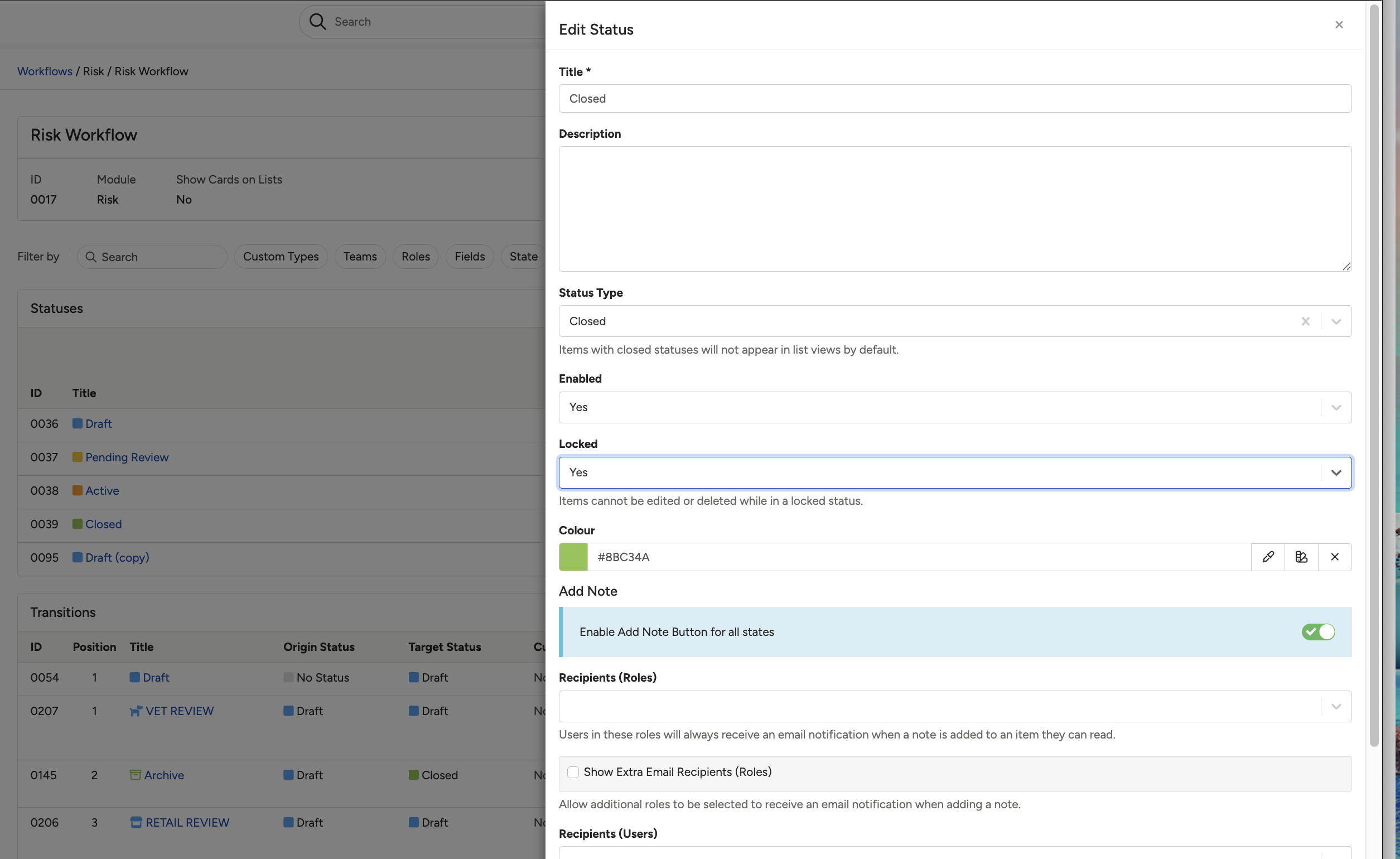
The Edit Status panel, where Locked is switched between Yes and No.
Locked is not the same as Closed
These two settings often apply to the same status, which is why they get mixed up, but they do different things.
| Setting | Where you see it | What it does |
| Locked | The Locked column in the Statuses list, and the Locked dropdown in Edit Status | Stops records in that status being edited or deleted. This is the setting behind the problem in this article. |
| Status Type | The Status Type field in Edit Status, and the coloured icon in the Actions column | Marks the status as Open or Closed. Items with a closed status do not appear in list views by default. It does not lock anything. |
Hovering the icon in the Actions column tells you which type a status is.
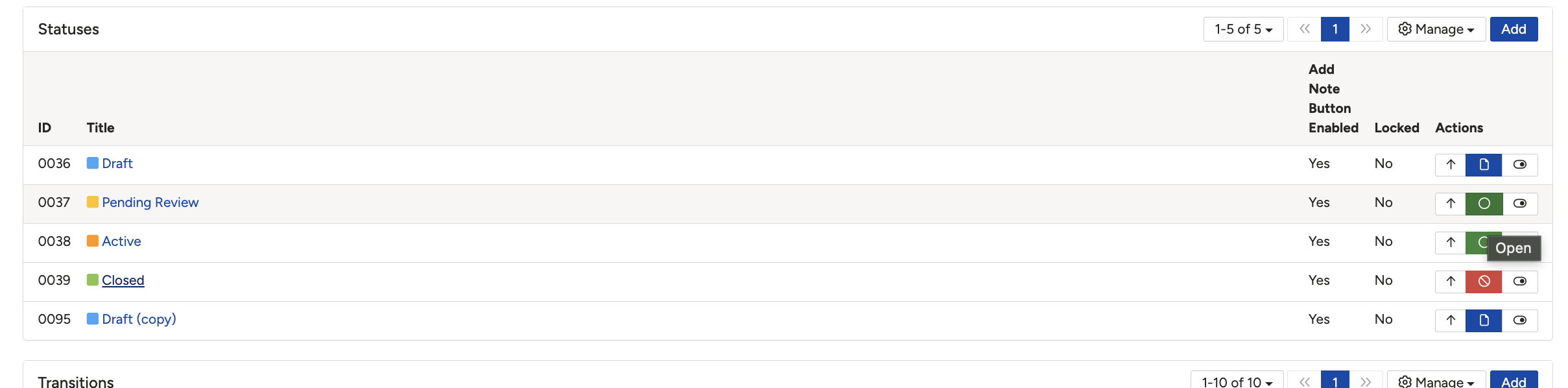
Hovering the Actions icon on a status shows its type. Green reads Open.
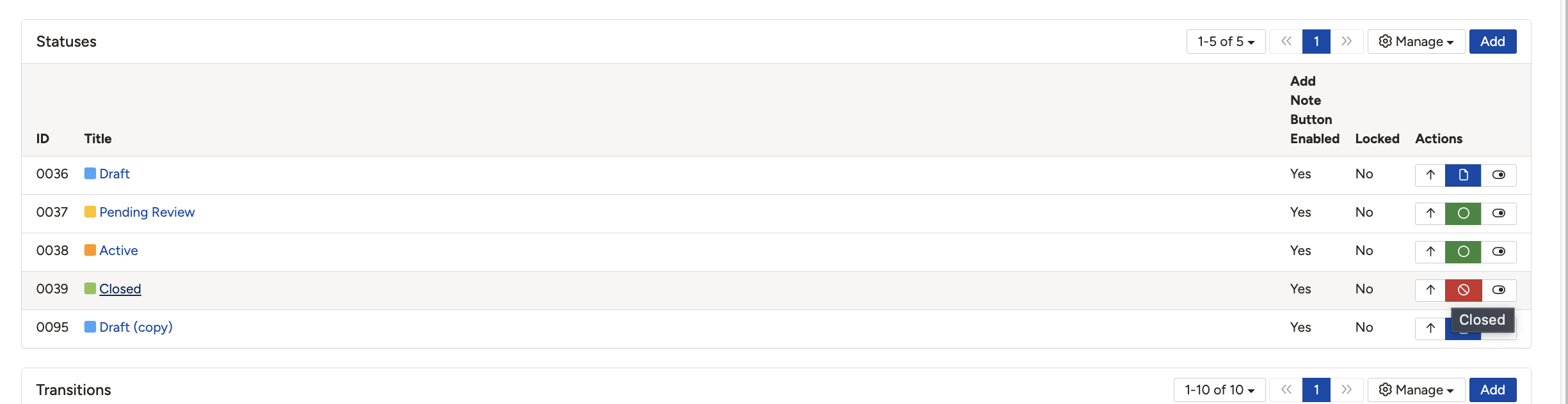
The same icon on another status reads Closed. This is the status type, not the lock.
5. Common Issues & Troubleshooting
| Issue | Likely Cause | Solution |
| You cannot edit a record and there is no obvious reason why | The record is in a status configured to lock it | Check the status on the record, then use a workflow button to move it to an unlocked one. |
| The status is unlocked but you still cannot edit | This is a permissions problem rather than a lock | Check whether you hold access through a group, a role on the record, or a share. |
| There is no button to move the record out of its status | The transition exists but is restricted to a role or team you are not in | Ask the record owner, an approver or a system administrator to move it for you. |
| A colleague can edit the record but you cannot | They moved it, so it is no longer in the locked status | Refresh the record and check the current status before assuming a permissions problem. |
| Records lock at a point in the process where they should not | The wrong status has been set to lock in the workflow configuration | A system administrator should open the status in Admin > Workflow and set Locked to No. |
Best practices:
- Prefer moving the record over unlocking the status. Unlocking affects every record sitting in that status.
- If you do unlock a status temporarily, set it back as soon as the correction is made.
- Add a note explaining why a record was reopened or unlocked, so the change has a reason attached to it.
- Lock only the statuses that genuinely represent a checkpoint or a finished state. Locking mid-process statuses creates work rather than control.
- Make sure at least one route out of every locked status is available to somebody, or records will strand there.
▾Workflow Statuses: Overview & Functionalities Open full article »
Related article
What each workflow status setting does, including Locked and Status Type, and who can manage them.
▾Workflow Transitions Open full article »
Related article
How the buttons that move a record between statuses are set up, and how access to them is restricted.
Was this article helpful?
That’s Great!
Thank you for your feedback
Sorry! We couldn't be helpful
Thank you for your feedback
Feedback sent
We appreciate your effort and will try to fix the article